
GPD Win 5 Setup Guide
Buying through this link supports the channel at no extra cost to you.
Buy the GPD Win 5Table of contents
- Recommended Accessories
- Windows Settings
- Update AMD drivers
- BIOS update (optional)
- Motion Assistant
- Recommended Motion Assistant Settings
- Per-Game Motion Assistant Settings
- Improve sound
- How to factory reset/reinstall Windows
- How to park cores (Max+ 395 version)
- Recommended Emulators
- RetroArch – For PlayStation 1 & Under
- Azahar – For Nintendo 3DS
- Dolphin – For Nintendo GameCube & Wii
- RPCS3 – For Sony PlayStation 3
- shadPS4 – For Sony PlayStation 4
- XEMU – For Microsoft XBOX
- Xenia Canary – For Microsoft Xbox 360
- ROMs/BIOS
- Organizing ROMs/BIOS & File Types
- How to find your saves & states
- Setting up Syncthing
- How to setup streaming to your device
- Linux Settings – Bazzite
- Hotkeys
- Disable CPU Boost
- Syncthing on Bazzite
Recommended Accessories
- MicroSD Card: 512GB or 1TB (You’d probably want the largest you can afford)
- SSD Replacement: 4TB NVME 2280
Windows Settings
Update AMD drivers
Head over to AMD’s website and install Adrenalin to update drivers: https://www.amd.com/en/support/download/drivers.html
BIOS update (optional)
Droix has the best guide for updating BIOS, which you can find here: https://droix.net/knowledge-base/article/how-to-update-the-gpd-win-5-bios/?utm_source=socialmedia&utm_medium=link&utm_campaign=GPDWIN5_BIOS
Updating the BIOS is necessary for Bazzite to work.
Motion Assistant
GPD Win 5’s ship with a program called Motion Assistant that handles your TDP, fan curves and more.
If you ever want to update it, you can find it on this page – https://www.gpd.hk/gpdwin5firmwaredriver.

Recommended Motion Assistant Settings
TDP Tab
- Set AC TDP & DC TDP or Unify – AC TDP is the TDP you want when plugged in, DC TDP is what you want when unplugged, or you can check Unify AC/TDP to use the same TDP for both. Make sure to click Apply to save.
- Auto Limit TDP & FPS Limit – if you set an FPS limit like 60FPS and check Auto Limit TDP, then MA will auto change your TDP to whatever TDP is needed to run your game at 60FPS.
- Check Disable CPU Boost – CPU Boost is awful for handhelds, turn this off.
- Check Enable Fan Speed and choose Fan 1 – personal preference, Fan 1-4 is different curves, choose what you like best.
RTSS OSD Tab
- Check Change OSD – give this a hotkey, I like to use CTRL+0 – using this with a game open will cycle through the RTSS OSD to show FPS, and game information, super useful. Needs RTSS installed.
Advanced Tab
- Check Start with windows and Minimized to tray
Per-Game Motion Assistant Settings
Open whatever game you want to have custom settings for.
Then, in MA, under the Process Profile section on the left, choose Bind and select that game’s process.
Select that process now on the left, and any changes you make to TDP, settings etc. will only apply to that game or app.
Improve sound
Search for DTS X Ultra in the taskbar.
Set the content mode to voice.
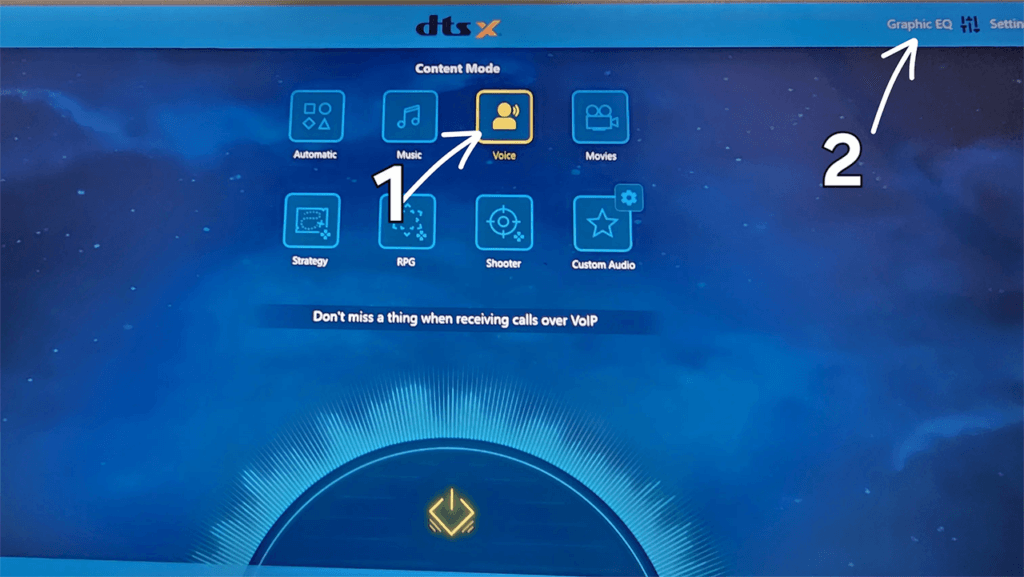
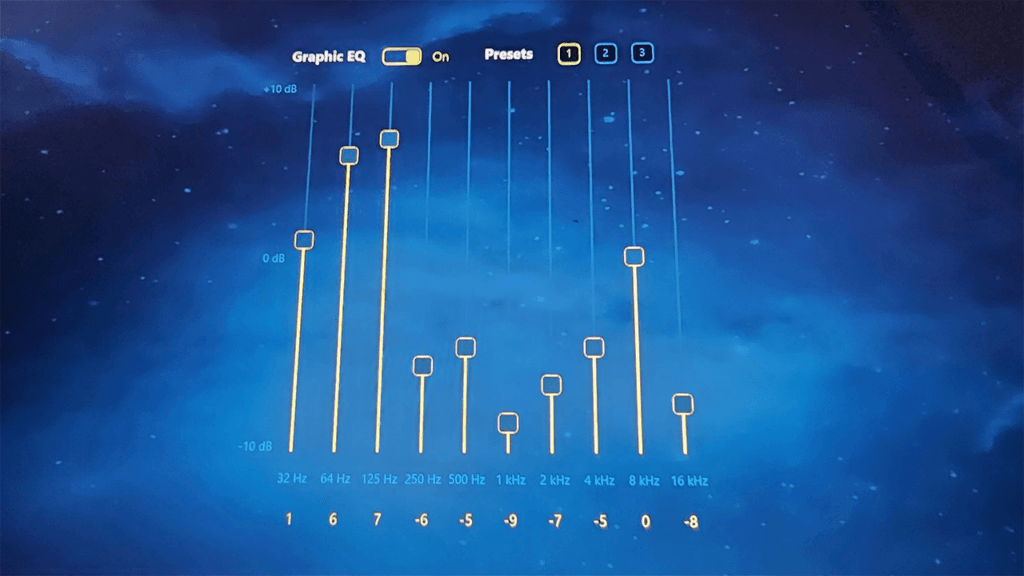
Head to Graphic EQ top right and copy the below settings.
How to factory reset/reinstall Windows
Unfortunately, since the Windows image is a custom GPD Windows image, you can’t just head to Settings and choose factory reset like you normally would on a Windows device.
Instead, head to GPD’s website and you can download their image, which you’ll need to flash to a USB drive and use to re-install Windows.
How to park cores (Max+ 395 version)
First, you need to enter the BIOS and the easiest way I’ve found is to connect an external keyboard and spam the ESC button during boot.
Switch to Advanced > AMD Overclocking > Accept > Manual CPU Overclocking > CPU Core Count Control.
Head to CCD 00 Bit Map Down Core Control.
Now, you have 8 spots and each 1 is a core.
For the 395, 4 or 6 cores active would be a good suggestion, so go ahead and type 1 1 1 1 0 0 0 0 for CCD 00 for 4 cores, or 1 1 1 1 1 1 0 0 for CCD 00 for 6 cores.
When you’ve done that, head down to Bit Map Down Core Apply Changes to apply.
Recommended Emulators
RetroArch – For PlayStation 1 & Under
For RetroArch, you want to use the Download (64bit) option from RetroArch’s website.
Here’s what we will use RetroArch for:
- Atari 2600: Stella
- Atari 5200: Atari800
- Atari 7800: ProSystem
- Atari Lynx: Mednafen (Beetle)
- Arcade: FinalBurn Neo
- Nintendo Entertainment System: FCEUmm
- Nintendo Game Boy Advance: mGBA
- Nintendo Game Boy/Game Boy Color: Gambatte
- Nintendo 64: Mupen64Plus-Next GLES3
- Nintendo DS: MelonDS DS
- Sega 32X: PicoDrive
- Sega Dreamcast: Flycast
- Sega Genesis/Master System/Game Gear/CD: Genesis Plus GX
- Sega Saturn: Beetle Saturn
- Super Nintendo Entertainment System: Snes9x
- Sony PlayStation 1: SwanStation
Click here for my RetroArch setup guide
Azahar – For Nintendo 3DS
For Nintendo 3DS emulation, the best and current version is Azahar.
Click here for my Azahar setup guide
Dolphin – For Nintendo GameCube & Wii
For Nintendo GameCube and Wii emulation, the best and current version is Dolphin.
Click here for my Dolphin setup guide
RPCS3 – For Sony PlayStation 3
For Sony PlayStation 3 emulation, the best and current version is RPCS3.
Click here for my RPCS3 setup guide
shadPS4 – For Sony PlayStation 4
For Sony PlayStation 4 emulation, the best and current version is shadPS4.
Click here for my shadPS4 setup guide
XEMU – For Microsoft XBOX
For Microsoft XBOX emulation, the best and current version is XEMU.
Xenia Canary – For Microsoft Xbox 360
For Microsoft Xbox 360 emulation, the best and current version is Xenia Canary.
Click here for my Xenia Canary setup guide
ROMs/BIOS
If you’re looking for where to find ROMs and BIOS files, this video will help you.
If you’re looking for where to find BIOS files, this video will help you.
Also, for the best BIOS files, you can see this list here: https://joeysretrohandhelds.com/guides/recommended-bios-files/.
Organizing ROMs/BIOS & File Types
If you’re curious what the best file types are for your ROMs, or how to organize everything, then this page will help: https://joeysretrohandhelds.com/guides/recommended-file-types-for-roms/.
How to find your saves & states
If you’re looking for your saves & states, you can find a list of emulators and where they are here: https://joeysretrohandhelds.com/guides/where-to-find-save-files-for-every-emulator-and-custom-firmware/.
Setting up Syncthing
How to setup streaming to your device
Linux Settings – Bazzite
Hotkeys
Menu button opens the Steam left side menu.
Keyboard button opens the Steam Quick Access Menu.
Spam the keyboard button to access the Handheld Daemon (HHD)
Disable CPU Boost
CPU Boost is enabled by default in Bazzite, let’s turn it off because it’s awful.
Open HHD > TDP > scroll down and change CPU Settings to Manual > CPU Boost set to Disabled.
Syncthing on Bazzite
You can find the instructions on this page: https://www.joeysretrohandhelds.com/guides/syncthing-for-handhelds-guide/#SteamOSBazzite.