
MelonDualDS (MelonDS) Android Setup Guide
Table of contents
- Best devices for NDS on Android
- ROMs
- Installing MelonDualDS
- Adding your games
- Settings
- General
- ROMs
- Save Files
- Video
- Dual Screens
- Fixing Pokemon Games
- Audio
- Controls
- RetroAchievements
- Per-Game Settings & Details
- In-Game Menu
- Dual Screen Presets
- RetroArch Shaders
- Custom Drivers
- DSiWare Games
- Cheats
- Widescreen
- Convert 16:10 codes to 16:9
- Syncthing
Best devices for NDS on Android
If you’re curious what the best devices are, here’s a few of my top picks:
- Snapdragon 8 Elite Device! AYN Odin 3 – (Review)
- Best All-Rounder Device! AYN Odin 2 Portal – (Review)
- Dual Screen Device! AYN Thor – (Review)
ROMs
You’re going to need ROMs for today’s guide – for many reasons, I can’t help you with how or where to get them.
Nintendo DS ROMs are either in a ZIP or NDS format – either of which are perfectly fine to be used.
As for organizing these files, I would create a ROMs folder on your device or SD card if you have one connected and then create an nds folder and put all of your games inside of it.
Now, if you want to play any DSiWare games, which is optional, you will also need the BIOS files for DS and DSi.
BIOS files are system files that MelonDualDS needs to run the DSiWare games.
We’ll cover this in a later section as not many people care about playing DSiWare games.
Once again, all of this can be done directly on your Android device just using any file manager and web browser.
Installing MelonDualDS
There’s a lot of versions of MelonDS out there, but the best one is the MelonDualDS fork by SapphireRhodonite on Github.
It is the most up to date, has the most features and is the only version that I recommend and support.
As of today’s guide, I would highly suggest the latest pre-release which is version 0.7.0 release candidate 4. I normally don’t suggest pre-release, but there have been massive updates and changes since the last stable release so you should use it.
Head to the Assets section of the latest release and download the APK file.
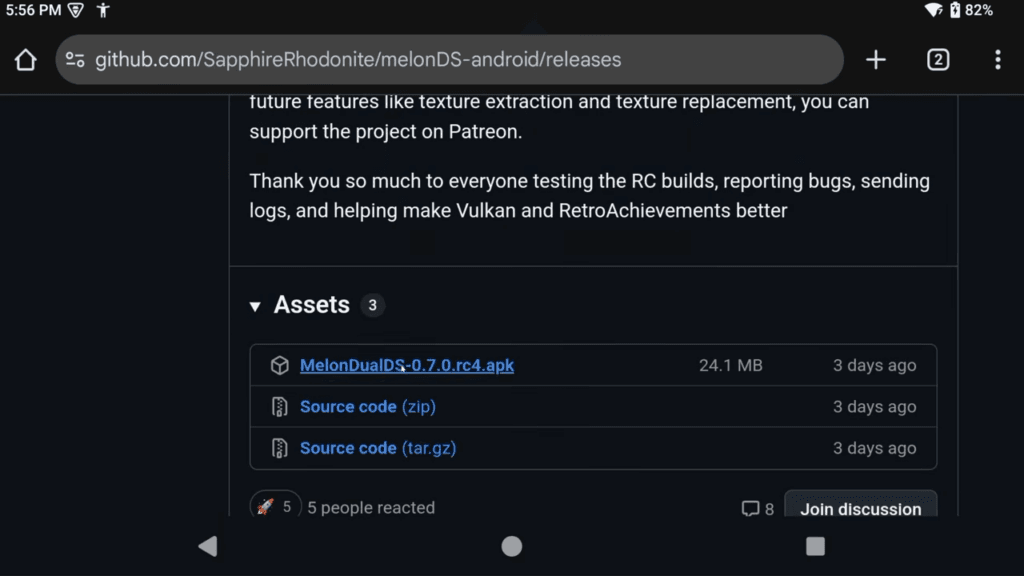
Go ahead and open the APK and install the app then open the app.
Adding your games
The first thing it’s asking for is for you to select your ROM directory, and ROMs is just another name for games, so it’s asking, where are your Nintendo DS games located?
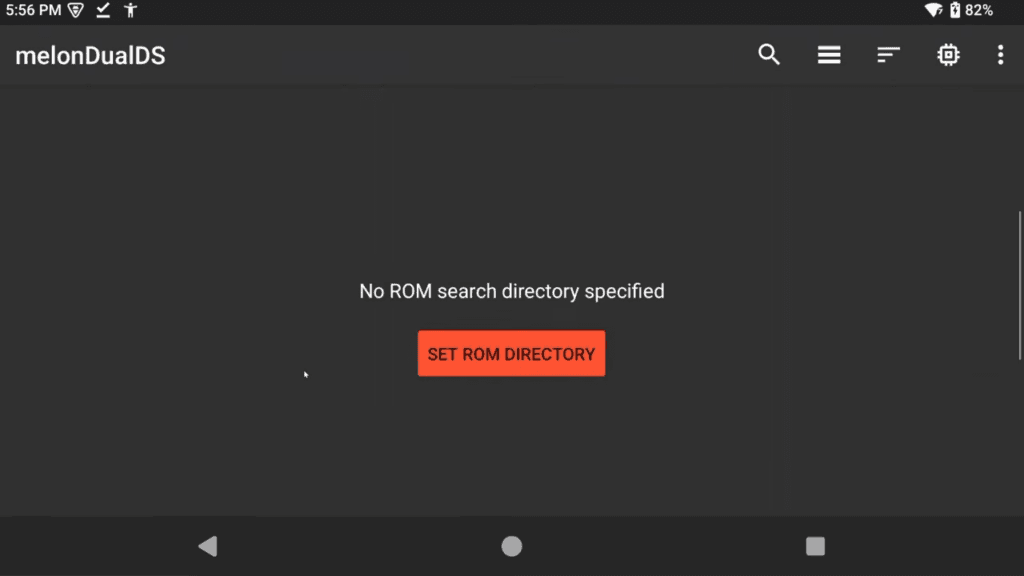
Well, we did this earlier, they are on our internal storage or SD card, Roms folder, nds folder, so select that.
You should now see them all populate inside of MelonDualDS.
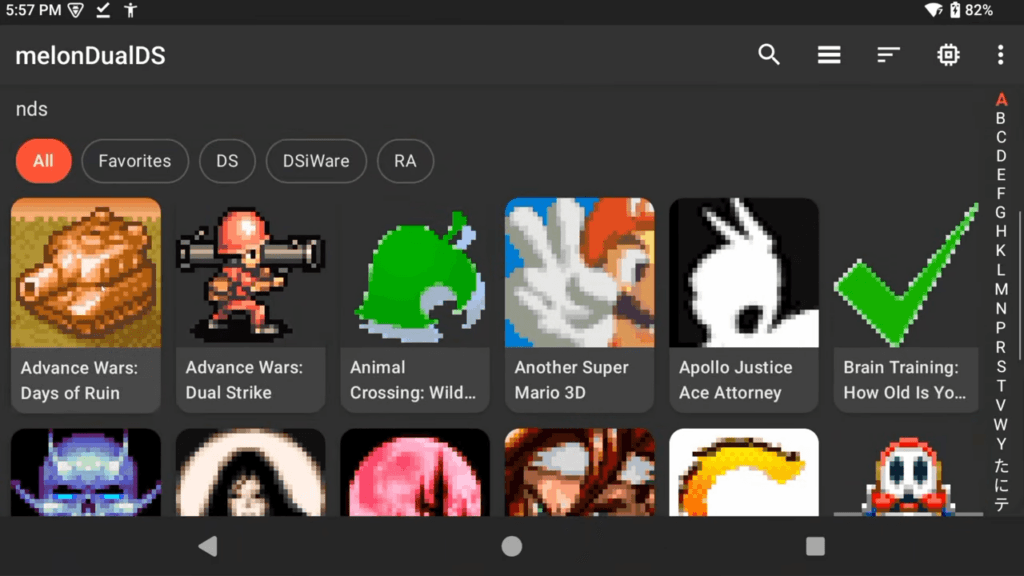
You can also filter your games if you want by Favorites, DS, DSiWare or RetroAchievements.
Just long press any game to add them to Favorites.
Settings
But first, let’s go to the three dots top right and Settings.
General
Then head into General.
The only change I make here is Fast-forward max speed – basically, if you leave this as unlimited and have a very powerful device, when you use fast forward it could be way too fast, so I like to cap this to 3x.
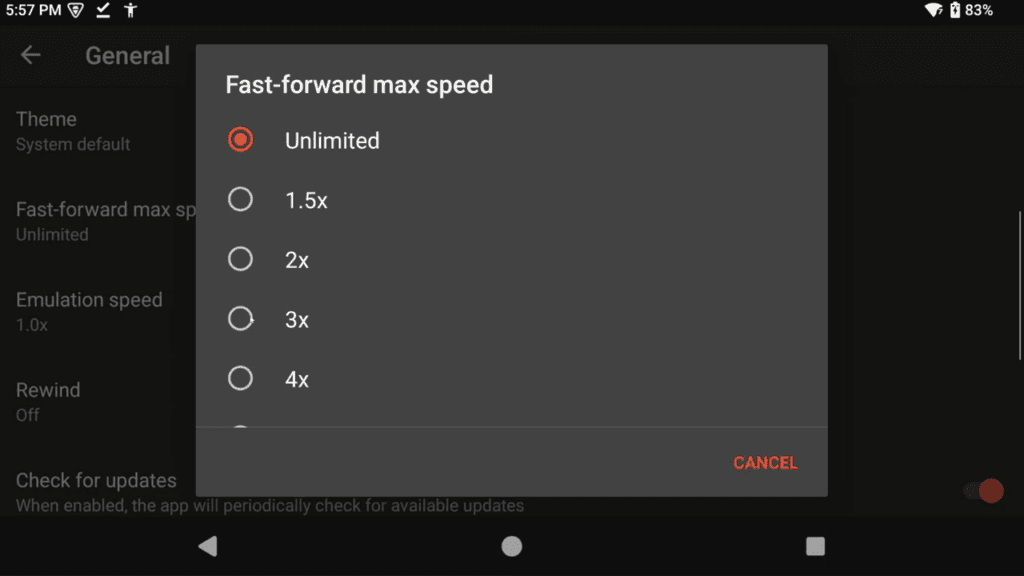
This is up to you, personal preference and only really needed for powerful devices.
ROMs
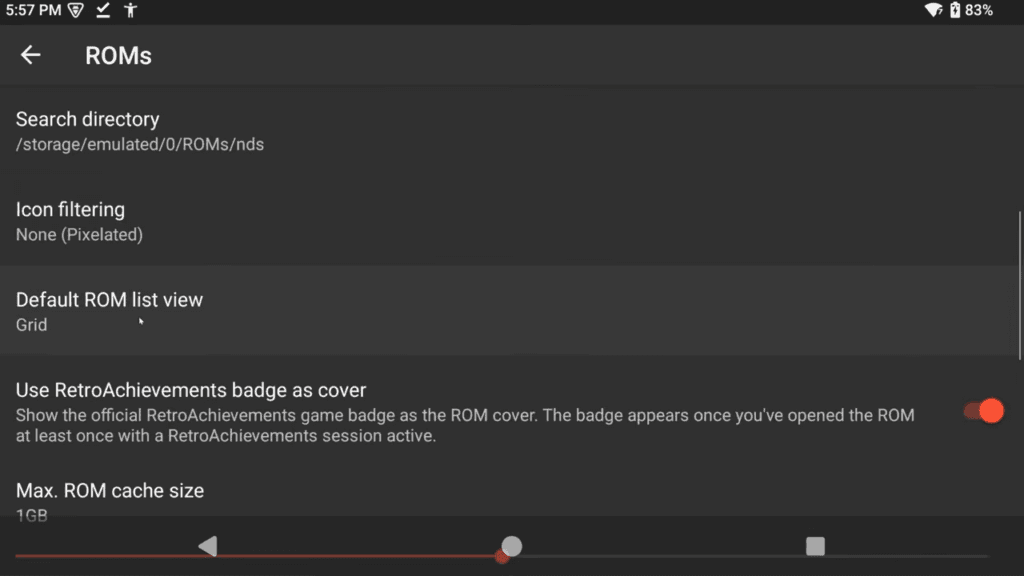
Back out and into the ROMs section, and if you prefer seeing your games in a List instead of Grid, you can make that change here otherwise no reason to touch anything.
Save Files
Back out and into Save Files and this is important.
By default, all of your game saves will be generated next to your ROM files, so in the same nds folder we created earlier.
If you want that, no need to change anything, but I prefer having my save files separate and in their own folder.
So I like to uncheck Save next to ROM file, and now click Save file directory and I create a folder called MelonDualDS either on my internal storage, or SD card if I have one. Then select use this folder.
Now all my saves and state files will be in that folder.
I also like to enable Use .srm save extension as that makes my saves compatible with RetroArch if I ever want to move them.
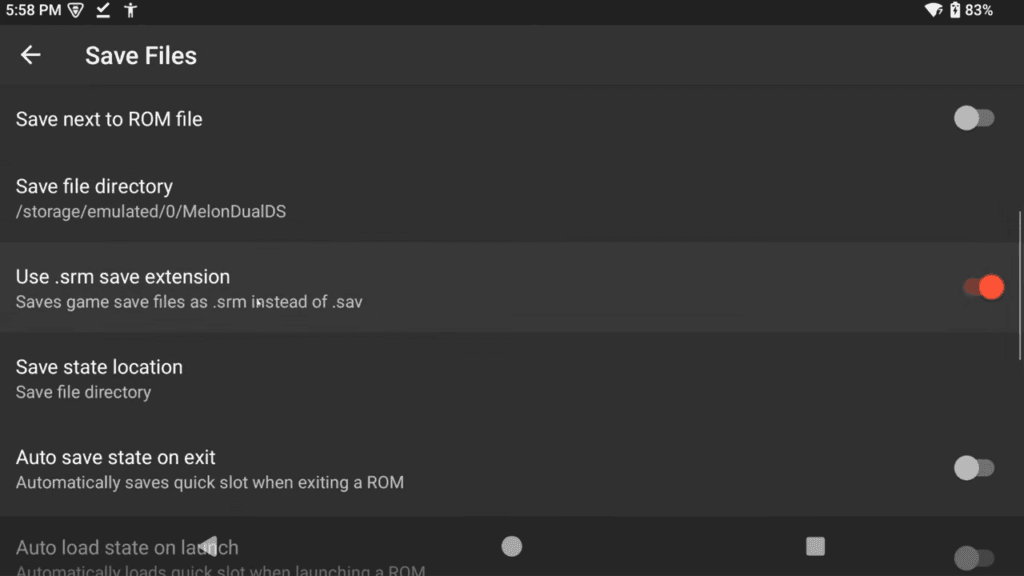
You can choose where your save state files get generated, which I leave as the save file directory where my saves are.
Lastly, there’s two additional options here to automatically save a state on exit and load into a state on launch.
I wouldn’t suggest these, but you can use them if you want.
Video
Let’s head into Video.
MelonDualDS as of this video has Vulkan support for a renderer, but it’s still early days.
I do imagine this will be the default option in the future, but I’d suggest OpenGL for now unless you want to play around with Vulkan.
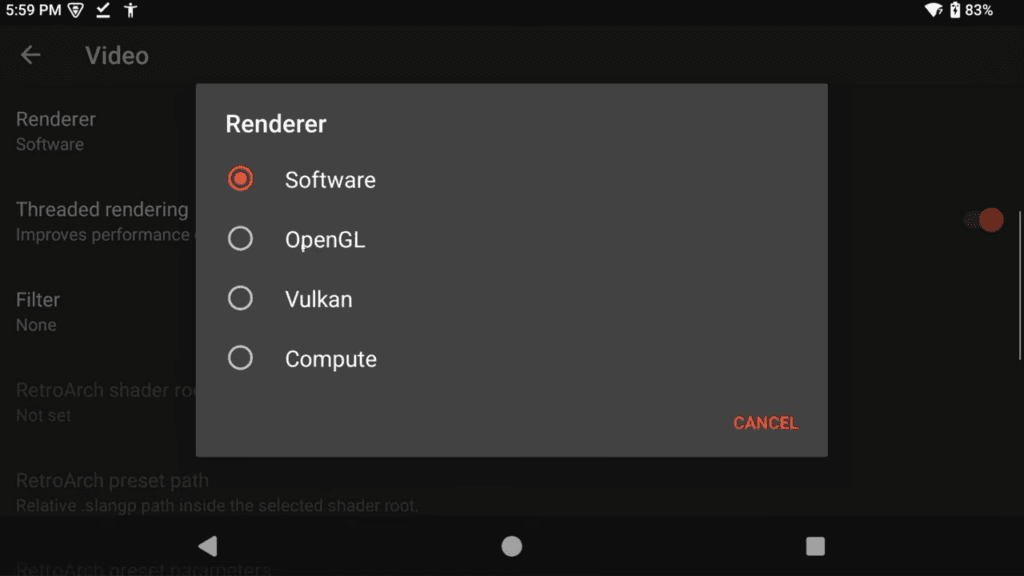
Vulkan does have some benefits that we’ll cover later in this guide.
You can also set the Internal resolution for upscaling and this will depend on your device’s power.
I do like 3x for my AYN Thor, but you can go all the way up to 8x if you wanted to. Just lower this if games aren’t running well.
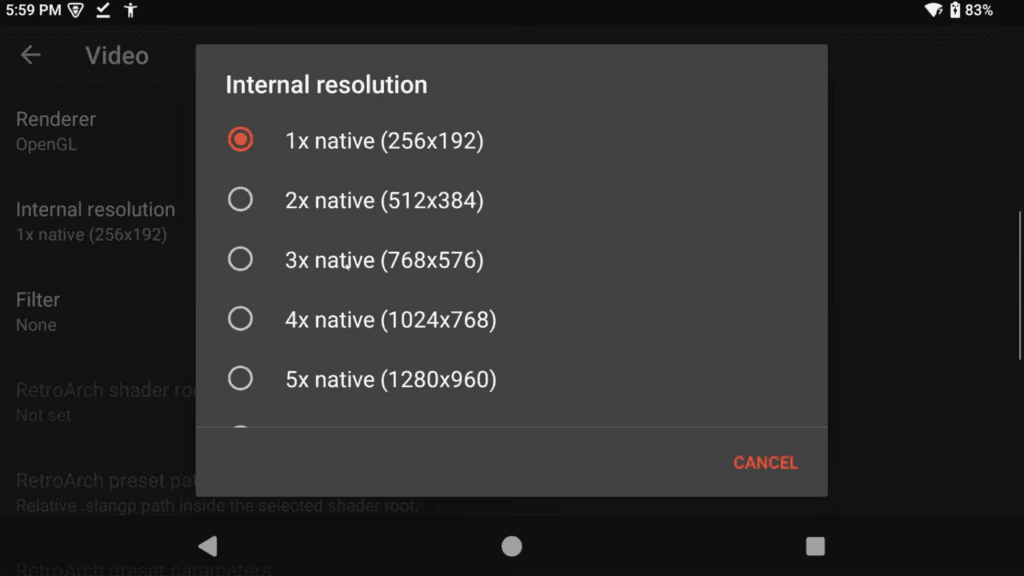
We can adjust both of these on a per-game basis later, so it’s good to set a good baseline here for all games to run, and then adjust later per-game.
If you want to use shaders, click Filter and choose one of the built-in shaders.
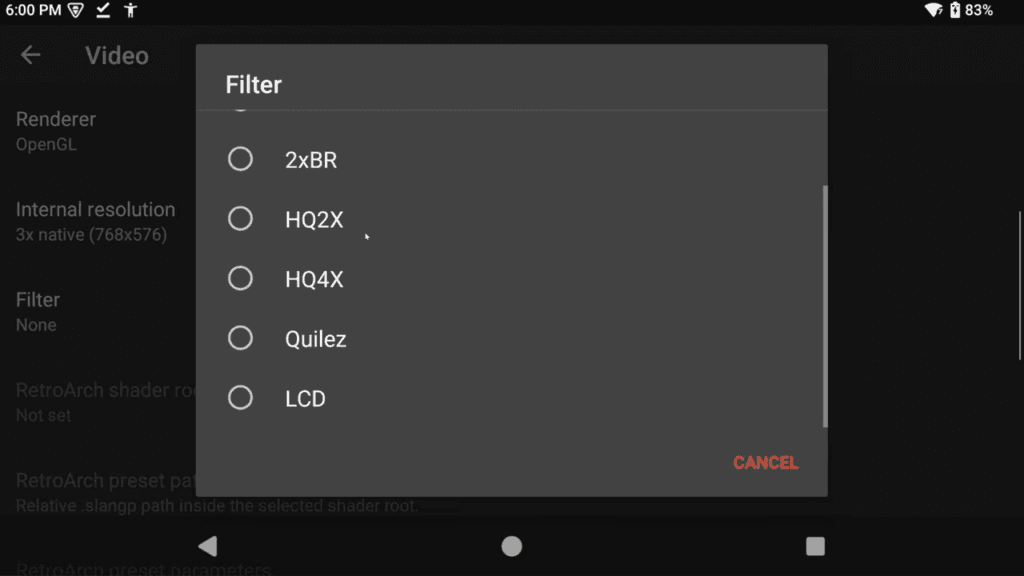
Or you can use RetroArch shaders, but it’s a bit more complicated and we’ll cover it later.
Dual Screens
Next up we have Dual screen presets and this is for anyone using a dual screen device otherwise you can ignore it.
So for AYN Thor users, select it and then you want to set it to Internal: Top, External: Bottom – this may be the other option on other dual screen devices, but for the Thor it’s this.
Then, I prefer to turn on Keep DS aspect ratio to avoid any stretching.
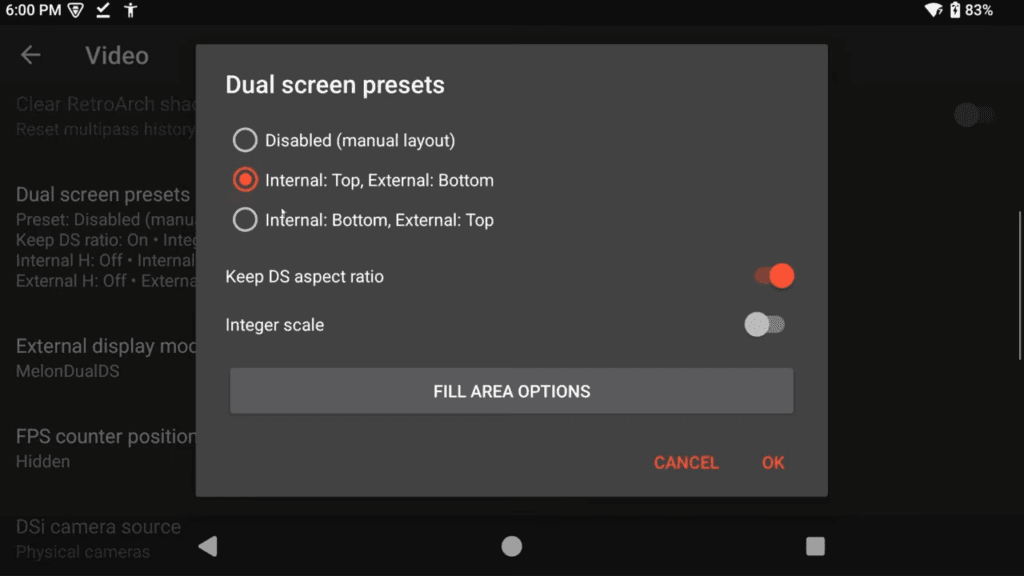
And also I like to turn on integer scale for accurate pixels.
Both of these are personal preference, and I’ll show you in a little bit how we can adjust these and the other two settings below in-game which makes it easier to see what this all does.
Click OK.
If you want to see how games are running, turn on FPS counter position.
Fixing Pokemon Games
Scroll down and you want to turn on Conservative coverage fix and set the Coverage expand to 150 and then Apply to repeat.
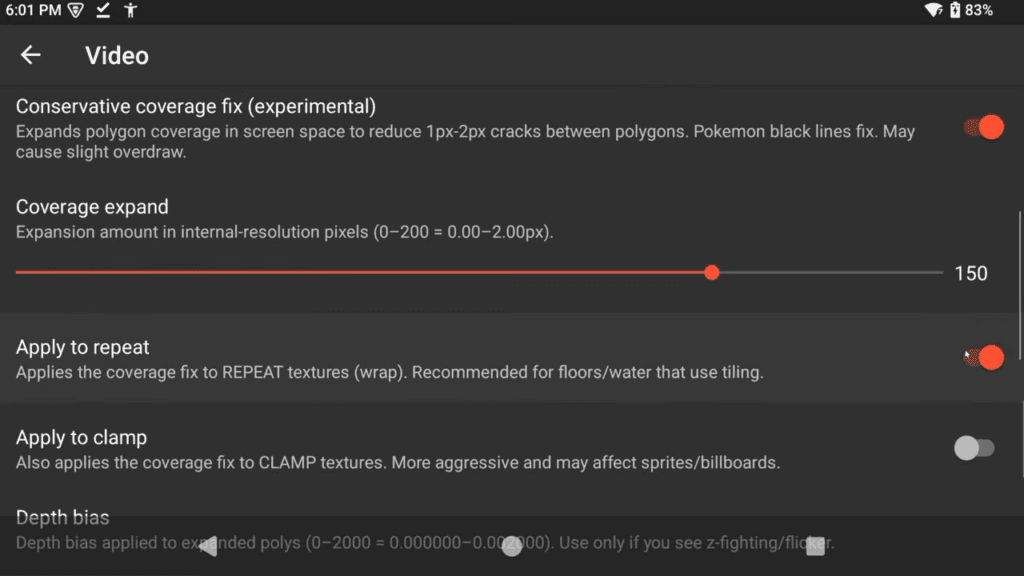
Now, this fixes a black lines issue in Pokemon games and unfortunately we can’t set this on a per-game basis.
I haven’t seen it have any negative effects in any games, so I think it’s safe to apply globally, but if you do see graphic issues in anything, come turn this off to double check.
I’ve had this on for months and played tons of games, so it seems okay. Back out.
Audio
Head to Audio.
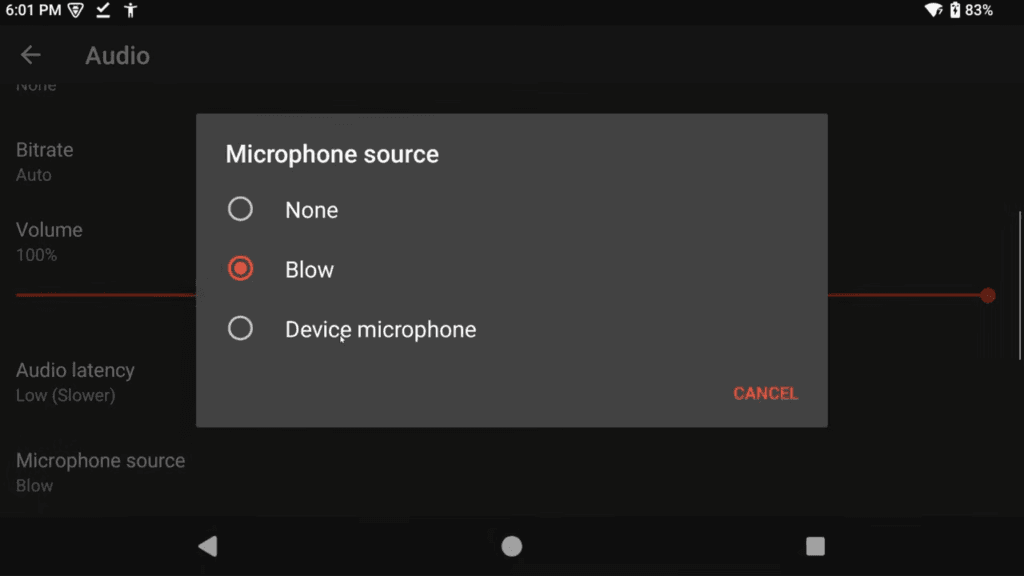
If your device has a microphone and you want to use it in games, change Microphone source to Device microphone and then allow the permission popup. Back out.
Controls
Let’s head to Input.
And then into Key mapping.
It may have been done automatically, which is great if so, but let me show you how to map controls in case the buttons weren’t mapped correctly or it didn’t map at all.
If there’s a mapping already, you will have to click the X on the right to clear it otherwise it will double up inputs – it doesn’t overwrite.
Then just go one by one, mapping a Nintendo DS controls to your handheld or controller.
For Left, right, up and down – I map the dpad first, and then without clearing it, I map the left stick on top.
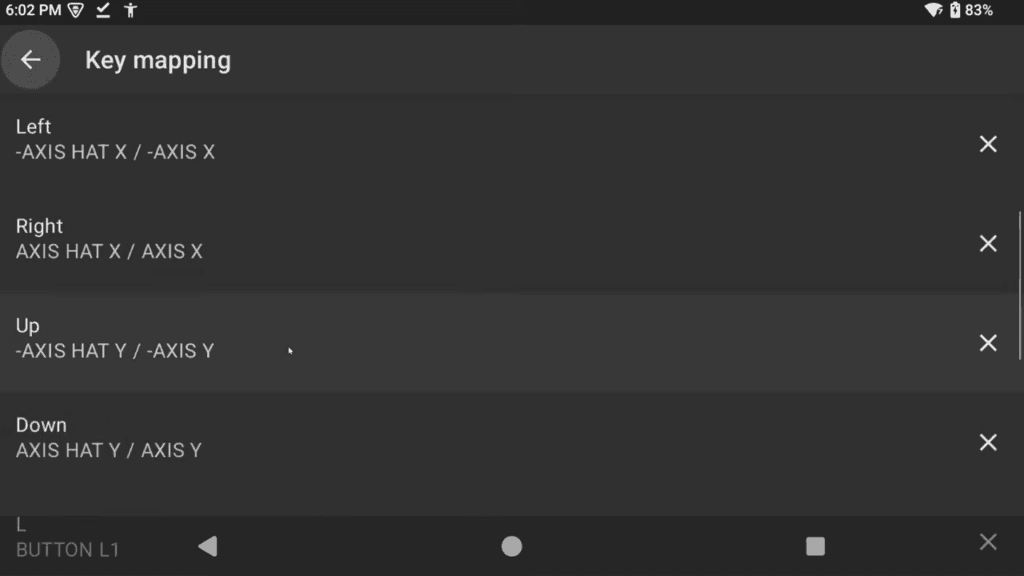
If you never want to use the left stick, you can ignore this, but I like having the option.
Then we get to the hotkeys, and for Pause, I use my device’s back button – you may want to use L2.
For Fast Forward Toggle, I use R2.
For Toggle Microphone, it’s up to you, but L3 could work.
For Swap Screens, you could use R3.
And that’s all I personally map, there’s no combo hotkeys as of right now so we have to be picky.
Back out.
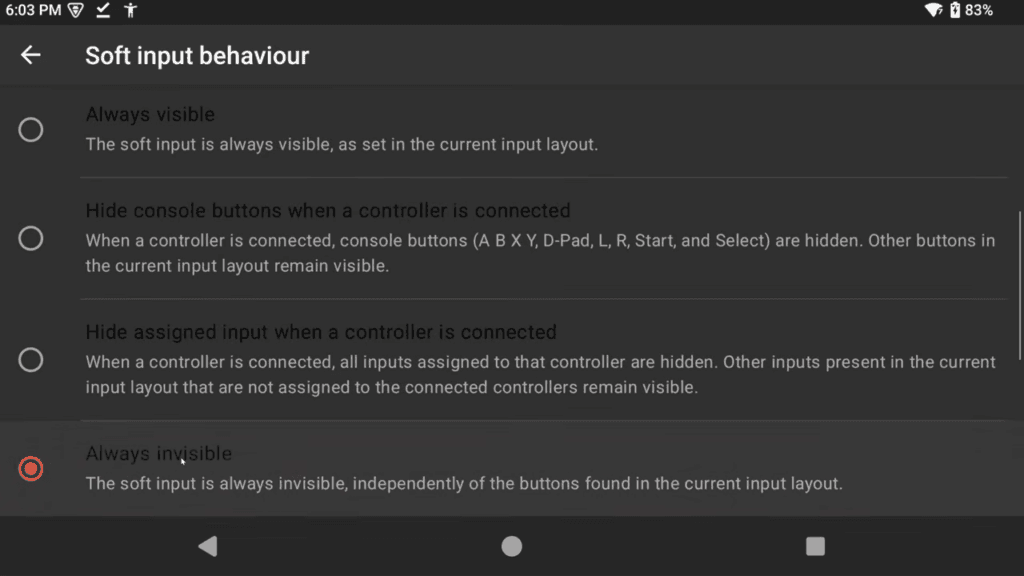
If you’re using a handheld or controller, click Soft input behavior and change it to Always invisible to remove the on-screen controls at the top.
RetroAchievements
Back out and into RetroAchievements.
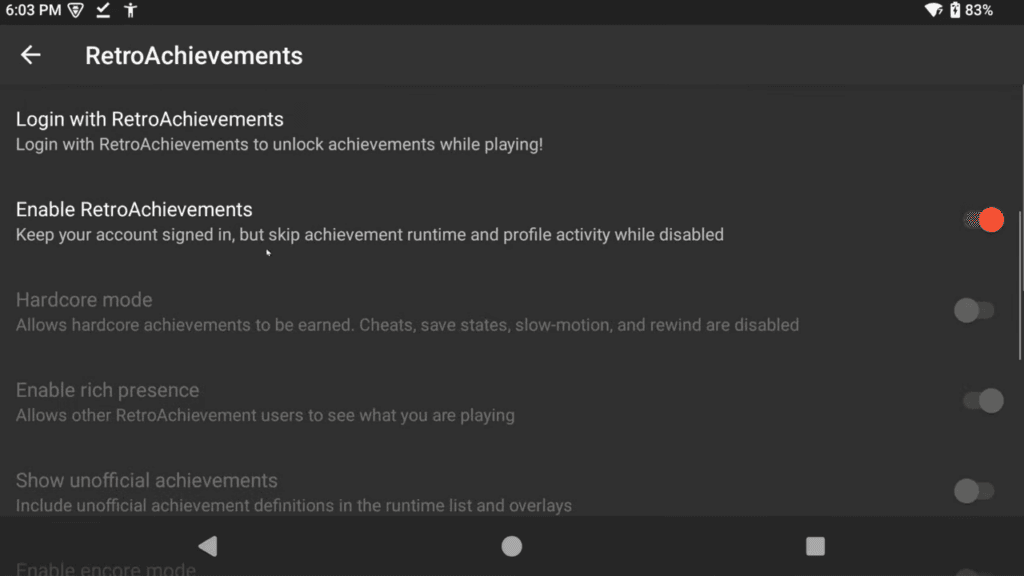
If you use RetroAchievements, you can login with your information here.
Per-Game Settings & Details
Back all the way out to the main menu and push and hold on a game and choose Details.
Under Configuration, this is all per-game settings.
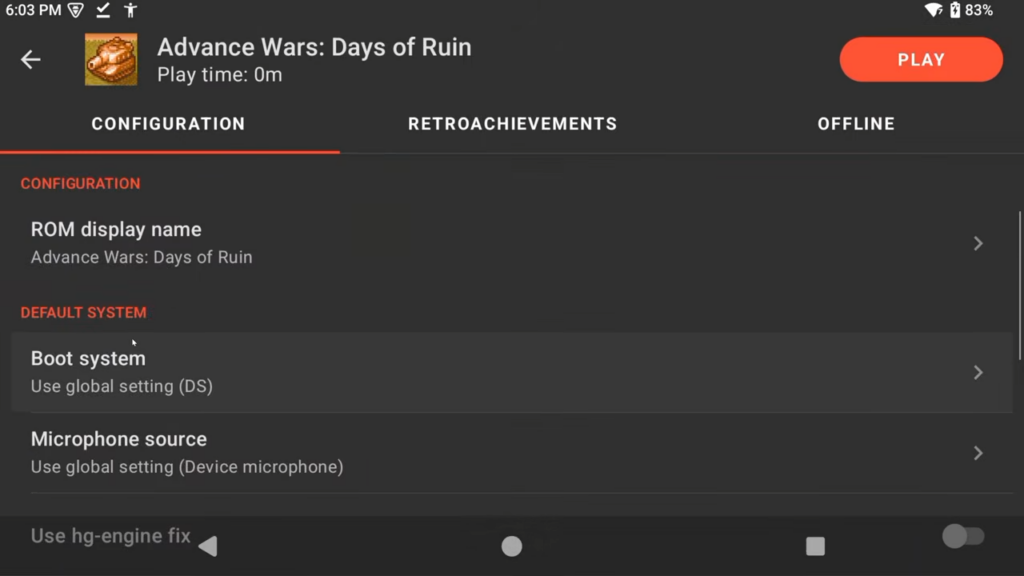
So you can set the Microphone source to something else, you can enable hg-engine fix which is for hg-engine Pokemon games, you can set the renderer for this game or the upscaling, the shaders, the controls and so on.
For any games that require a GBA slot, you can select that too at the bottom.
If it’s a GBA ROM that’s needed, click GBA ROM path and navigate to the GBA ROM.
And for save path, navigate to where the GBA ROM save is.
On the next tab you have your RetroAchievements at a glance.
And lastly, since MelonDualDS has offline RetroAchievements support, you can see if you have any pending offline achievements to sync.
You can click Sync Now if you do.
In-Game Menu
Alright click Play top right to start the game or from the game grid, just tap a game.
You can now play, but if you swipe up and hit the back arrow, or back gesture or back button on your handheld or if you hotkeyed the Pause button, you can get the in-game menu.
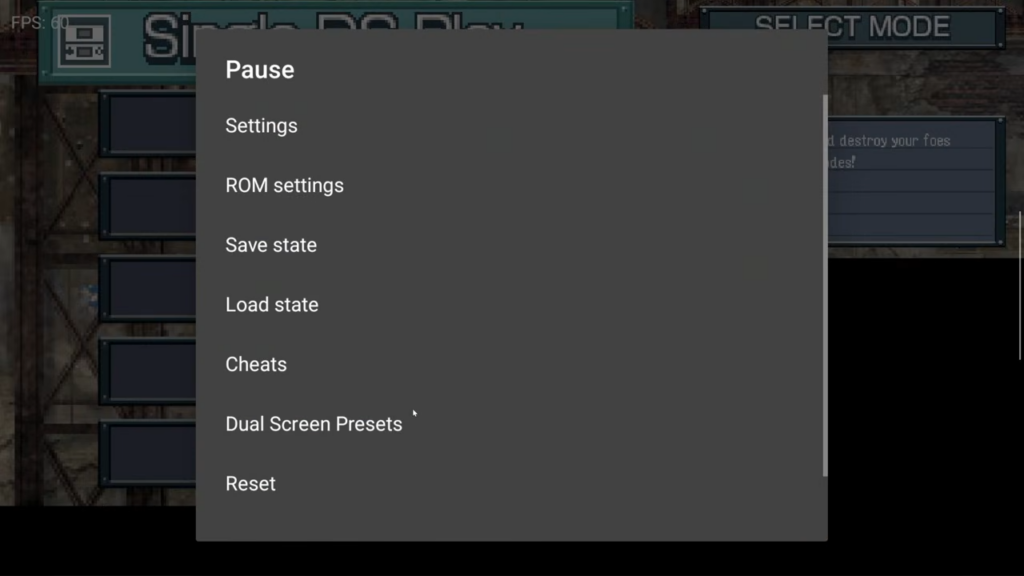
Settings will bring you back to the settings screen to adjust global settings.
ROM settings will change for this specific game only.
You can save state or load state and we’ll talk about cheats soon.
Reset mimics turning the game off and on and Exit exits the game.
Dual Screen Presets
But for dual screen devices, as promised earlier, click Dual Screen Presets.
We set this up earlier, but now you can toggle and see what each option does with a game in the background.
We can now head into Fill area options and this let’s you stretch either height and width on each individual screen individually. I don’t use this.
For vertical alignment options which may be slightly cut off, you can set where the screens are in their display, so I prefer center, but some may want the top on bottom and bottom on top and so on.
RetroArch Shaders
Head back to Settings > Video and if you want to use RetroArch shaders, you need to use Vulkan and then set the Filter to RetroArch.
In RetroArch, you’ll have to set your Video Shaders directory to somewhere on your internal storage or SD card, so you can create a folder called Shaders on your internal storage and then choose to use that folder in RetroArch.
Just head to Settings > Directory > Video shaders and then choose Parent Directory all the way up til you see storage/emulated/0 for internal storage, and then you’ll see the Shaders folder and then Use this directory.
Head to Online Updater, and Update Shaders.
When it’s done, back to Configuration File, Save Current Configuration and exit.
In MelonDualDS, change RetroArch shader root to that Shaders folder.
And then in RetroArch preset path, you want to select the shader you want to use.
Boot up a game and enjoy your shader.
Custom Drivers
While we’re here and have Vulkan enabled, you can also use custom drivers now with MelonDualDS.
With Vulkan enabled, scroll down to Vulkan driver and this only applies to Snapdragon devices.
But, with your own custom driver either from Mr Purple’s Turnip Drivers, or Kimchi or elsewhere, you can choose Import custom driver, navigate to and select your custom driver, and then under Adreno Vulkan drivers just make sure it’s selected to use it.
Theoretically, this should help improve performance and compatibility which you wouldn’t imagine is needed for DS games, but hey, improvements are improvements.
DSiWare Games
If you want to play DSiWare games, it’s pretty easy.
Besides needing DSiWare ROMs, you’re going to need BIOS files for both DS and DSiWare for the games to work.
For the ROMs, just put them into the same nds folder you were using for DS games.
DSiWare ROMs cannot be zipped like DS games – you will have to unzip the ROMs for them to work.
In your ROMs folder, create a folder called BIOS if it doesn’t exist already and then create two folders: DS and DSi.
Inside of the DS folder, you are going to need the following BIOS files:
- bios7.bin
- bios9.bin
- firmware.bin
Inside of the DSi folder, you are going to need the following BIOS files:
- bios7.bin
- bios9.bin
- firmware.bin
- nand.bin
Despite the fact that both DS and DSi’s BIOS files have the same names – they are entirely different. You can’t use DS BIOS files for DSi or vice versa. So you will need DS BIOS files and DSi BIOS files and separated into the two folders like explained above.
Then, open MelonDualDS and head to Settings top right with the three dots.
Go to System and then Custom BIOS and firmware.
For DS BIOS directory, select it and then navigate to your BIOS folder and the DS folder.
For DSi BIOS directory, select it and then navigate to your BIOS folder and the DSi folder.
You’ll know you’ve done it correctly if there’s no yellow or red error triangle to the right.
Head back to the main MelonDualDS screen and the three dots top right and then DSiWare Manager.
Click the Plus icon bottom right and choose From ROM list and you should now see your DSiWare games.
Choose the game to add it to the list.
Now, head back to MelonDualDS’ main screen and launch your game!
Cheats
Let’s do Cheats now, so head back to Settings and then Cheats.
There’s an awesome cheat database on GBATemp, so let’s grab that.
Scroll down to Download and grab it from the Mega link, it’ll take some time to download.
It’s going to download as a zip, and you’ll need to extract it using any file manager.
Now let’s head back to MelonDualDS, and Enable cheats, then click Import cheats.
Head inside of the folder we extracted, cheat databases and select the XML file inside.
It’ll import a whole bunch of cheats for MelonDualDS.
To use them, when in a game, open the in-game menu and then choose Cheats and you can now enable or disable cheats as you need them.
Widescreen
Let’s talk about widescreen codes next and this mostly just applies to dual screen devices, so single screen devices can skip this unless it’s a single screen type game.
Widescreen codes convert the game from the original aspect ratio to 16:9.
Head to Settings > Input > Layouts.
Click the Plus icon top right to create a new layout, and delete the red screen (just select it, then push Delete).
Select the Blue screen and change the Aspect ratio to 16:9 (Widescreen).
Go ahead and drag the Width to extend the Blue to cover your 16:9 screen.
Use the device back button, swipe up and hit the back arrow or back gesture to get the Menu and choose Save and exit.
Call it 16:9 and do not select it in the list.
Head to Settings > Cheats and Enable Cheats if it isn’t already enabled.
You can find the Widescreen cheats on GBATemp, within this thread: https://gbatemp.net/threads/widescreen-cheats-for-ds-games-on-3ds.543212/.
Just scroll, find the game you want and then make sure you’re on the right Region tab that matches your game.
A lot of games have a 16:10 option, while some will have a 16:9 option – that’s what we want here.
I’ll show you how to convert 16:10 codes to 16:9 as well in a bit.
Go ahead and copy the code for 16:9 for the game you’ve chosen (don’t include the actual 16:9 Widescreen line).
Open the game in MelonDualDS, use the device back button, swipe up and hit the back arrow or back gesture to get the Pause menu.
Head to Cheats and then click the Create Folder button bottom right.
Give it a name, or just leave it as My Cheats and head inside of that folder.
Click the Create New button bottom right.
Call the Cheat Name 16:9.
I did have an issue on the Thor where the keyboard wouldn’t show up, but minimizing and coming back to MelonDualDS made it work.
You can ignore Description.
In Code, paste your 16:9 cheat code in here and click Done.
Go ahead and select the 16:9 cheat to use it.
Exit the game and now, push and hold on the game and choose Details.
Scroll to Layouts and you want to select the 16:9 layout – we do this so it only applies to this specific game.
Start the game, and open the in-game menu, choose Dual Screen Presets and change it to Disabled.
Unfortunately, this is not a per-game setting so when you go back to play a normal game without widescreen, you will have to re-enable this back.
Otherwise, enjoy your 16:9 game.
Convert 16:10 codes to 16:9
If you want convert 16:10 codes to 16:9, just follow all of the same steps as above, except with the 16:10 code.
Once you paste the 16:10 cheat code, you want to change the following within the code: 199A to 1C72.
You may have to do this several times as 199A may appear multiple times in a cheat code.
Otherwise all the same steps as before.
Syncthing
MelonDualDS Android can easily be sync’d with other MelonDS instances across operating systems using Syncthing.
1 comment
Hello,
Is it possible for the RG556 to map melonds instead of opening the retroarch melon emulator. I’ve tried to change it in the nds game setting where you get thousands of games but the only options it gives me are retroarch melonds. All I want is to open the melonds from that screen with all of the games are and not opening the retroarch one