
XEMU Setup Guide
Table of contents
What is XEMU?
XEMU is a Microsoft XBOX emulator on PC.
It lets you play your favorite Microsoft XBOX games on Windows, macOS and Linux.
ROMs & BIOS
Alright, now before we actually start the setup, you’re going to need Microsoft XBOX games, of course.
I would suggest simply creating a ROMs folder on your PC and then a xbox folder inside of it, as that’s where we’re going to put our XBOX games.
XBOX ROMs need to be in the .XISO format for them to work.
Installing XEMU
Alright, at this point, let’s finally install XEMU.
Head to the XEMU website, and download the latest release for whichever operating system you’re using (this guide will mostly focus on Windows).
Once you’ve installed it, go ahead and open it.
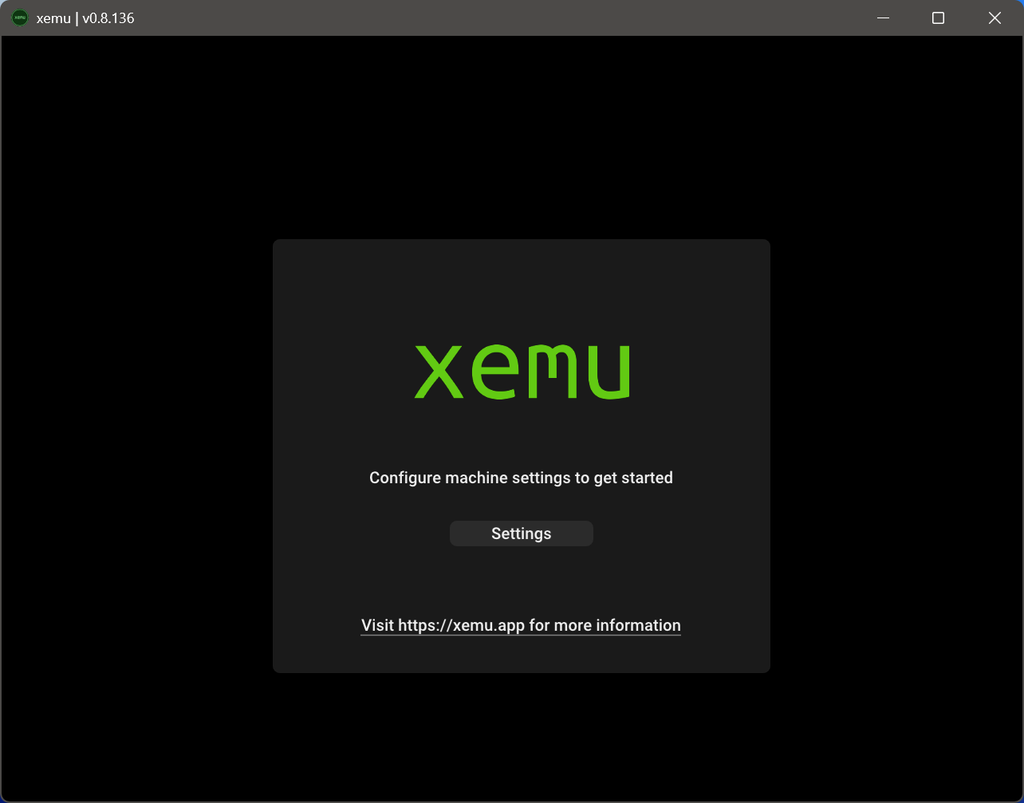
Click Settings.
The first thing we need to do is add some mandatory Files.
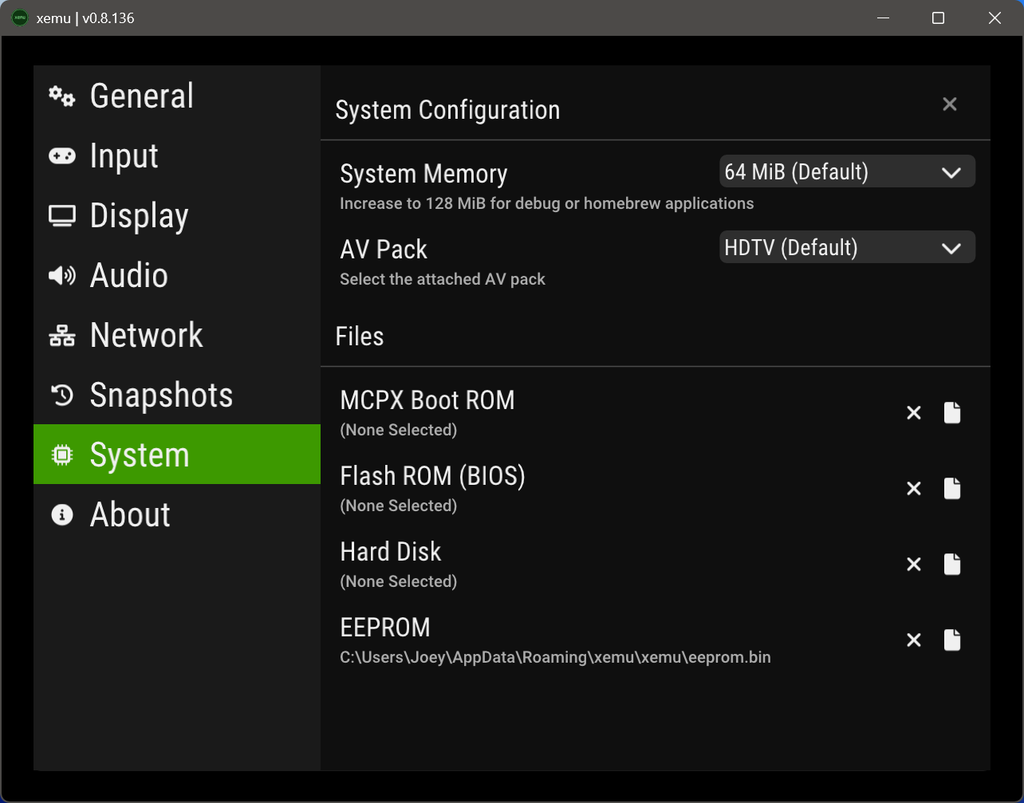
XEMU requires three things:
- MCPX Boot ROM
- Flash ROM (BIOS)
- Hard Disk
However, given the legality of this, it’s not something easily shareable.
I can tell you which files you need to search for though, below.
- MCPX Boot ROM – mcpx_1.0.bin
- Flash ROM (BIOS) – Complex_4627.bin or Complex_4627v1.03.bin
- Hard Disk – xbox_hdd.qcow2
Once you have those files, select each option under Files and go and select each file to populate the list.
Then, exit XEMU and re-open it.
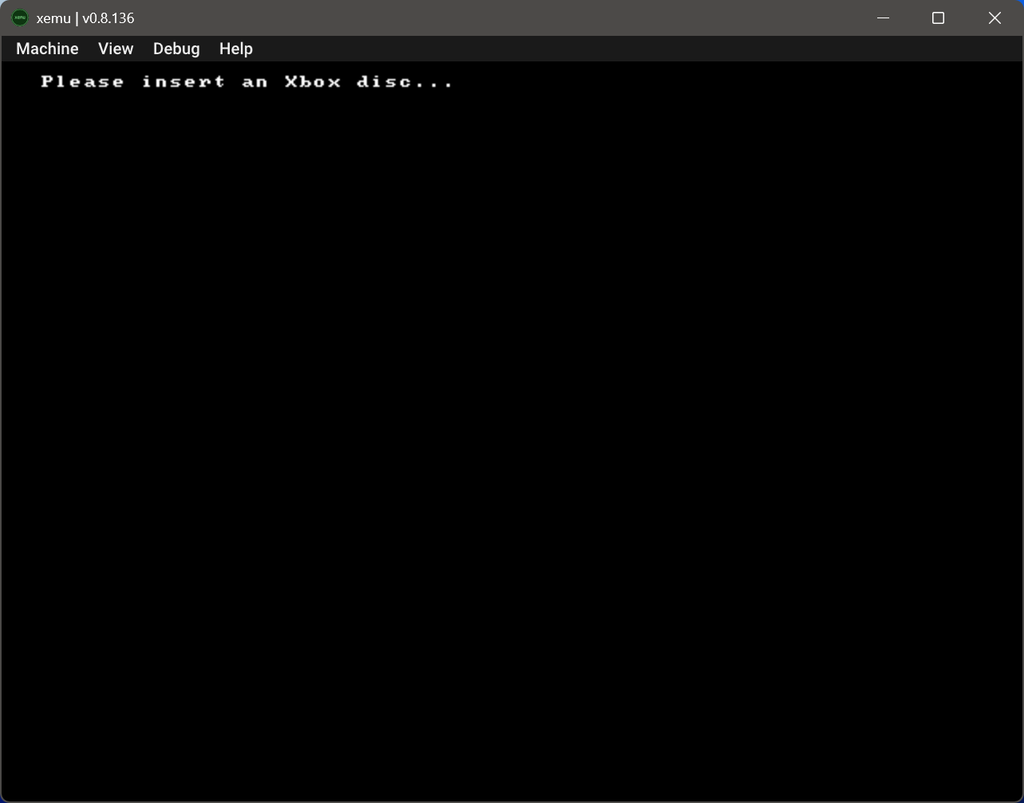
Settings
Go ahead and mouse over the top and head into Machine > Settings.
General
There’s two changes you may want to make here.
Turn on Skip startup animation if you want a quicker boot.
Select Games directory and then choose your xbox folder that has all of your xbox games.
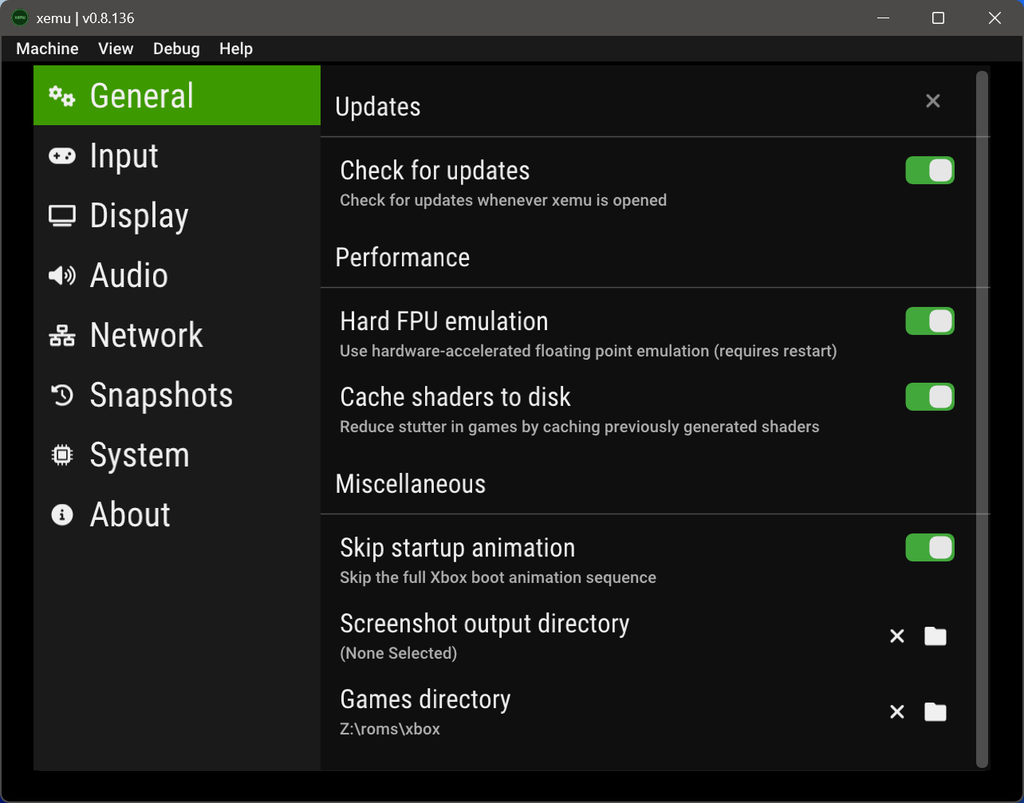
Now, if you push F2 on the home screen, and head to Games, you can see a list of your games and easily launch them.
Input
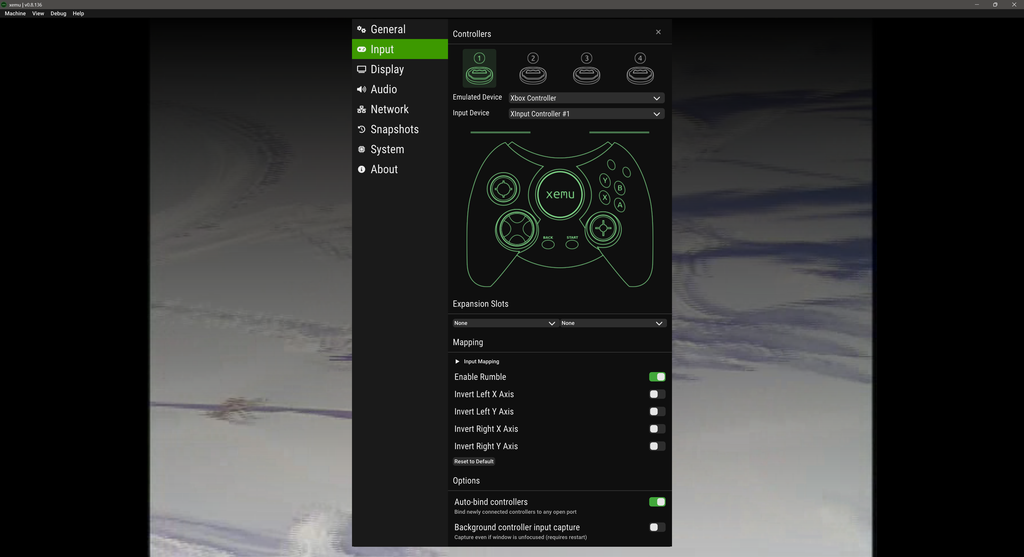
Input is where you configure your controls, so going off the assumption you’ll be using a controller, make sure your controller is selected under the dropdown for Input Device.
Emulated Device can be left as Xbox Controller.
If you want to add any more controllers for multiplayer, just select any of the top 2-4 icons and select your second controller under Input Device to have it configured.
Display
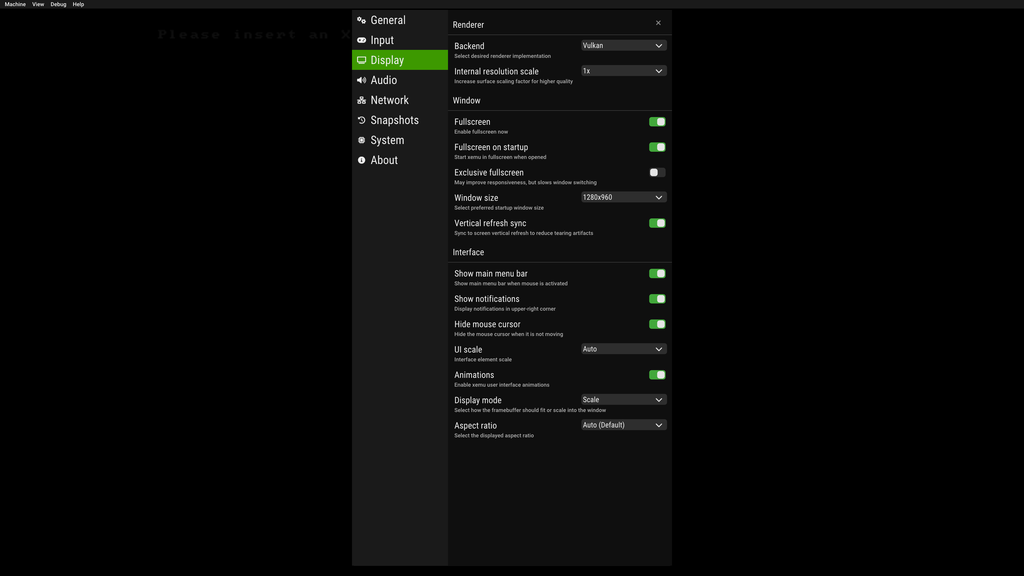
There’s a few things here you may want to change.
For example, if you’re trying to improve performance, you may want to try swapping OpenGL to Vulkan for Renderer.
If your PC is powerful enough, you can try upscaling via Internal resolution scale.
I would definitely enable Fullscreen and Fullscreen on startup.
The rest would be personal preference.
Launching a game
There’s a few ways to do this, if you set the Games directory earlier, you can push F2 then Games and select a game to launch it.
Or, top left, Machine > Load Disc.. and select your game.
If you do choose this, XEMU will auto load into this game by default the next time you open it – to stop this, just head to Machine > Eject Disc.
XEMU definitely benefits from using an external frontend (like ES-DE) to launch these games as it’s much easier that way.