
Obtainium Setup Guide
Note: Obtainium changed their UI right after this video, some things have moved around – the written guide below is updated however.
Table of contents
What’s Obtainium?
So right off the bat, in case you have absolutely no idea what Obtainium is, it’s an app that will install and then also keep all of your apps up to date.
Think of it like the Google Play Store, except for Github, GitLab and other projects that usually aren’t on the Google Play Store, and without all of the background usage.
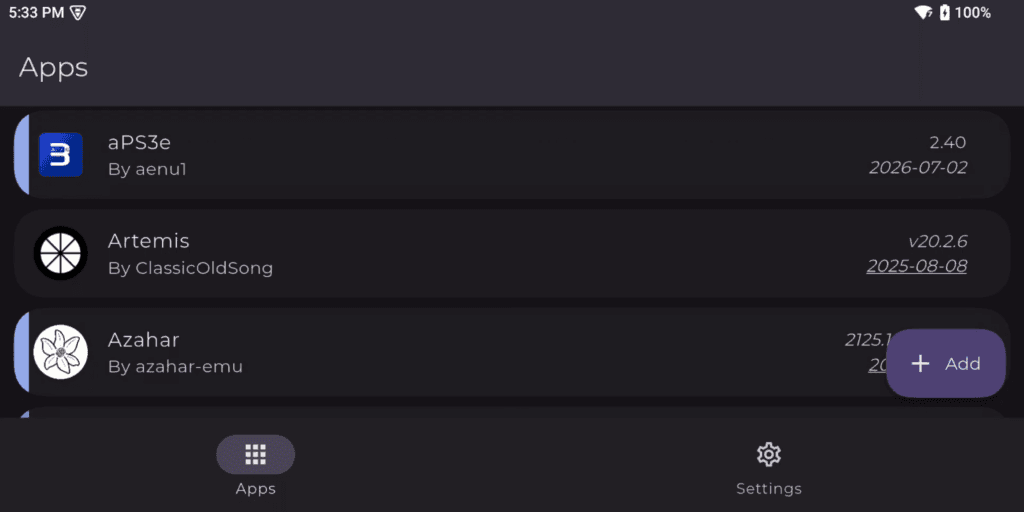
This is exceptionally useful in the Android emulation community as most all projects are from Github, and not all projects have in-app updating, so you find yourself installing the app, and then forgetting to update and missing out on massive new features.
Obtainium keeps all of that up to date for you so you can go back to what matters, which is playing games.
Installing Obtainium
Let’s go ahead and install it, and you can find Obtainium on their Github.
Under Assets, of whatever the latest release is, you want the one that says app-release.apk.
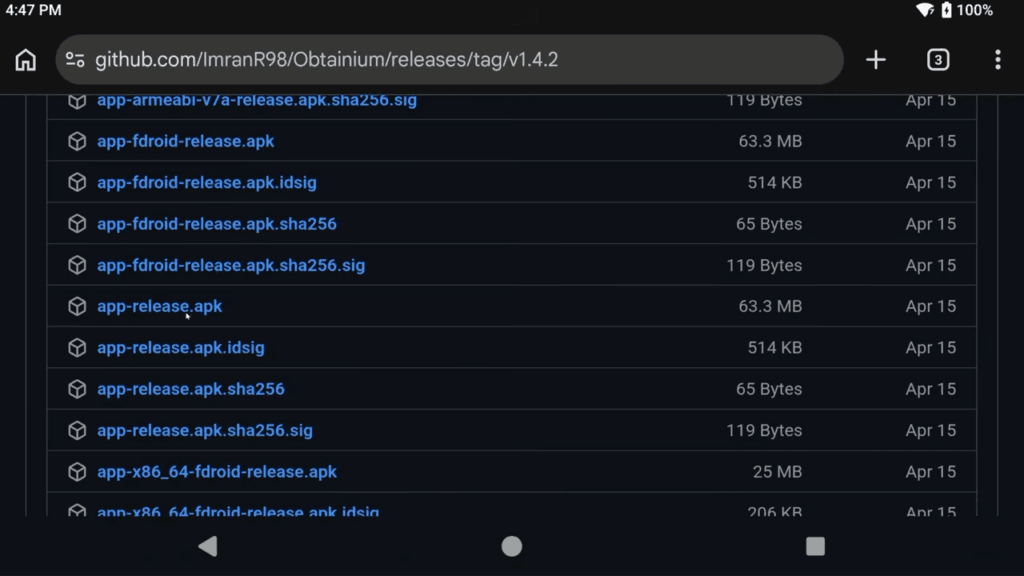
Go ahead and download that, and then open the APK to install the app.
Allow the permission for notifications and then click okay to the popup.
You may get another popup warning about what’s happening with Google and side loaded apps, you can click okay on this as well.
Now you’ll be on the Apps page, and right now you’ll have only one app and that’s Obtainium.
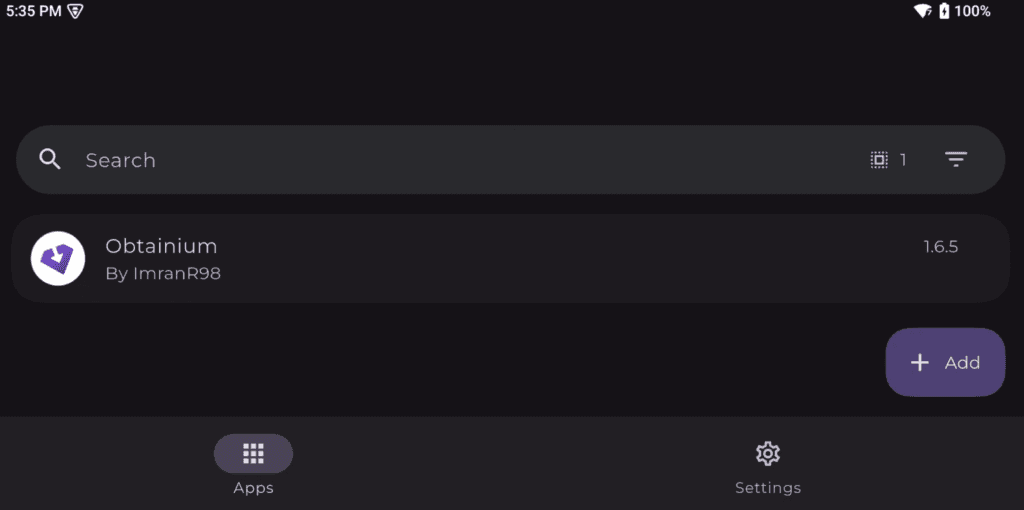
Obtainium will auto update itself since it’s added here as an app, so you never have to worry about going back to the Github to update it.
Manually adding apps
The bottom right has a + Add button and you can use this to manually add any projects to install the app, and keep it up to date.
I do want to show you how to use this, but don’t worry – there’s a way to import all the emulator apps that you care about as well that I’ll show you too.
But for learning purposes, let’s do this exercise.
Let’s say there’s an app you want to install that you found in a Github project, and I’m going to use an example today of Azahar, the Nintendo 3DS emulator.
All you need to do is copy the Azahar Github link, in any web browser, and then paste it into the App source URL field and then for 99% of cases, just click Add.
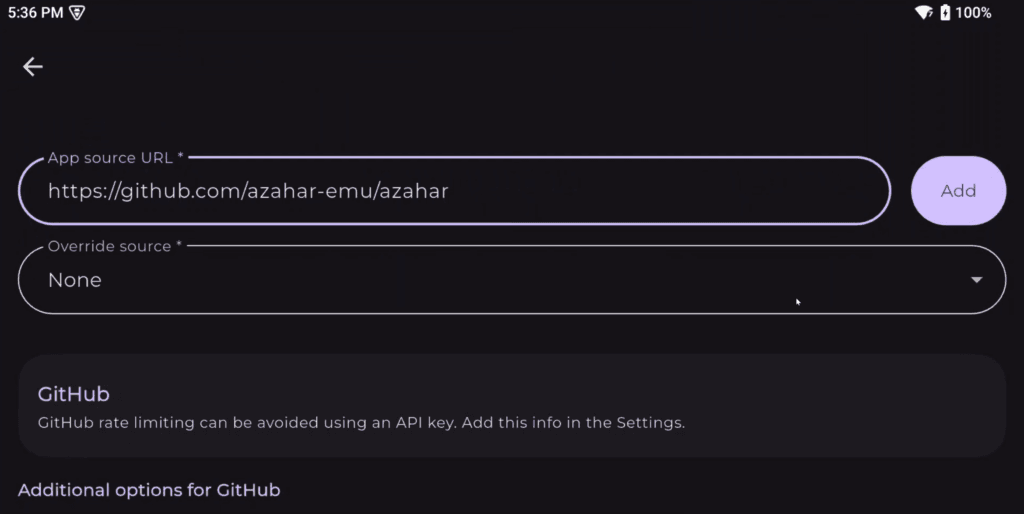
Now, if the project has multiple options for APK’s like this one does, it’ll give you a popup asking to choose the one you’ll be using and in this scenario with Azahar, we want the Vanilla option so click continue.
You’ll now be on the Azahar app page, which if you click the back arrow at the top left, you can see it’s now an option on the Apps page.
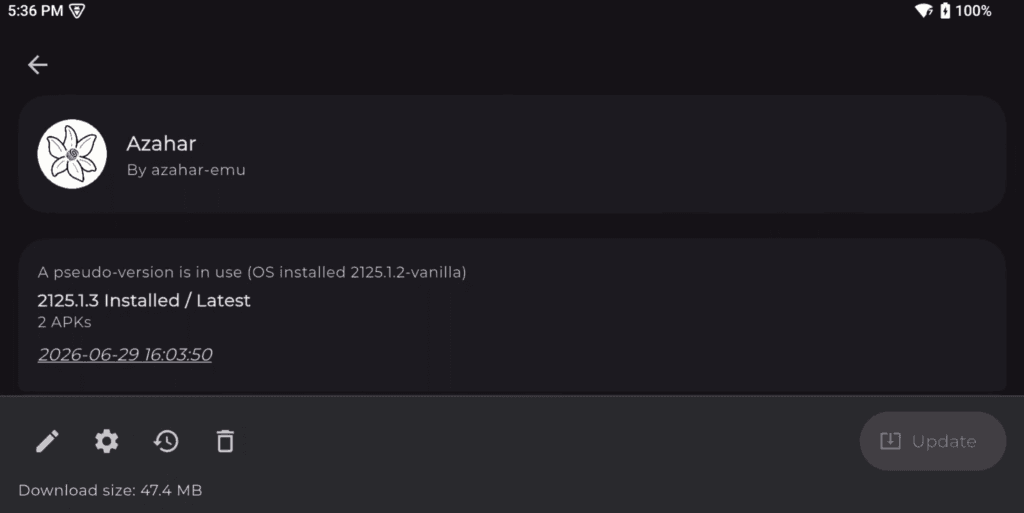
It’s not installed just yet, but it’s now an option for us to install.
So if you tap into the page, and click Install bottom right, it will install the app for you – just allow the permission and then click Install.
Once you do, the Apps page will update showing the version installed, the date of the update and so on.
You’ll also have Azahar installed, awesome.
Any time an app gets an update on Github, in 99% of cases, Obtainium will auto update the app and that’s it! In some cases, it’ll tell you that it has an update, and you manually have to click yes to do it.
Deleting apps
Go ahead and click the Azahar app and then the trash can icon bottom left if you’ve followed along.
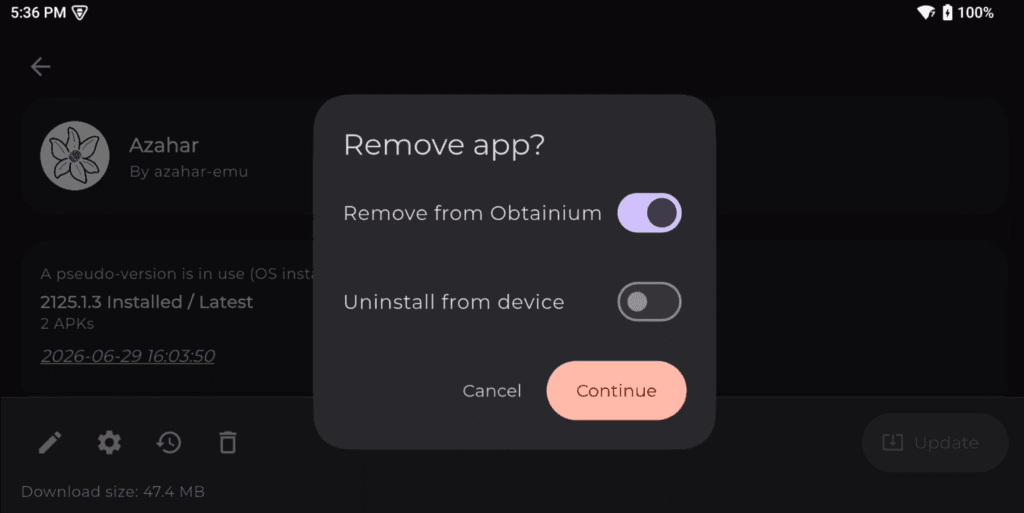
The first option is to keep the app installed, and just remove it from Obtainium – so no more updates and so on, but the app is still installed.
The second option will uninstall the app.
I’m going to check both so that I can get back to a fresh start, but obviously don’t delete Azahar if you’ve been using it and want to keep it.
And we’re back to a fresh start, no more Azahar, app is gone and we’re back.
My Obtainium JSON
Now that’s how you can install any project you want, but you’re here because the sign on the channel says Joey’s Retro Handhelds and you heard that my videos help make emulation on Android easy. So let’s make this easy.
From the Apps screen, choose Settings cog top right > Import/export and then you’ll see Obtainium import.
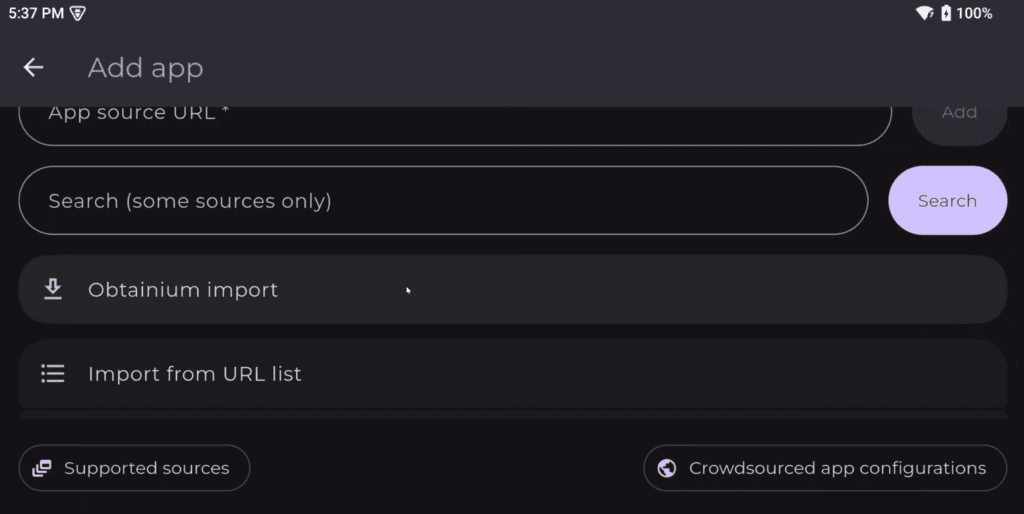
This is a way for you to import a pack of Android apps from someone you trust, like me.
My Pack Link
So, head to my Github and download the latest release – it will have a file named joeys-obtainium.json. There is no dual pack anymore, it’s a single pack that covers both.
You do want to pay attention to the notes as well, I always update it to let you know why this new version exists and what changed.
Sometimes there will be things you need to manually do, so always check.
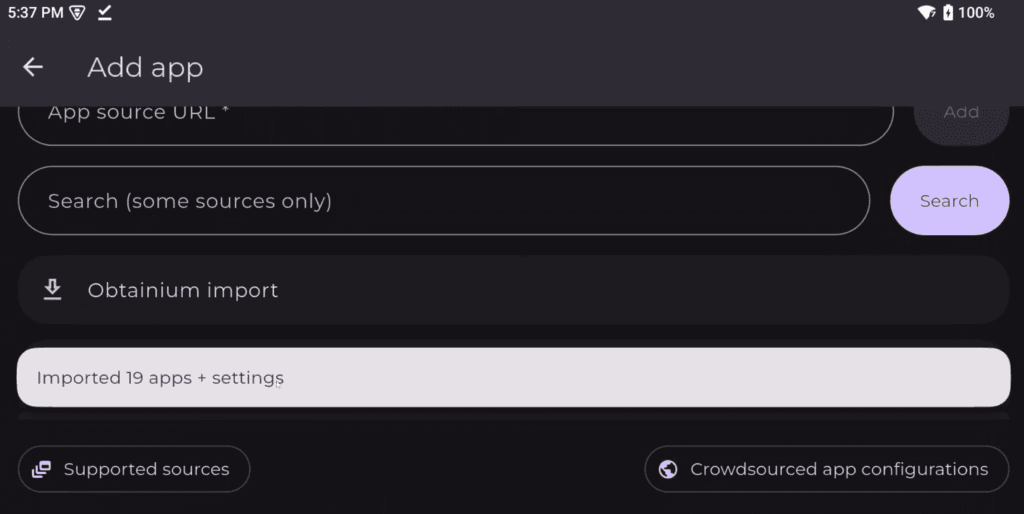
Head back to Obtainium and click the Obtainium import button and then choose that joeys-obtainium.json file.
Should say Imported apps and settings at the bottom.
Head back to the Apps screen and you should now see a bunch of emulators and apps.
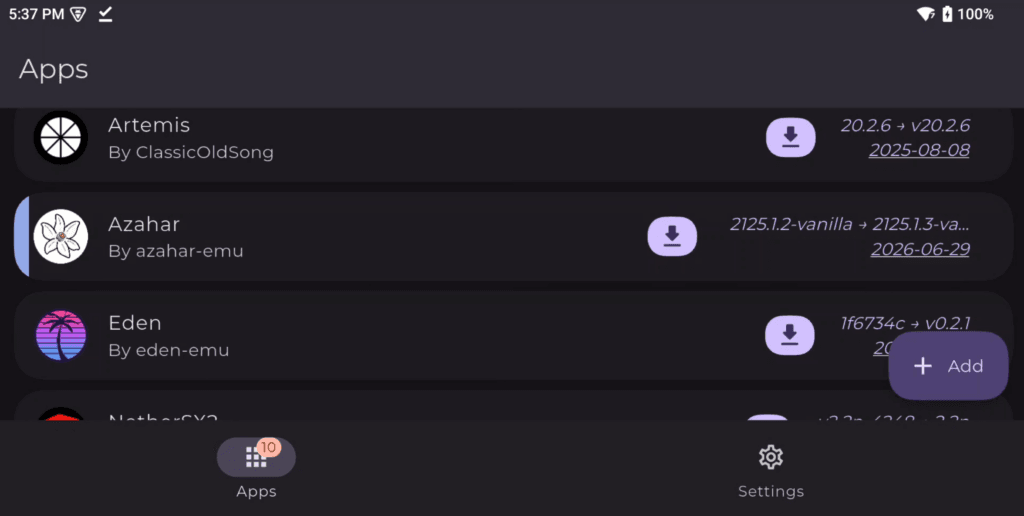
These are apps that are curated by me, recommended by me and suggested by me – not meant to be a list of all the apps in the world, but meant to make your life easier by not hitting you with a hundred things.
At this point, like we did with Azahar, you can go through and install whatever apps that you want.
If you’re not familiar with some, the main page on my Github will tell you what each one is for and gives you a link to a setup guide for it.
But it’s as simple as choosing the app, clicking Install, and installing.
Then, Obtainium will always keep it up to date going forward so you never have to worry.
What is the joeys-obtainium app?
One of the apps here is not an app – it says joeys-obtainium and that will notify you when there’s a new update to my joeys-obtainium JSON on my Github.
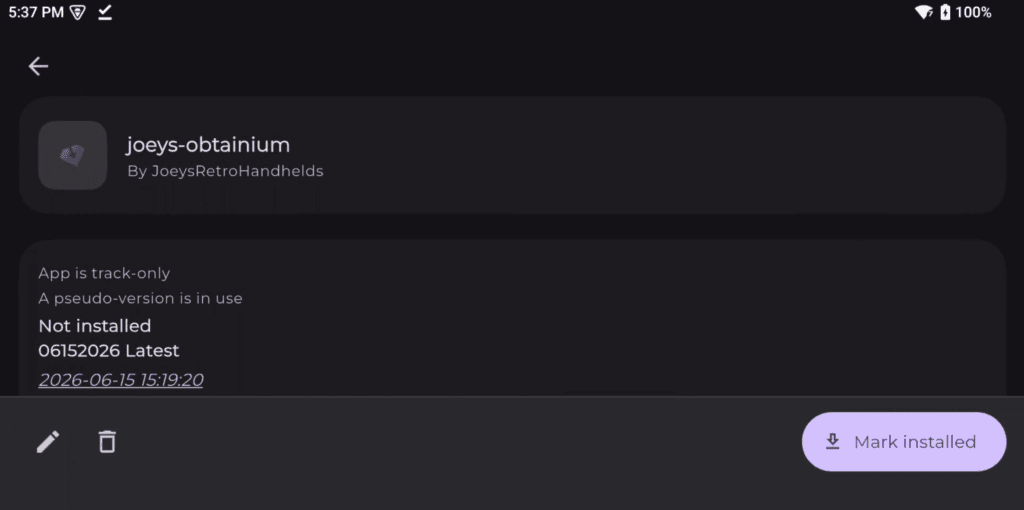
Whenever that happens, all you need to do is head back to my Github which you can actually get to by clicking the link on the app page in Obtainium, and then Releases, and downloading the latest releases new joeys-obtainium JSON file.
Read the notes to see what you need to know about that release, and then import it the same way you did previously and you’re set.
When you import a new JSON like this again, it may say your existing apps has updates even if they’re already updated – just do the updates, you won’t lose anything and it just re-syncs them to the new JSON.
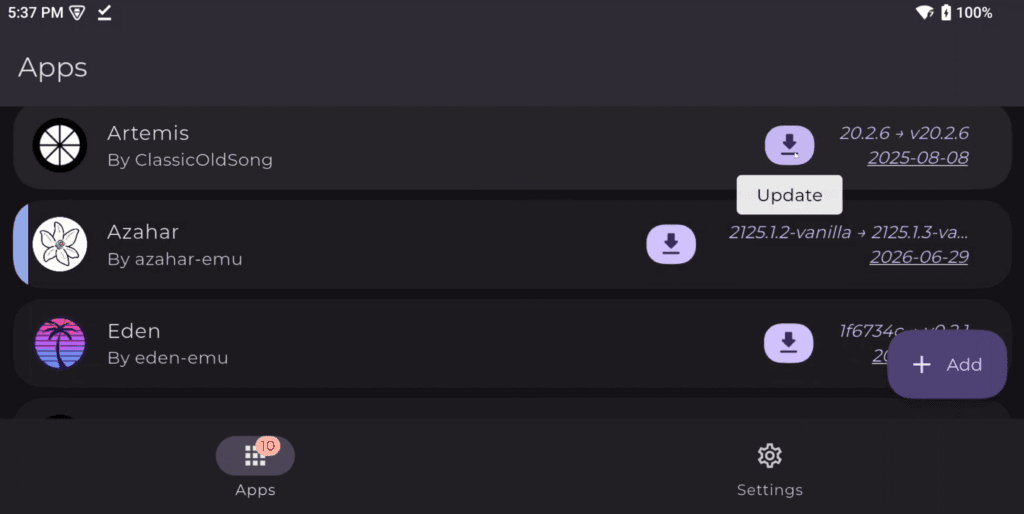
Now obviously, Obtainium does not setup any of these apps or emulators, or anything like that – all it does is install them, and keep them up to date for you. My setup guides can help you with that part.
What if you want more apps?
I mentioned before that my pack is meant for just ease of us, a trimmed down best of list, and you may want more emulator and app options.
The best way to do that is to head to RJNY’s Obtainium Emulation Pack Github and if you scroll down on his page, you can see pretty much every individual emulator out there in the world for Android, and an easy Add to Obtainium button that if you click, will add that new app to your Obtainium.
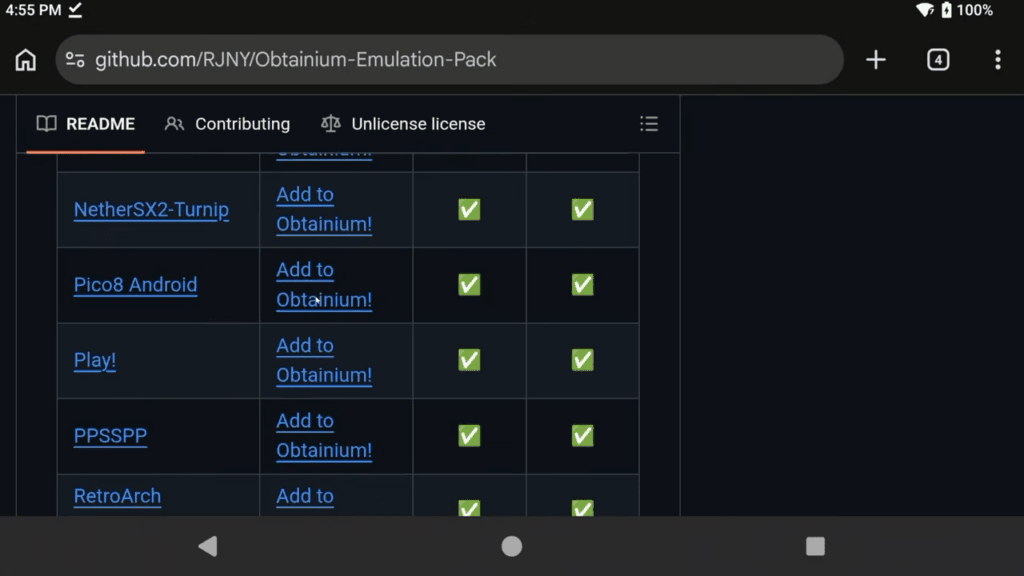
RJNY is a big reason that my pack exists in the first place, so thank you to him!
9 comments
I can’t find dual screen emulator pack
https://www.joeysretrohandhelds.com/guides/obtainium-setup-guide/#my-pack-link
I cant find the one called dual i can only find the one called Joeys-obtanium.json through the link here
That’s the one. It’s only one pack now.
Where is the link for the app pack ?
https://www.joeysretrohandhelds.com/guides/obtainium-setup-guide/#my-obtainium-json
Well he doesn’t seem to check this does he?
You sure?
Hey Joey, I have done this guide before with my Portal and some emulators just won’t update if one is available. Eden, Citron and NetherSSX say they have an update and even let me choose which version but just refuse to update any of them.