
GameNative Setup Guide
Table of contents
- Best devices for PC Emulation on Android
- What is GameNative?
- Installation
- Setup
- Options
- AYN/Retroid users tip
- Installing Custom Games
- Settings
- Modify Default Config
- Driver Manager
- Use SD card as storage
- Installing your games
- Game isn’t working
- In-Game Menu
- Enhancing your games
- Increasing the resolution
- Increasing the clarity
- Setting a frame limit
- Other Game Options
Best devices for PC Emulation on Android
If you’re curious what the best devices are, here’s a few of my top picks:
- Snapdragon 8 Elite Device! AYN Odin 3 – (Review)
- Best All-Rounder Device! AYN Odin 2 Portal – (Review)
- Dual Screen Device! AYN Thor – (Review)
What is GameNative?
GameNative is a way to play your owned Steam, Epic, GOG & Amazon games on Android devices.
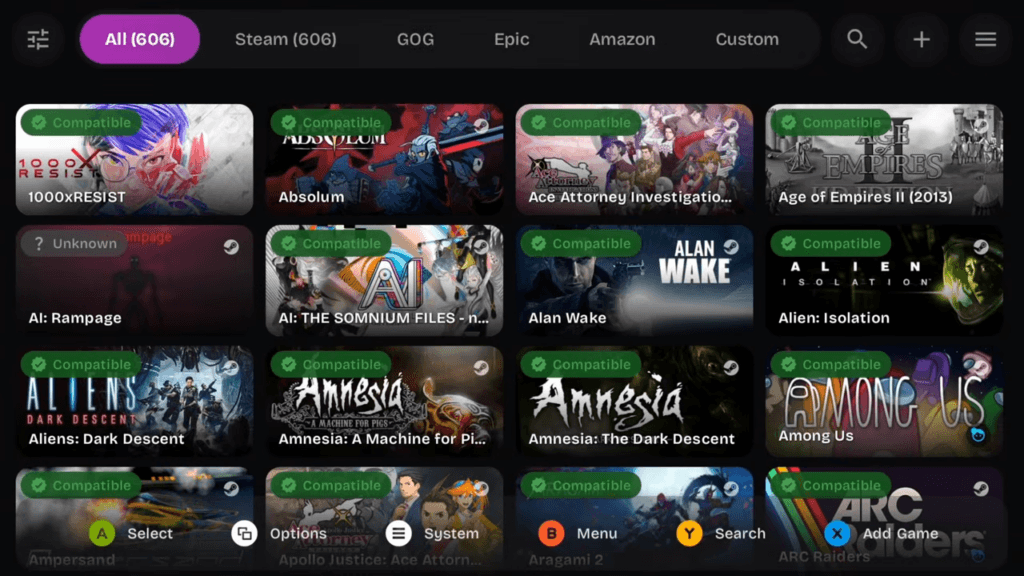
That’s it, that’s the big reason to use it.
Installation
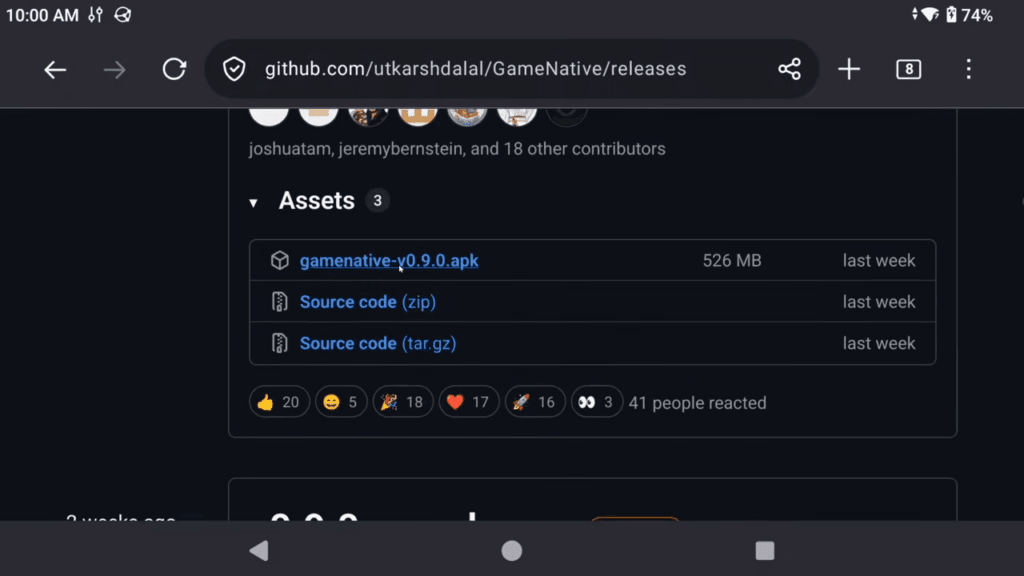
You can install GameNative through their Github, with whatever the latest release is at the time.
Setup
Open the app after installing it through the APK from the Github.
Go ahead and allow notifications.
And the first thing we need to do now is sign in with our Steam, Epic, GOG or Amazon accounts – don’t worry, you can sign into all of them to have all of your games, but I’m going to sign in to my Steam account here.
You can also choose not to and Skip login at the bottom if you plan on not using any of these services and have your own games.
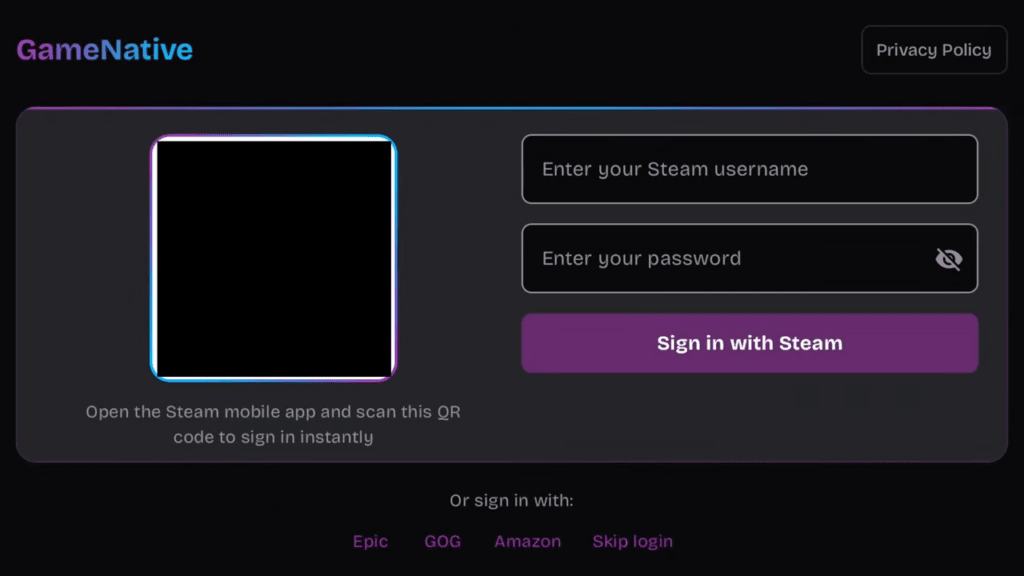
Once you do, if you logged in with a service, all your games should start to populate and you can now see them all.
Options
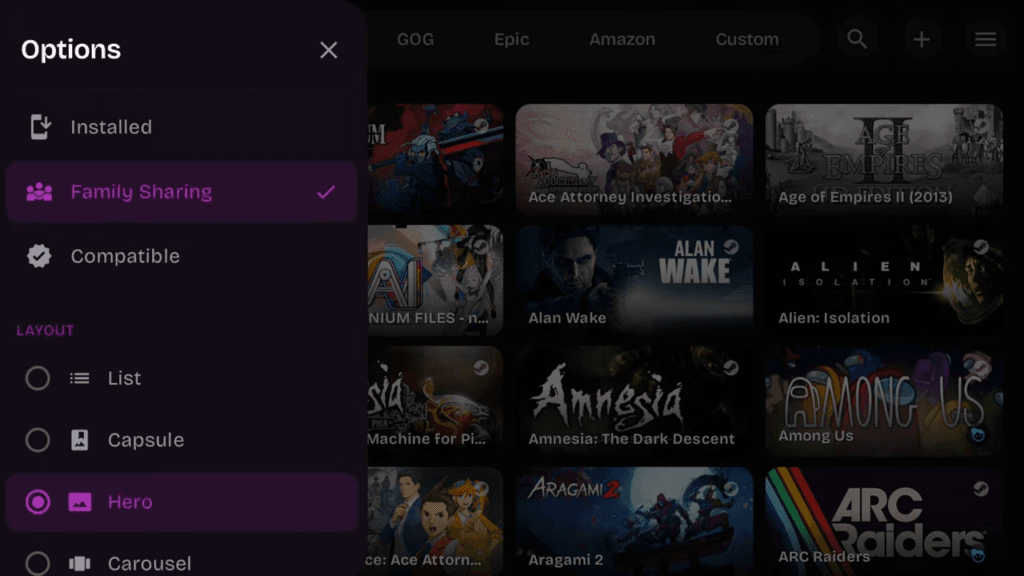
If you click the Options top left, you can filter the list of games down and also change the layout if you want something different.
AYN/Retroid users tip
Now just quickly, for AYN and Retroid users, swipe in from the right of the device to setup a per-game profile, and change Gamepad to Xbox style.
That’ll be useful for getting GameNative to use a modern Xbox style controller layout.
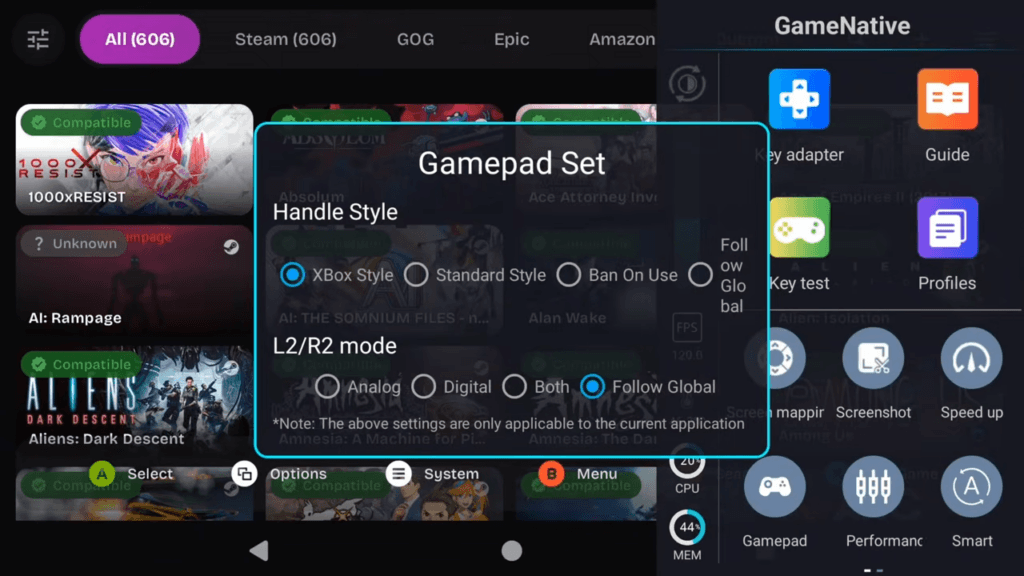
You can setup a performance mode and fan mode too if you want here.
Installing Custom Games
For those that didn’t log in with a service, if you push X you can Add Game.
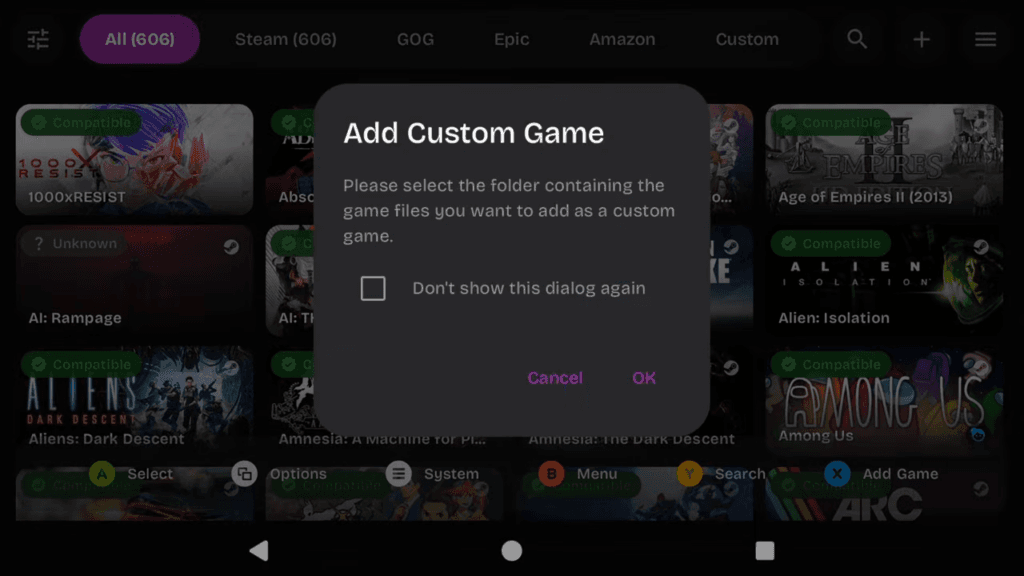
This lets you add any custom games that you want to, just select the folder you have games with and you can add them.
Settings
Let’s go ahead and push Start or top right three lines for System.
Scroll down, and you can sign in with your GOG, Epic, Amazon Games or Steam account if you didn’t before.
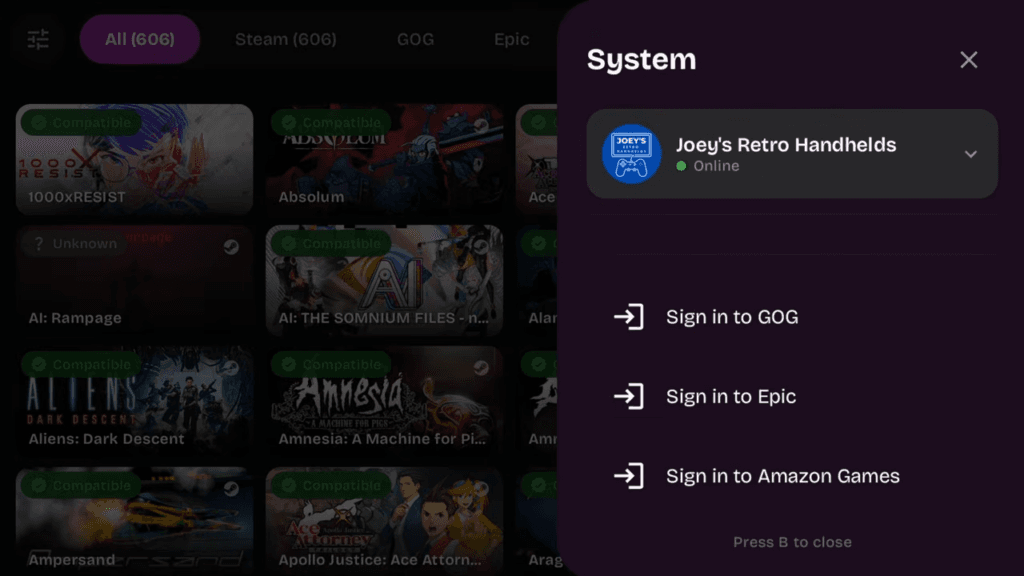
But head back up and let’s go to Settings.
Modify Default Config
Head to Modify Default Config and this is where you can make changes to affect all games.
However, it only affects games not installed yet, which it says right in the description so that’s why we’re coming here first before installing anything.
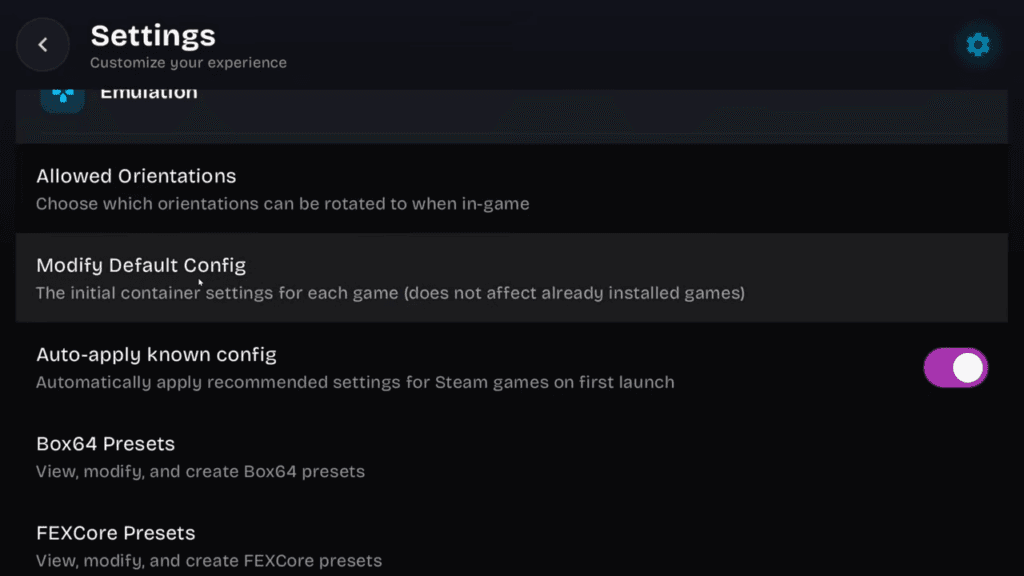
We can do per-game configs later, which is what I’d suggest you use for improving games.
But there is one thing we can set for all games.
Head to the Graphics tab.
Right now, the default Graphics Driver Version is turnip 26.0.0_R8.
That’s fine, we can use that, but if you click it, you can see a list of other drivers to use.
Reminder that custom drivers are only available for Snapdragon devices, and if this section confuses you, leave this as default unless you know you want to use a different driver like I do.
See below to learn more about custom drivers.
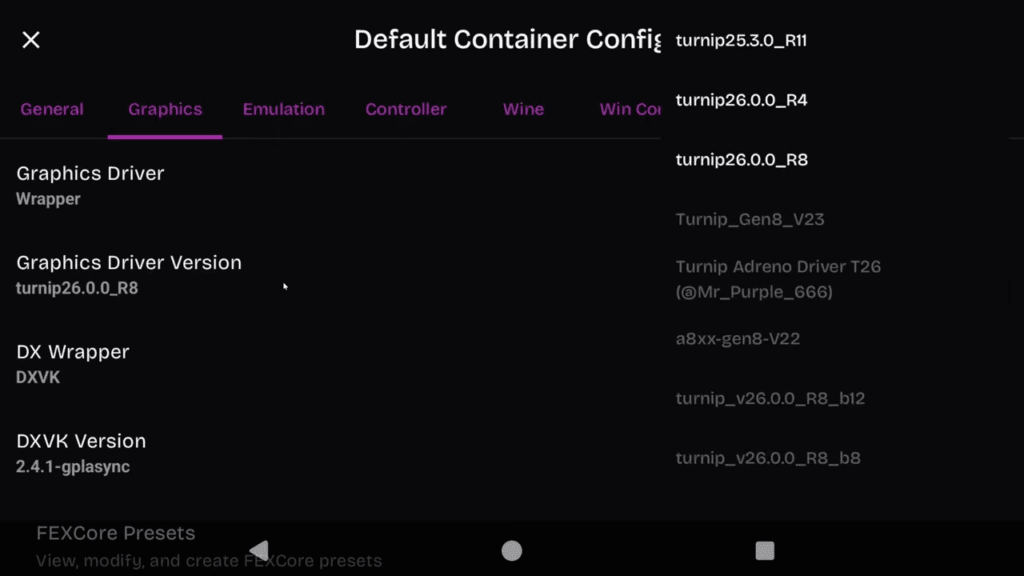
Go ahead and click Save top right, that’s all we’re doing globally for now.
Driver Manager
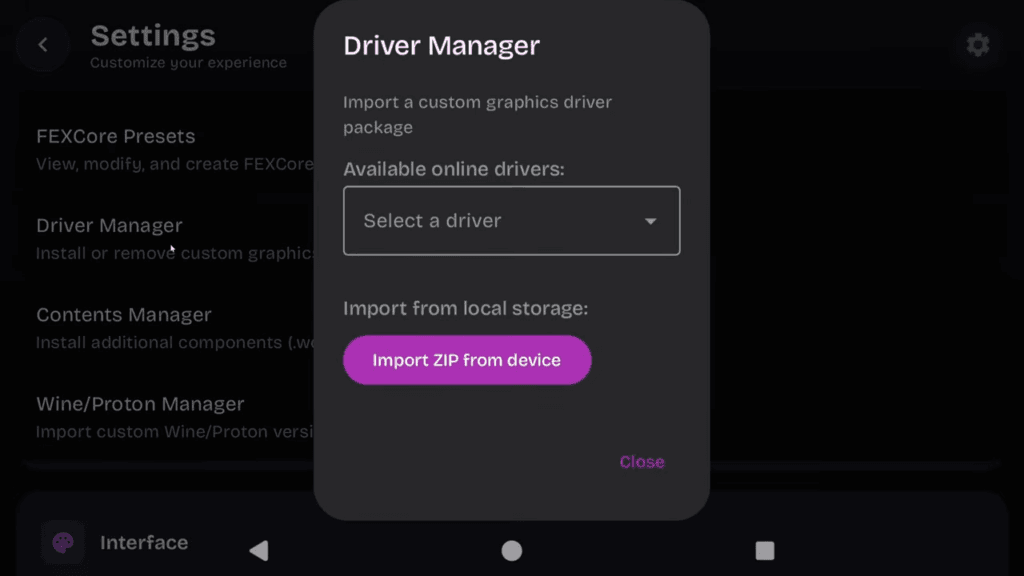
If you want to add your own custom driver zips to use, you can use Driver Manager to upload them here.
Use SD card as storage
Scroll down to Downloads & Storage and this is important.
I would leave the Download speed as default, Blazing just heats up your device more and it’s just not necessary to do that.
However, right below that is Write to external storage.
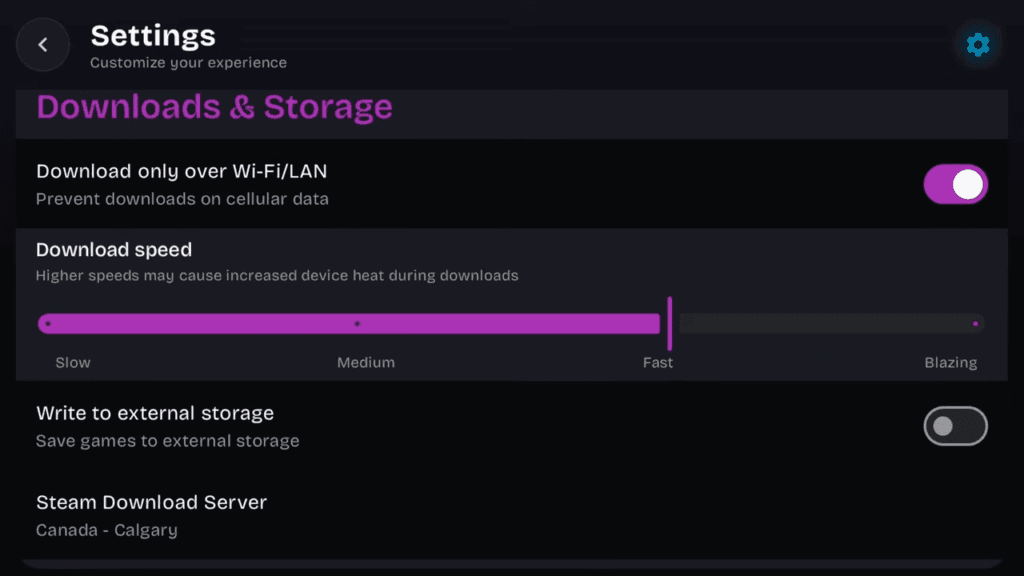
By default, GameNative saves games to your internal storage, but you can put those games on your SD card instead.
If you’re going to do this, I would highly suggest using an A2 SD card.
Expect to have slightly lower performance and speeds using an SD card over internal though.
This would be a great option for example.
Installing your games
Alright back out when done and let’s install our first game.
I’m going to pick a game I know has issues booting, so Dave the Diver.
Click Install, and allow the permission popup.
You can now choose what to install, so what DLC and so on.
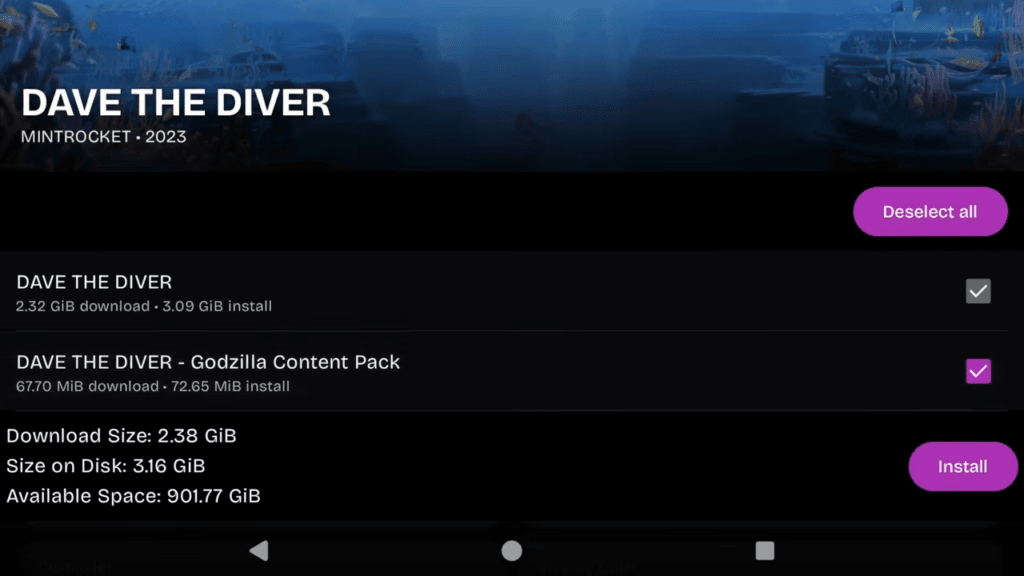
Once it’s done installing, go ahead and click Play to start playing the game and let’s see what happens.
Wait for all the extracting and first time setup stuff to finish.
And boom, I’m glad this happened, but we have an error.
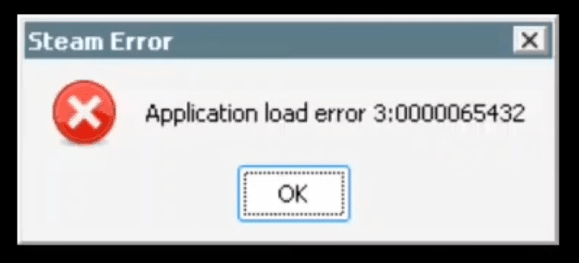
Application load error.
Oh no, what do we do? Use the touch screen to click OK and exit out.
Game isn’t working
Now, when something like this happens, your first thought should be to go to EmuReady.com.
This site is made for people to submit reports about games that work, and how they got them to work.
So head to Handheld, and then let’s Filter bottom right.
Type Dave the Diver, and scroll down to Emulators and choose GameNative.
You can also filter your processor too if you want, but it’s not always necessary.
We have two options, so let’s check them.
The first one we clicked has the same exact error we got, and says how to fix it, so let’s go turn on this unpack files option.
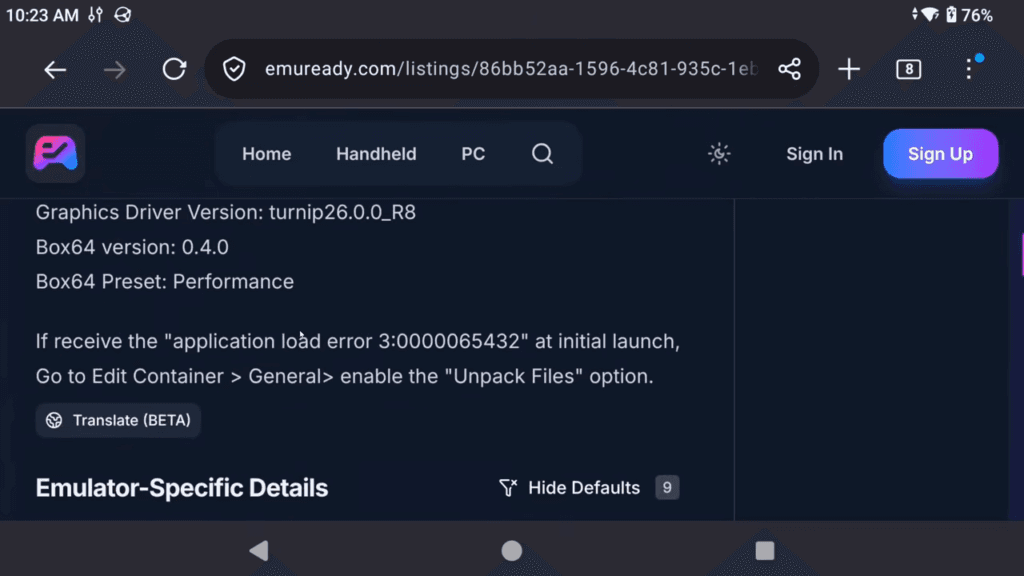
On the game screen, to do a per-game setting, we click the Settings cog on the right and then Edit container.
Now any changes made here, only apply to this game.
So scroll down on General to Unpack files and it even says if you get the error we got, turn this on.
Make sure to Save top right after.
Let’s boot up the game again now. And it works, look at that.
So, as a reminder – if game has issues or doesn’t boot, check EmuReady.com for an answer.
That’s your best way to troubleshoot these things and it’s way better than me just giving you the answer to boot games – it’s a learning exercise.
In-Game Menu
Once we’re in-game, we can do a few things.
If you push Back on your device, or swipe up back arrow or back gesture, you get the in-game quick menu.
If you want to see framerate and information, turn Performance HUD on and now you can see all the information you need.
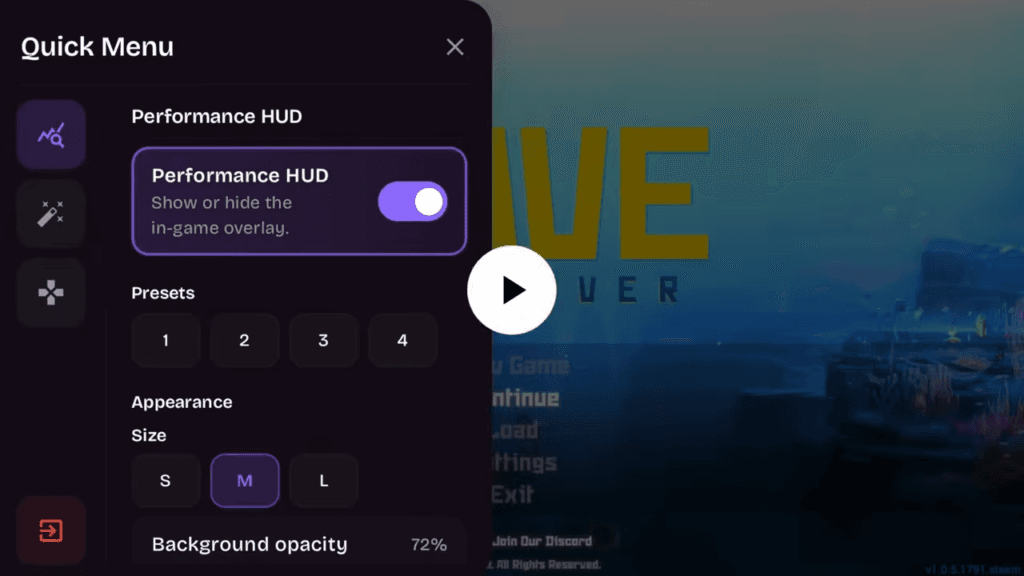
You can customize the look too if you want as well as what it shows.
On the screen effects tab, you can apply all sorts of filters and effects if you want to.
Lastly, the controller tab has ways to edit your controls if you need to.
Exit the game using the bottom left Exit.
Enhancing your games
Now, let’s head back to that per-game settings cog on the game page and back into Edit container.
There’s some improvement settings you can do on a per-game basis if your device can handle it, and I would highly suggest doing this per-game instead of globally.
Increasing the resolution
So in General, scroll down to Screen Size and by default everything is 720p, but maybe you want to upscale to 1080p.
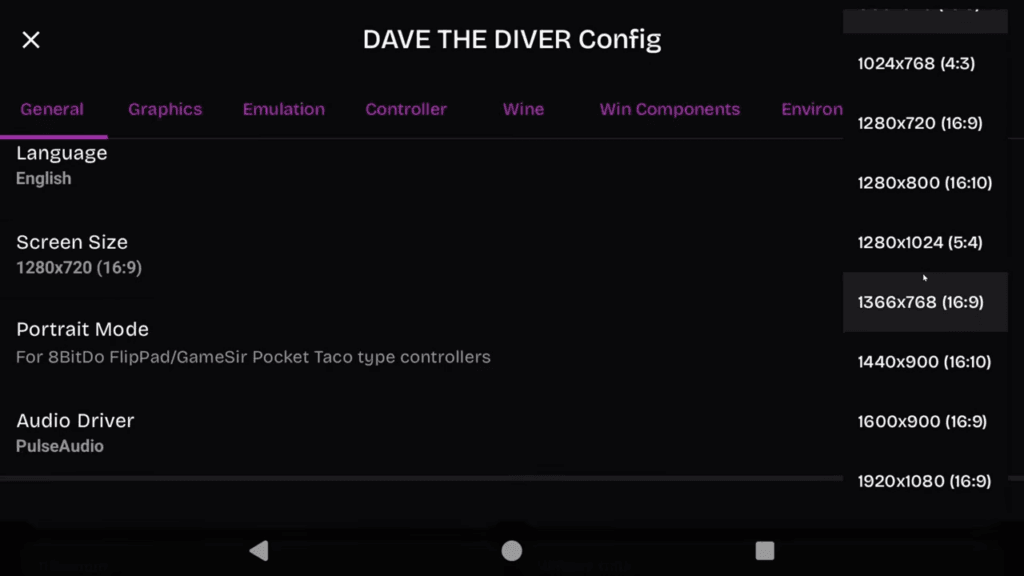
Obviously your device needs to be able to handle this, it’ll use more resources.
Increasing the clarity
Then head to the Graphics tab, and scroll down to Sharpness Boost.
Now this, can actually be done globally if you want to, but it may not look good for every game.
But you can enable Sharpness Boost make games look a little better, especially if you’re using 720p.
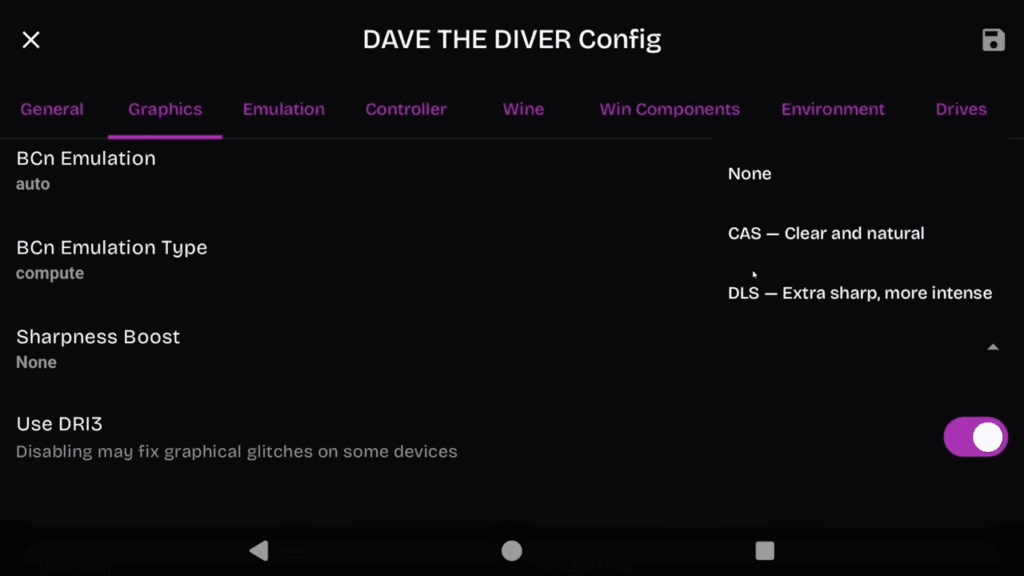
There’s two, CAS and DLS.
Personal preference on this one, but I would personally use CAS – it looks good enough.
Setting a frame limit
Then head to the Environment tab, and scroll down to DXVK_FRAME_RATE.
This tells the game what frame rate to use, and right now surprisingly, Dave the Diver is set to 120FPS as a maximum frame rate.
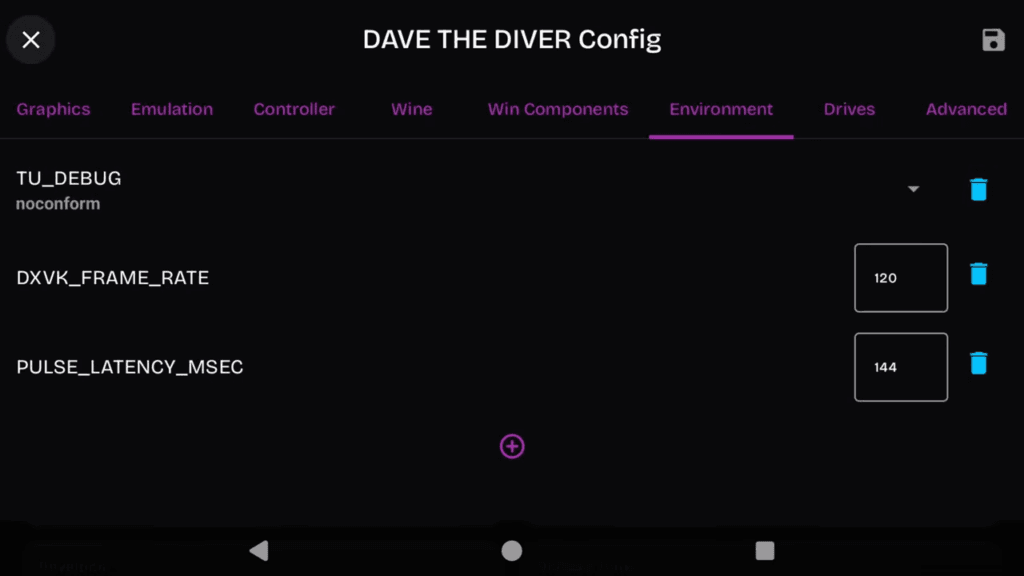
So you can adjust this – do you want to use more resources and get a higher frame rate if your device is powerful enough, or do you want to scale it back to 30 or 60FPS to use less resources.
Completely your call.
Once done, Save.
Other Game Options
Back to the Settings cog, there’s more here if you scroll down.
Like verifying files, updating or even changing the branch, if let’s say there’s a beta branch or private or whatever that you want to swap to.
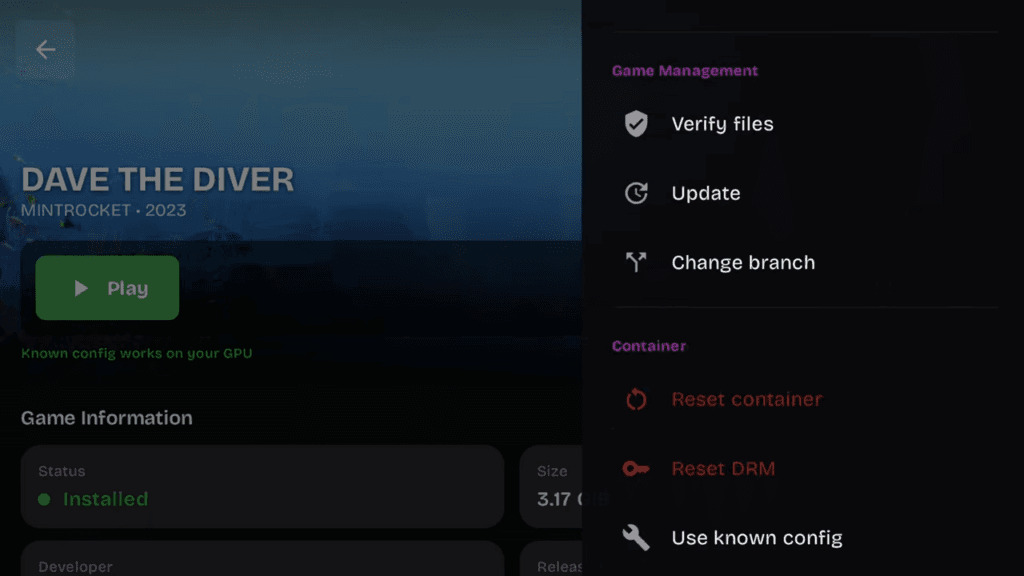
You can reset some things if you want to get back to default, or you can check your cloud saves and force sync them.
Lastly, you can manage your DLC or even Workshop stuff, yeah there’s a lot here.