Best devices for PS3 Emulation
If you’re curious what the best devices are for PS3 emulation, here’s a few of my top picks:
Installation
aPS3e is a PS3 emulator currently in development for Android.
Download Link: Google Play Store or through Github
Firmware
First thing we need to do is add the PS3 firmware to aPS3e or nothing will work.
Head to the PlayStation official site (https://www.playstation.com/en-ca/support/hardware/ps3/system-software/), and scroll down to How to update PS3 system software and choose Update using a computer.
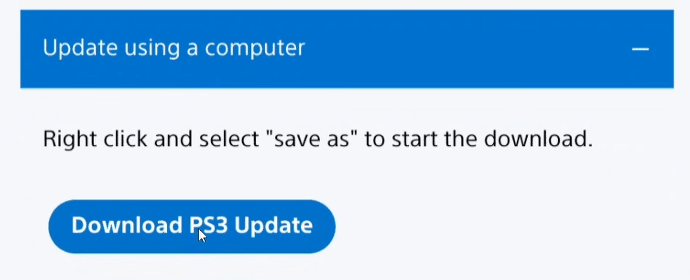
Select Download PS3 Update, or you may need to tap and hold and then click new tab to get the download to start.
Then, select that file using aPS3e to continue.
Then click Next Step.
PS3 Roms Directory
Next up, aPS3e wants to know where our games are and for them to work, they need to be decrypted ISO’s or you can install PKG.
So, click SET (*.ISO) DIRECTORY and navigate to the folder that has your games and select it.
Then click Next Step.
Fonts
It’s now asking for you to select a fonts file.
You can choose From Firmware and then Next Step.
Custom Drivers
If you have a Snapdragon device, you can get better performance by using custom drivers.
You can find custom drivers here: https://github.com/K11MCH1/AdrenoToolsDrivers/releases/
Long story short, if you have it and are going to use it, click Add Custom Driver and select your driver.
If not, choose Next Step. Then click Finish.
Recommended Settings
There’s a few settings you can change or try to change on a per-game basis.
Use the Settings wrench top right on the main screen to get to these settings.
- Core – PPU Threads set to half the number of cores your device has (if it’s a Snapdragon 8 Gen 2, that has 8 cores, so set this to 4)
- Video – Renderer set to Vulkan
- Video – Frame Limit set to PS3 Native
- Video – Write Color Buffers set to on
- Video – Write Depth Buffer set to on
- Video – VSync set to on