What is SUPER3?
SUPER3 is a Sega Model 3 emulator for Android – let’s you play Sega Model 3 games!
ROMs
So, right off the bat you’re going to need Sega Model 3 games if you plan on using this emulator or following this guide.
I would suggest creating a ROMs folder on your device or SD card, if you don’t have one already and then create a folder called model3 to put your Sega Model 3 games inside.
For finding the actual games, that’s not something I can help with – but Google can.
Things to know first
Just some things to know first, that I found out during testing.
I can’t confirm that the emulator works with all types of controls, but can confirm it works with Retroid/AYN devices that are in XBOX mode.
For devices with refresh rates higher than 60hz, the games do run fast, so you will need to change to 60hz mode for the games to run properly.

Installation
The emulator costs $7 USD and is available through the Google Play Store.
Go ahead and install it and then open it.
First time setup
First things first, it wants to know where our Model3 games are, so click Pick games folder and navigate to whatever folder has your model3 ROMs inside of it, mine is in my ROMs folder > model3 folder.
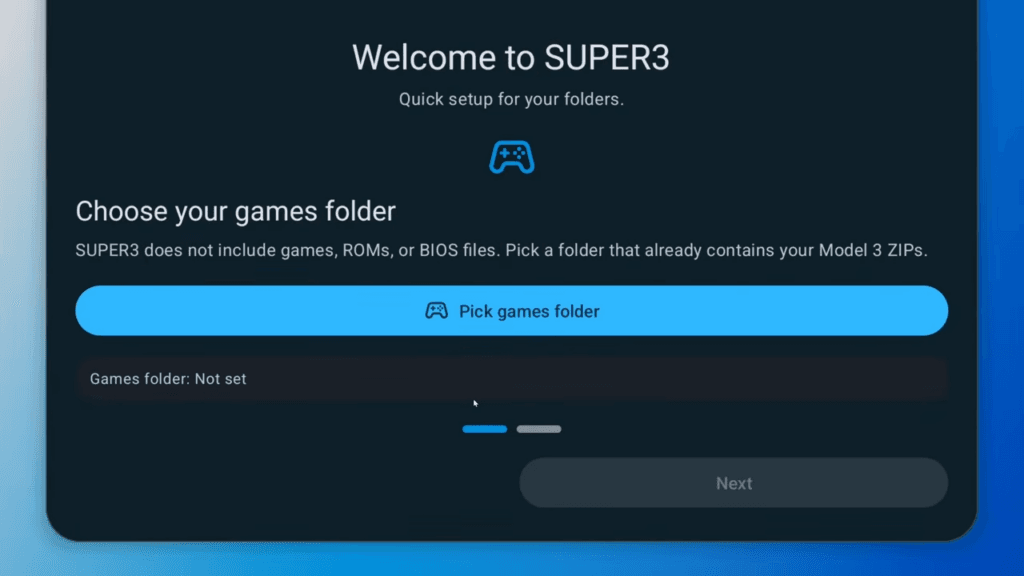
Then click Next.
Now we need to choose our data folder, and this is where all your saves, configuration files and so on will be stored.
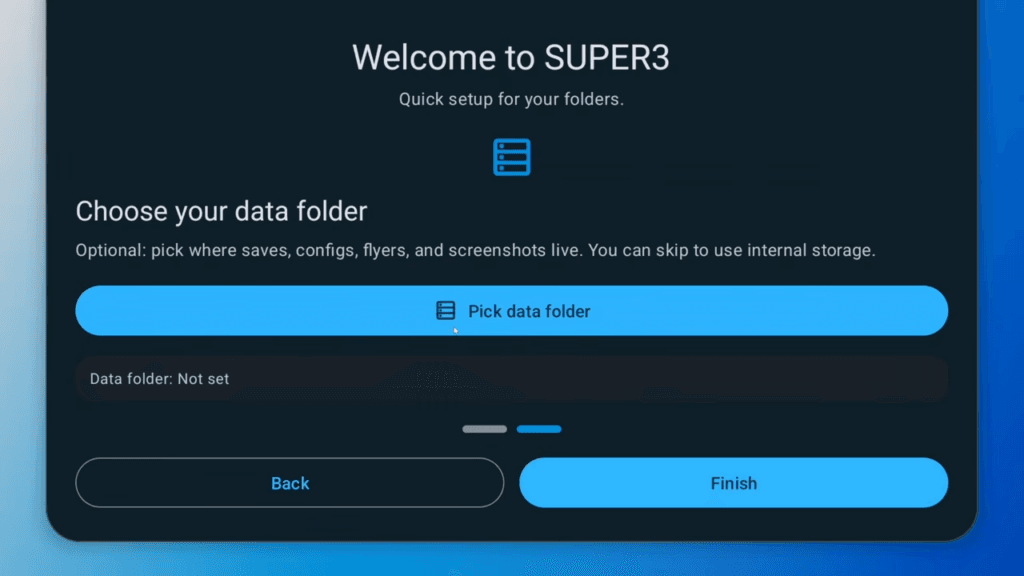
We want to actually create this folder to store things in, so click Pick data folder, and you can put this on your internal storage or SD card, then create a folder and I just called it model3, and use this folder.
Now click Finish.
Main screen
Your artwork is being synced at this point, so you just need to wait a bit.
You can get to list mode by tapping the grid top right or back to grids by clicking the list.
You can also set dark or light mode top right if you want.
Scroll down and you’ll see all the games you have, and with the model3, there are different versions so it’ll tell you if it found your game, and then also, what other versions there are and what you need for them.
Settings
Let’s click the three lines top left for settings.
You can change your games folder, or data folder and rescan here if you want.
But scroll down and let’s click Match device resolution.
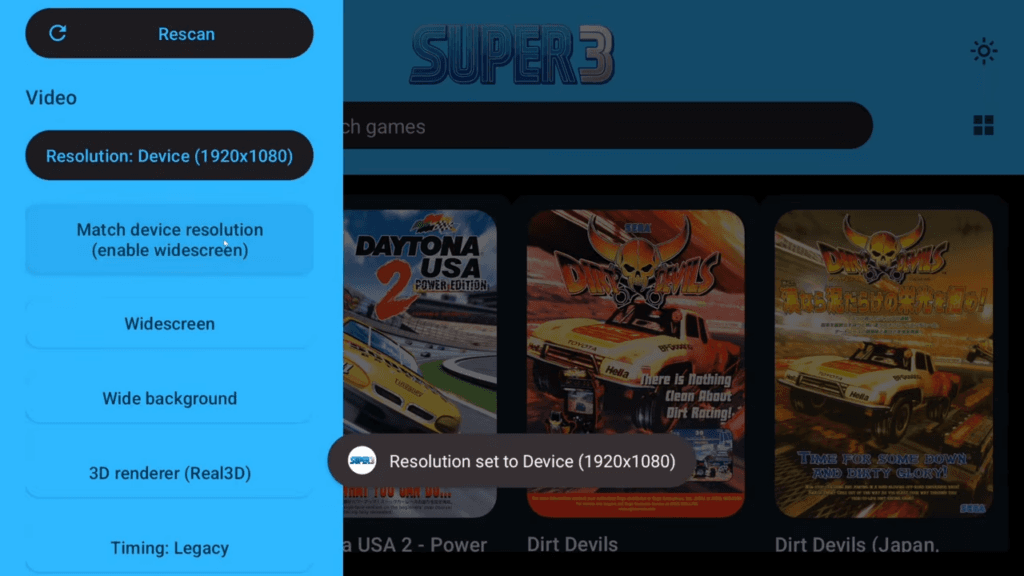
Now it’s going to set the games to widescreen and also use our devices 1920×1080 resolution, which is super cool.
If you don’t want that, just click the Resolution only to upscale and keep the native aspect ratio without widescreen.
Important to note that the blue means activated, and black means not activated for what we click.
I left the rest as activated and let’s scroll down.
There’s some options here, like if you’re using touch controls to turn that on, but we don’t need that.
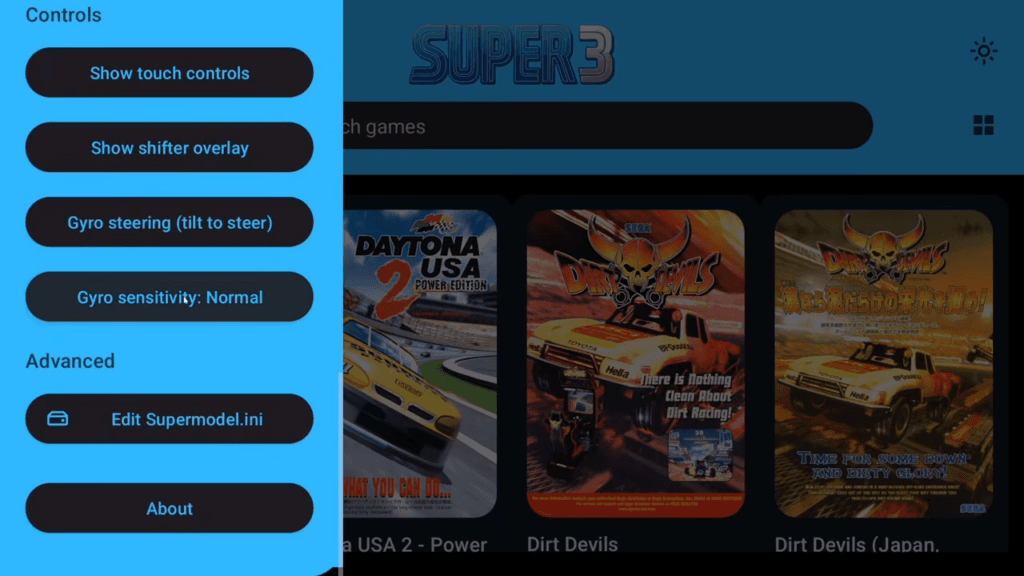
I was not able to get gyro to work on my device, not sure why, but you can try that if you want for your device. Otherwise, that’s it for settings.
In-Game
To boot a game, just click the green arrow in the list for anything you have the ROM for and it says found.
When you’re in-game, the back button on the handheld or swipe up and back arrow or back gesture gets you the in-game menu with some other things like how to exit the game. We’ll come back to this.
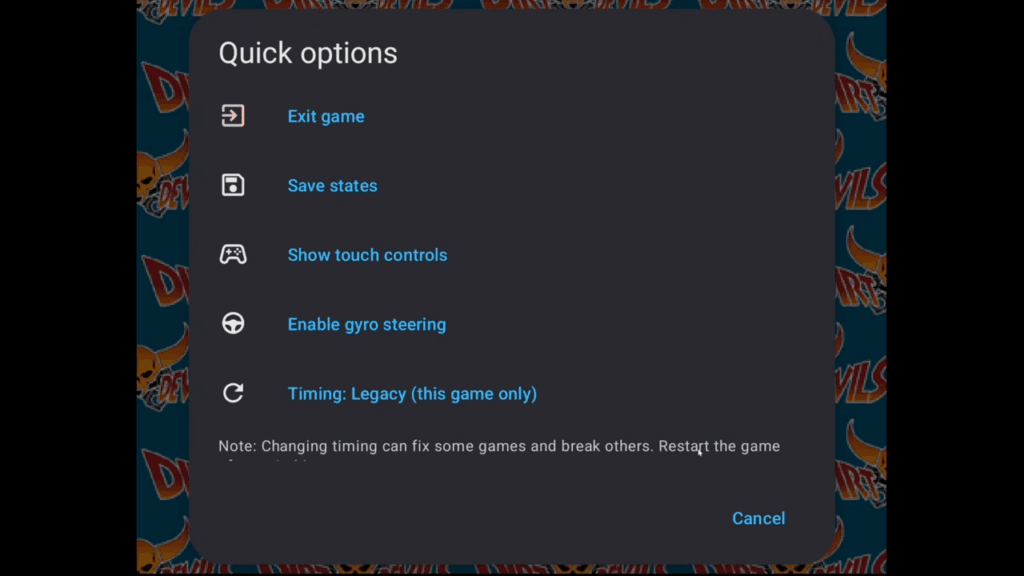
For the most part, most games just ran and I had no issues.
Some graphical issues here and there and so on, but the games themselves ran.
Network Board Not Present
Now I did run into a few games with issues, like Daytona, with an error called NETWORK BOARD NOT PRESENT and it was confusing, but I figured it out.
Open the in-game menu and turn on show touch controls.
Push Test at the top right to get the test menu.
Use Service to move down to Game Assignments and then test to enter it.
Go to Link ID and change it with Test to Single.
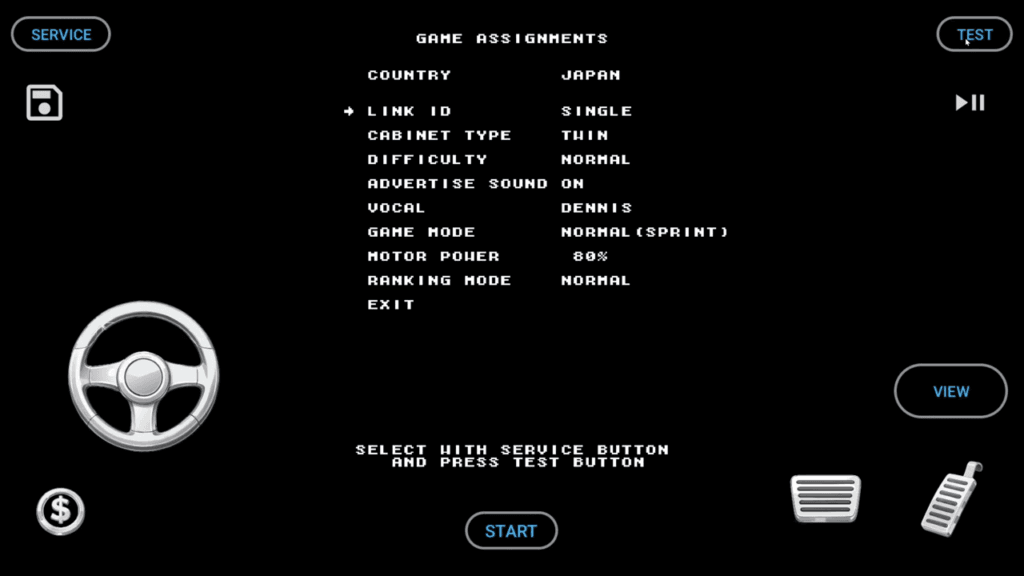
Use Service to Exit and then Exit again with Test.
Now the game works, just hide your touch controls again and you can play Daytona.