Best devices for Flycast on Android
If you’re curious what the best devices are, here’s a few of my top picks:
- Snapdragon 8 Elite Device! AYN Odin 3 – (Review)
- Best All-Rounder Device! AYN Odin 2 Portal – (Review)
- Dual Screen Device! AYN Thor – (Review)
What is Flycast?
Flycast is a multi-platform Sega Dreamcast, Naomi, Naomi 2 and Atomiswave emulator and today’s guide is all about being able to use it to play those systems on Android!
Is it better than RetroArch’s Flycast core?
As far as I can tell, they’re the same – they get the same updates and seem to have the same performance.
For most people then, it’ll be easier to just use the Flycast core unless you really don’t like RetroArch.
ROMs & BIOS
You’re going to need Sega Dreamcast, Naomi, Naomi2 and/or Atomiswave ROMs and BIOS files to be able to play them.
For ROMs, here’s my suggestions for file types:
- Sega Dreamcast: CHD would be the best, however BIN/CUE and GDI are fine as well.
- Naomi: Naomi & Naomi2 ROMs should be in ZIP with a corresponding folder that contains their CHD file.
- Atomiswave: Atomiswave ROMs should be in ZIP.
For storing these, I would suggest you create a ROMs folder, and inside of that, create the following folders and put your ROMs inside of them:
- dreamcast for Sega Dreamcast
- naomi for Naomi
- naomi2 for Naomi2
- atomiswave for Atomiswave
BIOS files are also required – BIOS files are system files required to emulate these systems.
The following files are needed:
- dc_boot.bin for Sega Dreamcast
- naomi.zip for Naomi
- naomi2.zip for Naomi2
- awbios.zip for Atomiswave
You can learn more about BIOS files here.
For storing these, I would create a BIOS folder inside of the ROMs folder from earlier and then put all of these files inside of it.
Installing Flycast
Let’s go ahead and start by downloading Flycast and you have two options.
The easiest is right off of the Google Play Store, which is what I’m going to do or you can grab the download from their Github.
There’s no right or wrong answer – you can use Obtainium to keep the Github version up to date if you prefer to live without the Google Play Store.
First setup
Go ahead and open the app and the first thing we need to do is tell Flycast where all our games are.
Go ahead and click Add Game Folder.
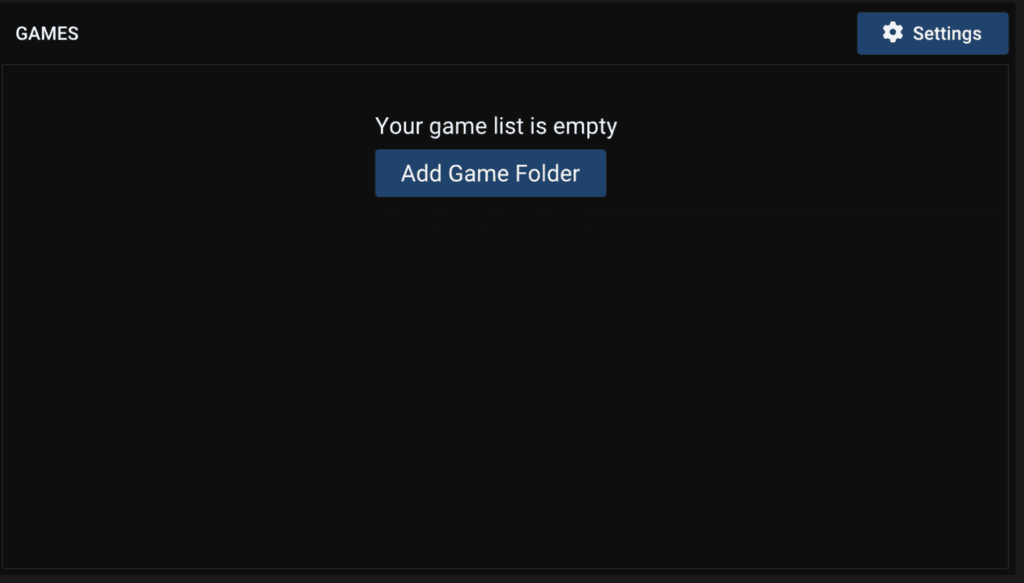
Head to your ROMs folder or wherever your Dreamcast games are, mine are in the ROMs/dreamcast folder and then select Use this folder.
It should now find them, load them up and you’ll see them in the list.
It’ll take a minute or two to get all the artwork.
Flycast Settings
Let’s head to Settings top right.
Adding Naomi, Naomi2 & Atomiswave folders
Go ahead and click Add right where Content Location is, and if you have Naomi ROMs, go ahead and select the folder you have those in.
Then repeat for Naomi2 and Atomiswave folders if you have them.
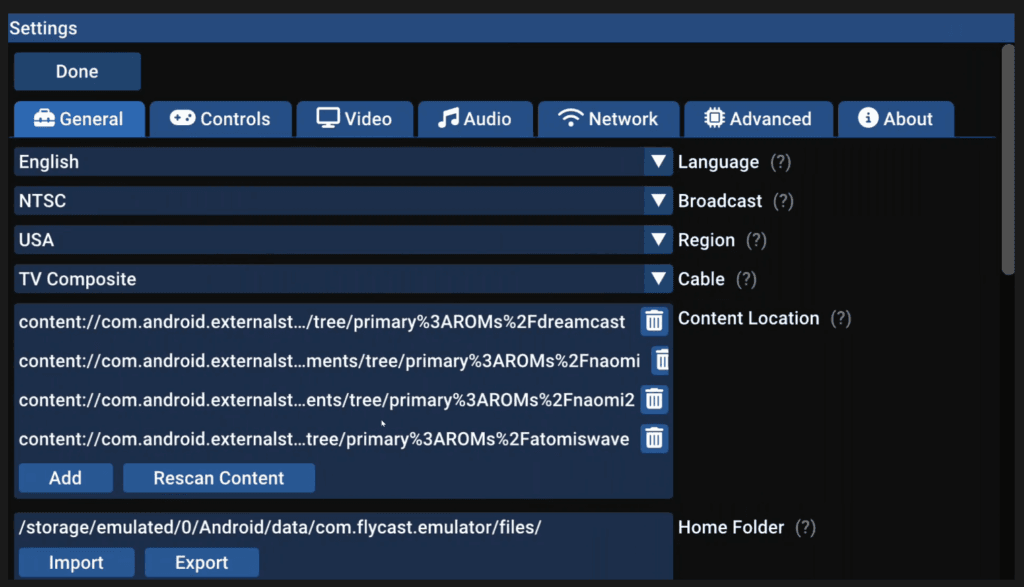
If you click Done top left, you should see your ROMs start to populate and update.
Head back to Settings.
Adding BIOS folder
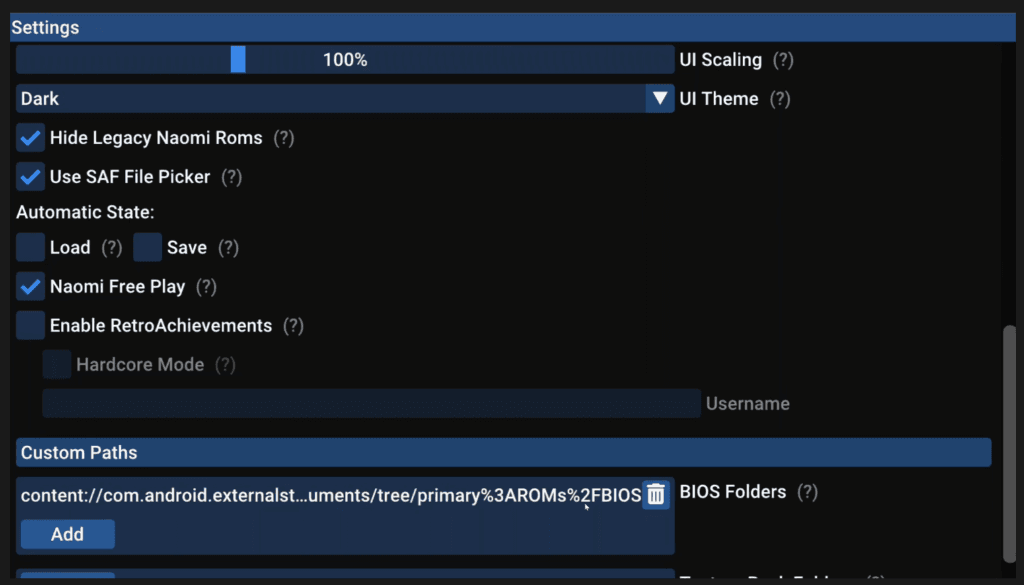
Scroll all the way down to Custom Paths and next to BIOS Folders, click Add and navigate to your ROMs folder, BIOS folder, where your BIOS files are and select use this folder. Then Allow.
General – Save states & RetroAchievements
Alright we have our games and BIOS files setup, let’s look at some other settings in the General tab.
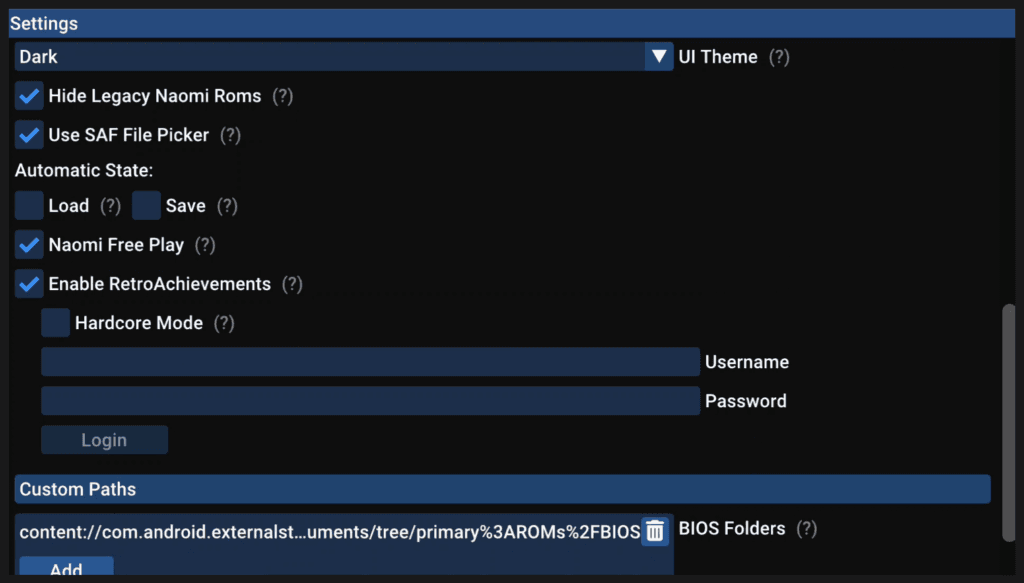
There’s Automatic Load and Save states here if you want it – basically to load into a save state automatically, or save automatically when exiting a game. Your choice.
For Enable RetroAchievements, do you have a RetroAchievements account? If so, you can login here. Just enter your username and password and then login.
Controls – Sega Dreamcast
Head to the Controls tab next.
Push a button on your device if you haven’t already and you’ll see my Xbox Wireless Controller just showed up.
I am in Xbox mode with my Odin 3, for reference.
Now that we know which Device is our controller, set the Ports on the other ones if you have them to None.
Make sure your device is set to A.
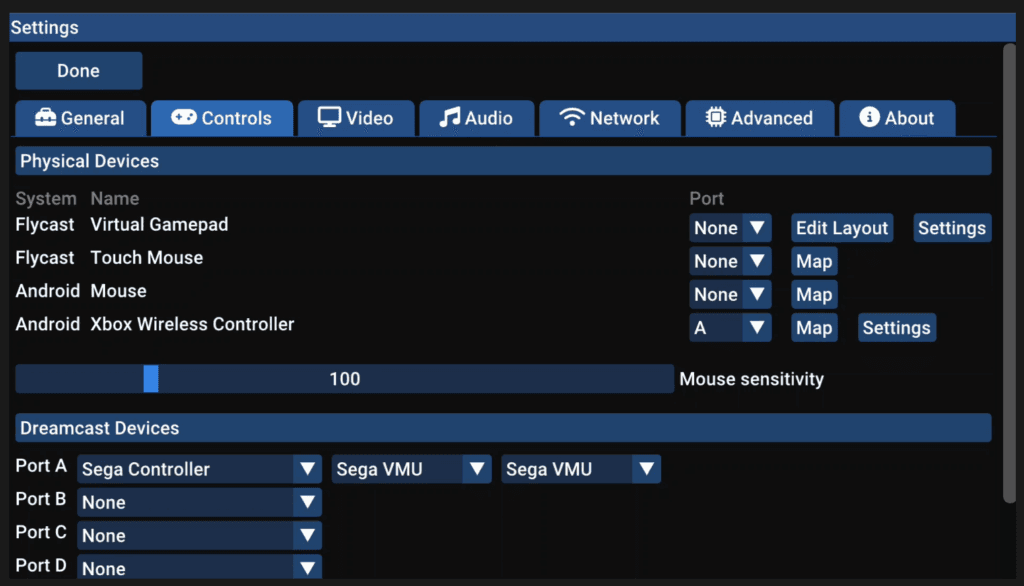
Click Map next to your device.
If you have an Xbox controller, it should be automatically mapped already.
If yours is not automatically mapped, here’s how I would do it and some extra items that you should map.
Just click Map to the right of each line of controls that you need to map.
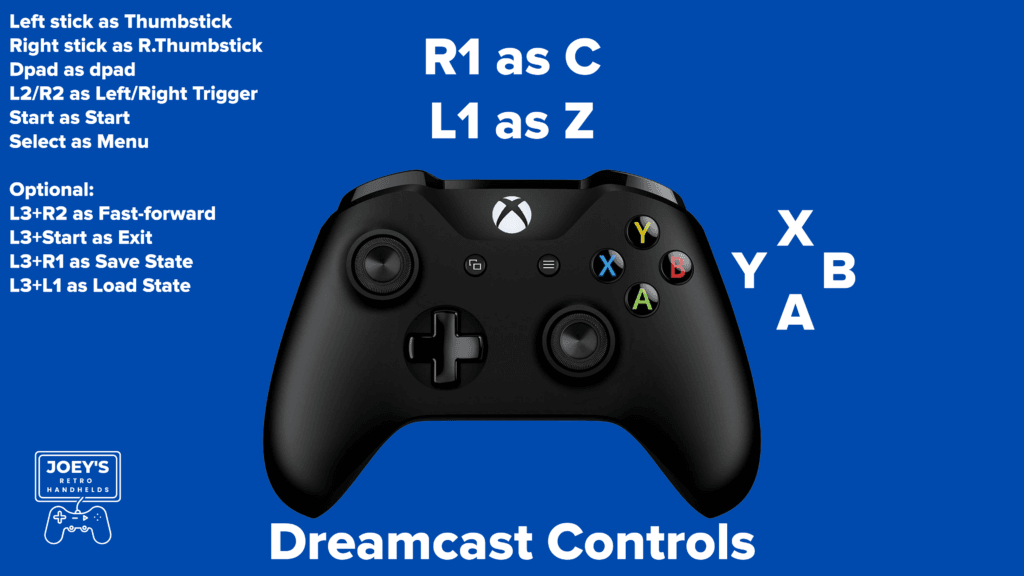
You can do combos, like I show above for Hotkeys.
Sequential just means you have to push those keys in that order as it shows on screen, you can turn that off if you want.
Controls – Arcade
At the top right, if we swap to Arcade Controls, we can map these too for the Arcade systems.
Here’s a picture of an Xbox controller and what you should have mapped or should map for Arcade.

Click Done at the top when done.
You can adjust dead zone and saturation of the sticks by clicking Settings next to your controller if you need to.
Scroll all the way down and turn on Per Game VMU A1 so we can get per-game saves.
It’s helpful.
Video – Graphics, Upscaling & Show FPS Counter
Let’s head over to the Video tab next.
We can do per-game settings, which I’ll show you in a bit, so let’s take a look at what settings we want to make across the board for all games.
OpenGL or Vulkan is a complicated choice, you can leave it as OpenGL – but Vulkan can be better performance wise in some situations.
For Transparent Sorting, the default choice is fine – you may need to change this on a per-game basis if you notice any graphical glitches.
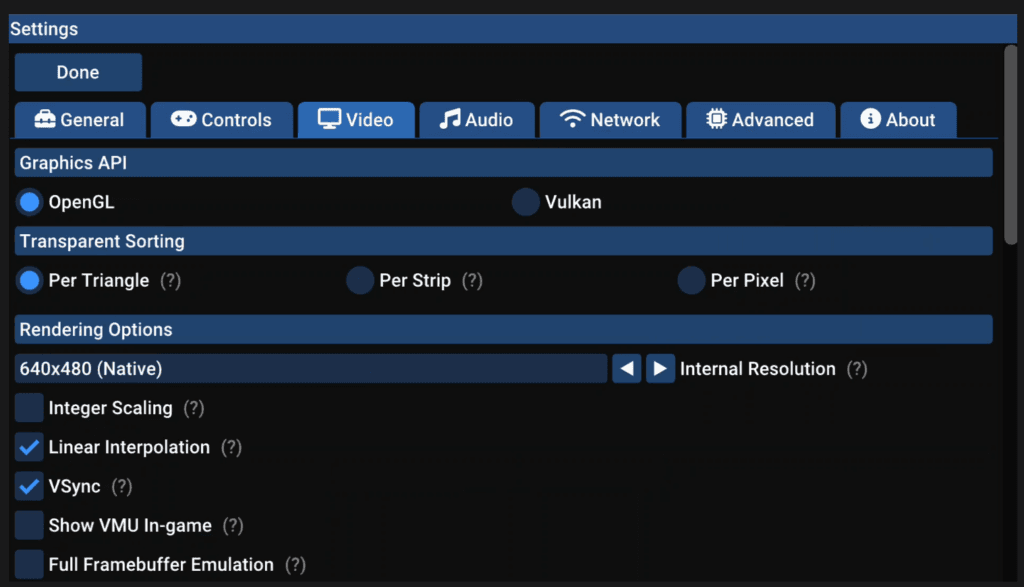
Scroll down to Rendering Options and are you using a capable device? If so, you can upscale from Native to your display resolution.
I’m going with 3x for my Odin 3’s 1080p screen.
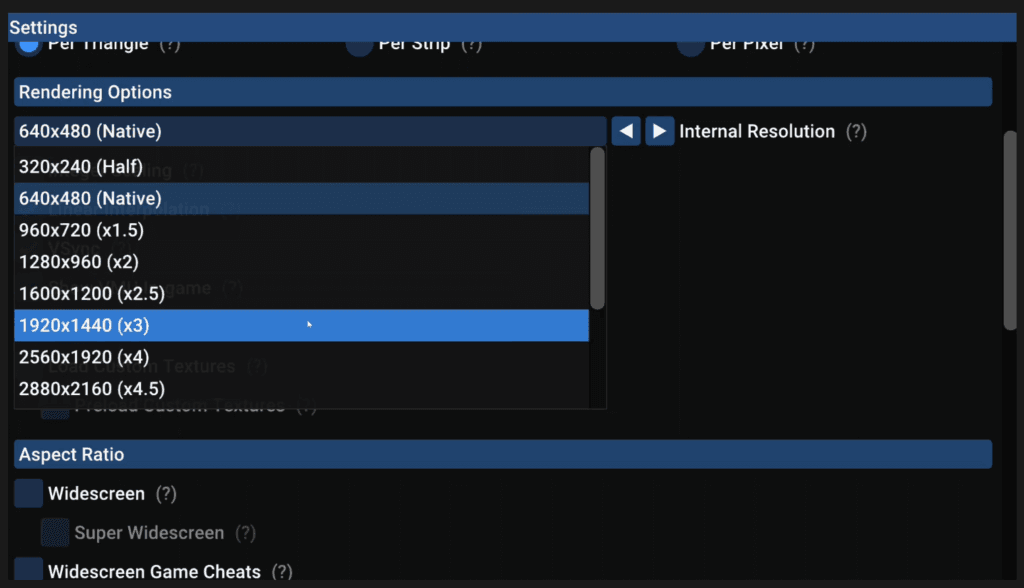
Integer Scaling is a good option if you want to scale the screen without mixing up any pixels.
I like this option, so I’m going to set it – it will make it so the game doesn’t use up the full screen in many situations though.
If you plan to use HD textures, or even if you don’t, this doesn’t hurt – let’s turn on Load Custom Textures and Preload Custom Textures.
For Aspect Ratio, we can use Widescreen hacks and things here – I would leave this for a per-game basis and not turn these on for all games.
Last setting is all the way at the bottom, but you can turn on the Show FPS Counter, at least for a bit, to see how games run.
Network – Online play
Let’s head to the Network tab for the coolest part.
Do you want to play online with people? It’s so very easy.
Enable Use DCNet and that’s it.
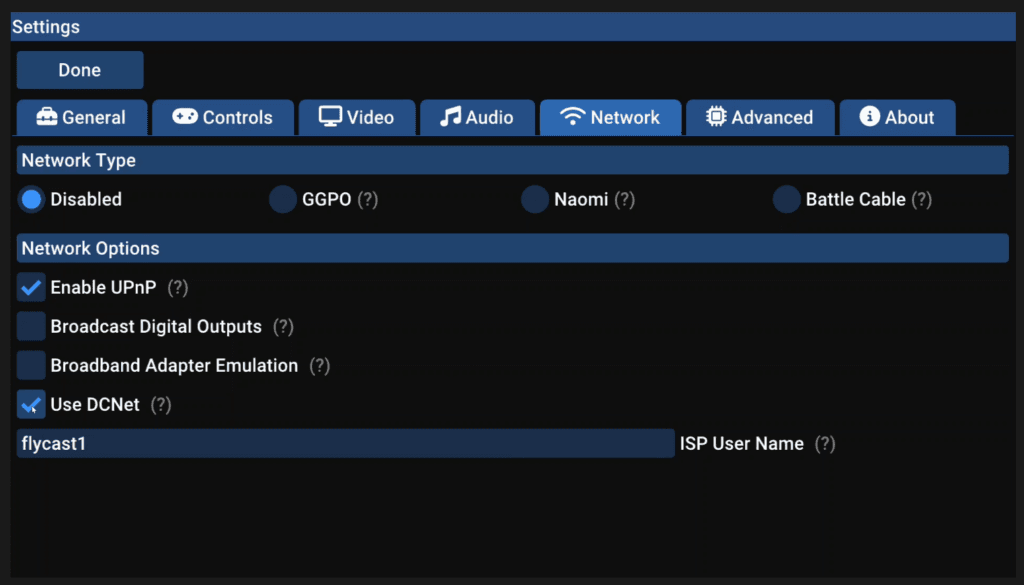
For the games that have supported online, you can just boot up the game like ChuChu Rocket, head to Network, and see others playing, others game rooms and so on.
The Flycast Discord has a channel so you can see what game rooms people are in and playing and everything.
Easiest online ever.
Click Done top left when done.
In-Game
Let’s click a Sega Dreamcast game to start it.
You’re going to see on-screen touch controls, they go away after a few seconds of not touching the screen.
You’ll also see the framerate counter bottom left if you enabled it.
Completely remove on-screen controls
If the on-screen controls really bother you, just head to Settings > Controls > Settings next to Virtual Gamepad and turn Transparency up to 100%.
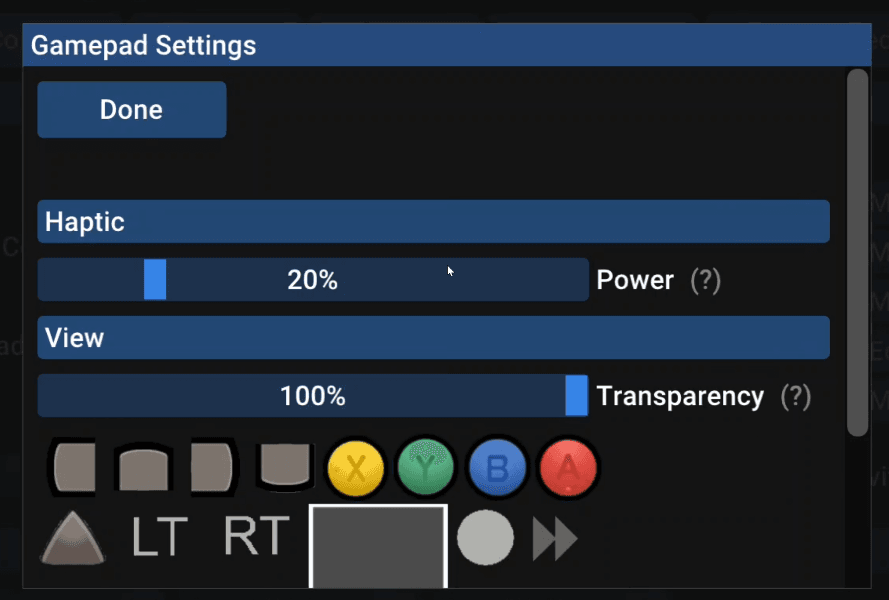
Now you won’t see them.
In-Game Menu
At this point, you can play the game and have fun, but let’s talk about the in-game menu by pressing Select.
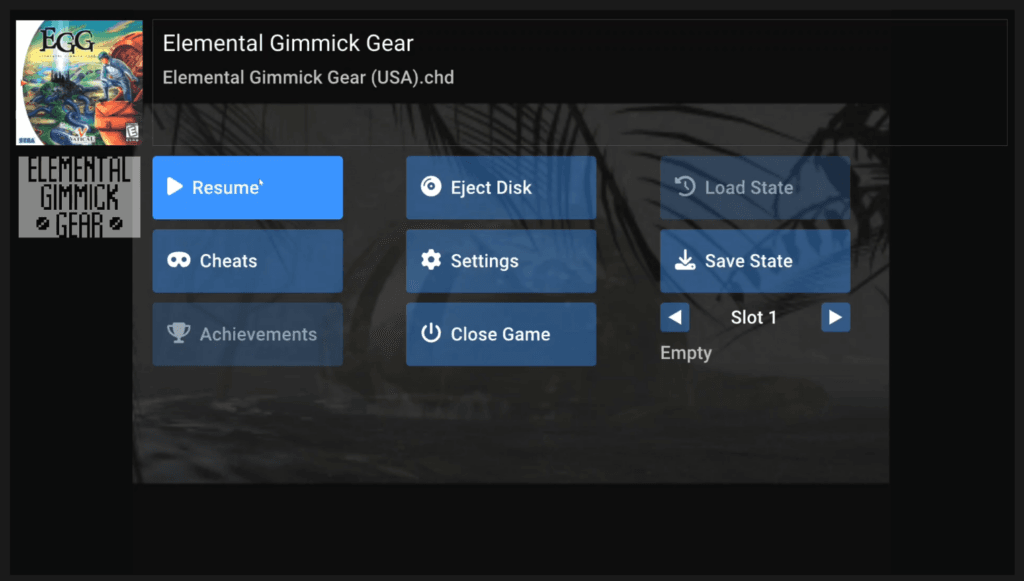
You can use Eject Disk and Insert Disk to change discs if you need to.
Cheats we’ll talk about in a second.
Save State is a way to just manually save state if you didn’t map it to a control earlier and Achievements has your RetroAchievements information.
Per-Game Settings
Head to Settings from the in-game menu.
Right at the top, you can select Make Game Config and now any changes you make, will only apply to this specific game.
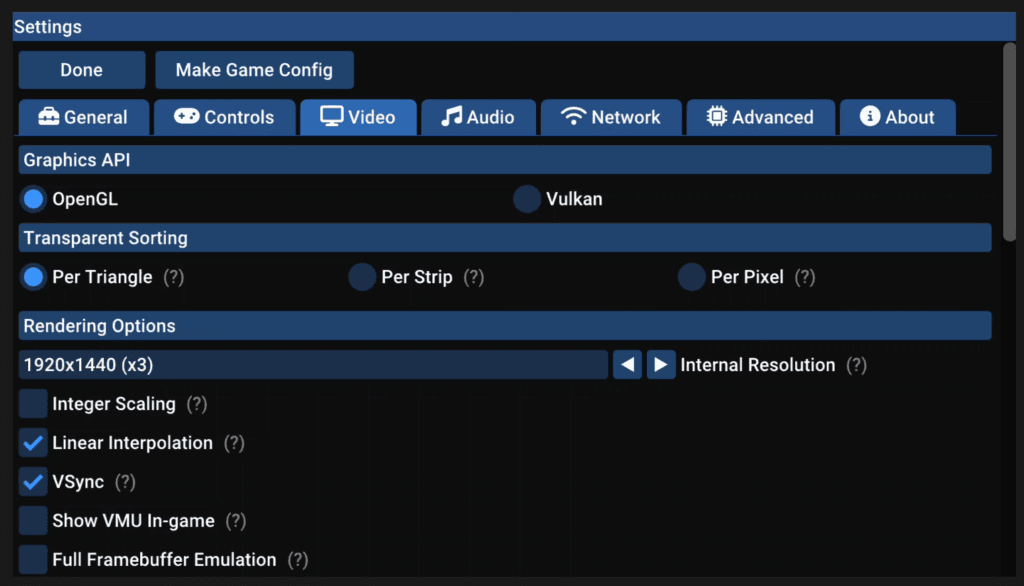
This is per-game settings and handy to fix some games that may have problems and specific setting solutions.
Or you can enable those widescreen cheats we talked about earlier for some games if you want.
Cheats
Let’s talk about cheats.
RetroArch actually has a database of cheats that you can find on their Github.
Go ahead and click the green Code button, then Download ZIP.
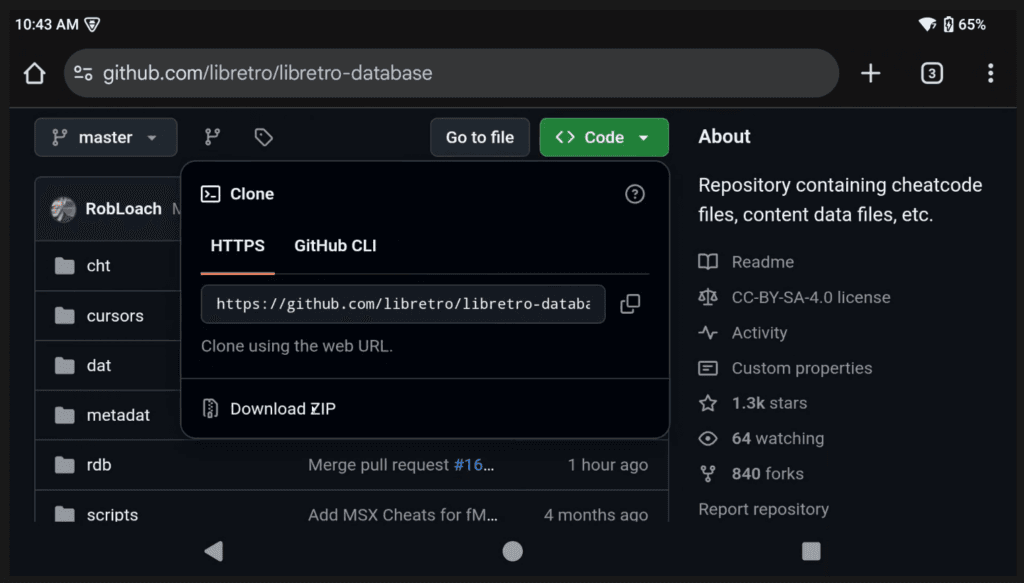
Head to your File manager, and with the default Files app, go inside, then into the cht folder, find the Sega Dreamcast folder, then push and hold on the folder and choose Extract to from the top three dots and then Extract.
You should see that folder now in your Downloads when it’s done extracting, and inside has all the Sega Dreamcast cheats.
You can move this anywhere you want or leave it in Downloads, up to you.
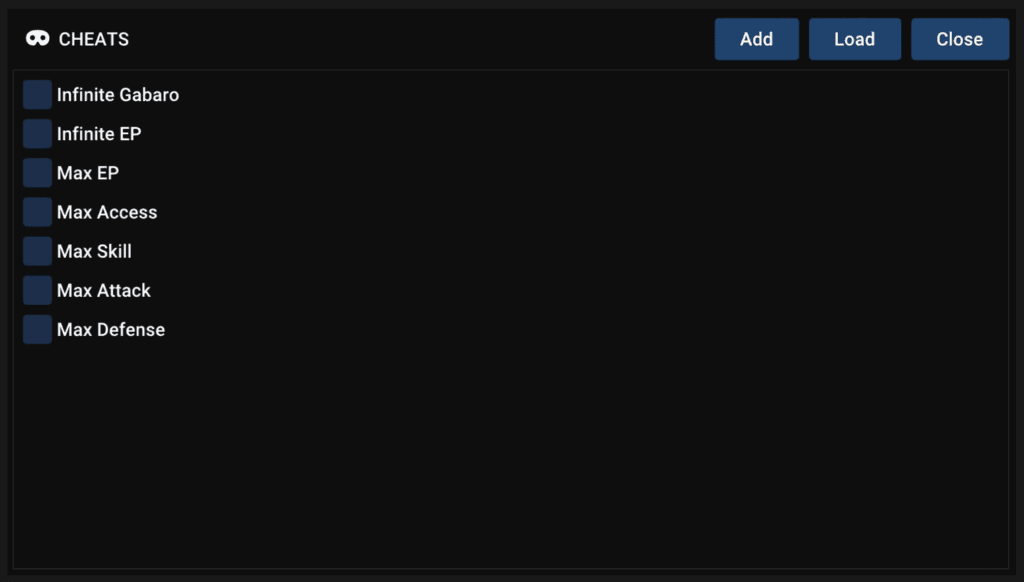
But if we head back to Flycast, open a game, then open the in-game menu and choose Cheats.
Then click Load, head to that Sega Dreamcast cheats folder, find the game you have open and load it.
You should see all the cheats here now to use and you can enable or disable as you want.
HD Texture Packs
Let’s end off with HD texture packs.
There’s a subreddit dedicated to HD texture packs for Flycast.
Let’s do Sonic Adventure, first one I see.
Click the Texture Pack link, then the download button on the right.
Head inside of your file manager and create a folder called textures, this is going to house all of your HD textures so place it now somewhere you want – SD card would likely be the best place.
Then, like cheats, head inside of the compressed folder we just downloaded for Sonic Adventure, push and hold, three dots top right, Extract to, navigate to wherever your textures folder is and extract.
This could take 30 minutes or so, there’s a lot of files.
Should see an MK-51000 folder when that’s done in that textures folder.
If you plan on using other HD texture packs, you want to put them all inside of that textures folder, the same way we just did – MK-51000 is the game’s ID, other games will have a different ID, they go directly into the textures folder we just made.
Head back to Flycast, and then Settings. Scroll down to Custom Paths and now choose Add next to Texture Pack Folders.
Go to wherever your textures folder is now and select use this folder to use it.
Let’s start up Sonic Adventure to see what the difference is.
You should see Preloading custom textures and a progress bar if you did it correctly.
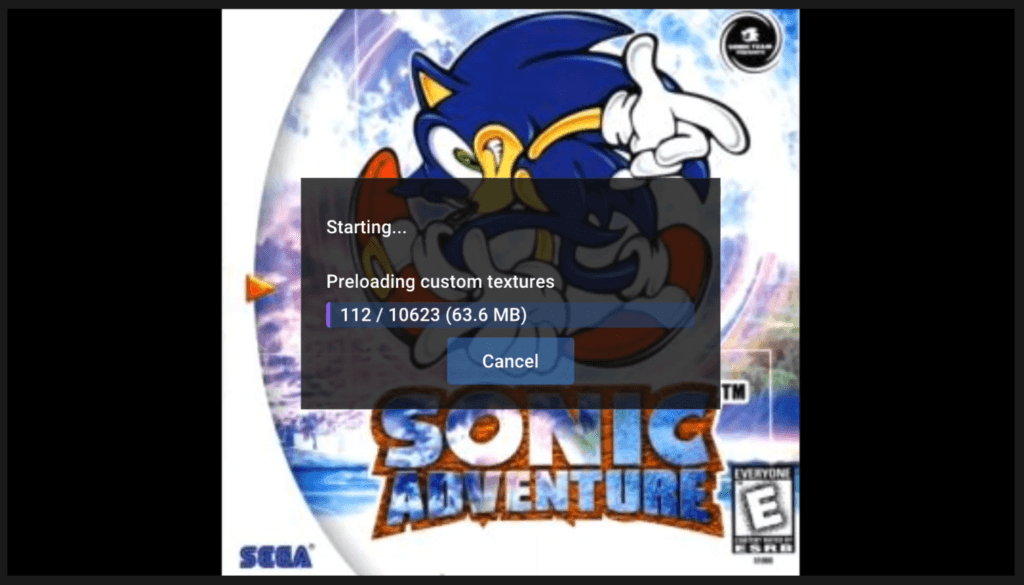
We can see just from the menu and everything that all is looking better already and using the HD texture pack, so we’re all set to play!
Where’s the data stored?
Now if you’re curious where all the data is and folders – this will be dependent on your device as some devices can’t access Android Data without root, but for AYN and Retroid devices, you can go into your file manager, then: Android/data/com.flycast.emulator/files/data and you’ll be able to find your per-game saves here as gameid_vmu_save_A1.bin files.
Syncthing
Flycast can easily be sync’d across all operating systems using Syncthing.