What is ES-DE (EmulationStation)?
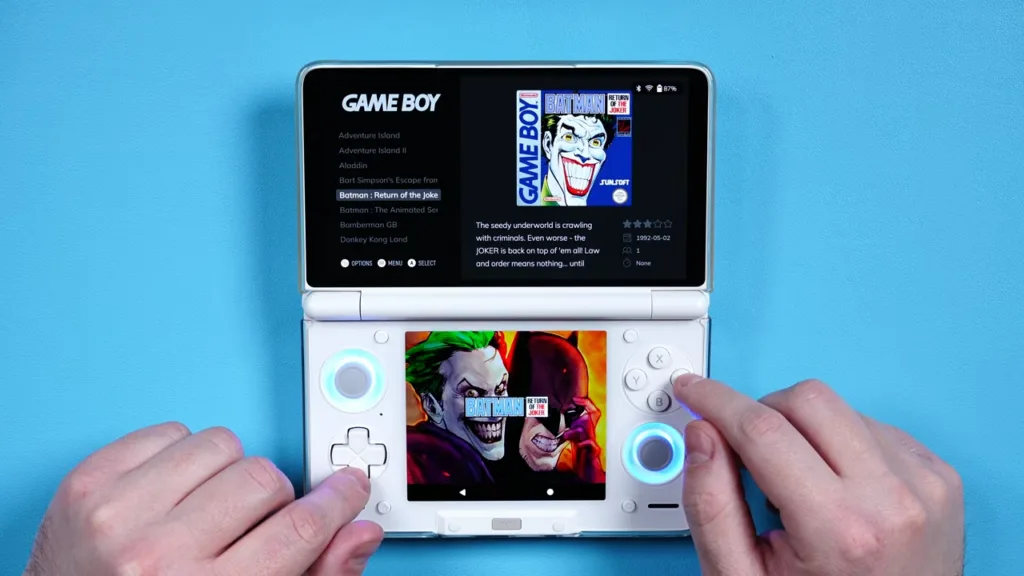
ES-DE or EmulationStation is a popular frontend to launch all of your games from – giving you access to boxart, videos and organization.
This guide will be for the Android version, single screen devices and will also have additional settings for dual screen Android devices like the AYN Thor with things like the ES-DE Second Screen Companion app and Mjolnir.
Long story short: This will be THE guide for any ES-DE user.
Preparation
For today’s guide, I’m going to assume you have setup your emulators, you have your games and otherwise are all setup and have been.
If you need a video to setup your emulators and a beginners guide, my Android setup guide will help you – just ignore the Daijisho parts in that video as you’ll be using ES-DE today instead.
Installing ES-DE
First up, ES-DE is a paid app – you have to subscribe to their Patreon to get it, but it’s not a subscription, you can subscribe once to get access to the download and you’ll also get any future updates as well.

Those updates usually come through email, but if you happen to lose it, you can use their tool here, where you can just enter your email to get the latest update sent to you.

Anyway, in any of the ES-DE Patreon posts is a link to the APK we need or like I said, for previous subscribers who no longer subscribe, use the resend link above to get your APK.
Open that APK to install ES-DE on your Android device and then, open the app.
First time setup
Go ahead and choose Begin setup.
First thing we need to do is give ES-DE file permissions, so enable all files access.
And next, we need to choose where to save all of ES-DE’s data – that means all the boxart, videos, and so on.
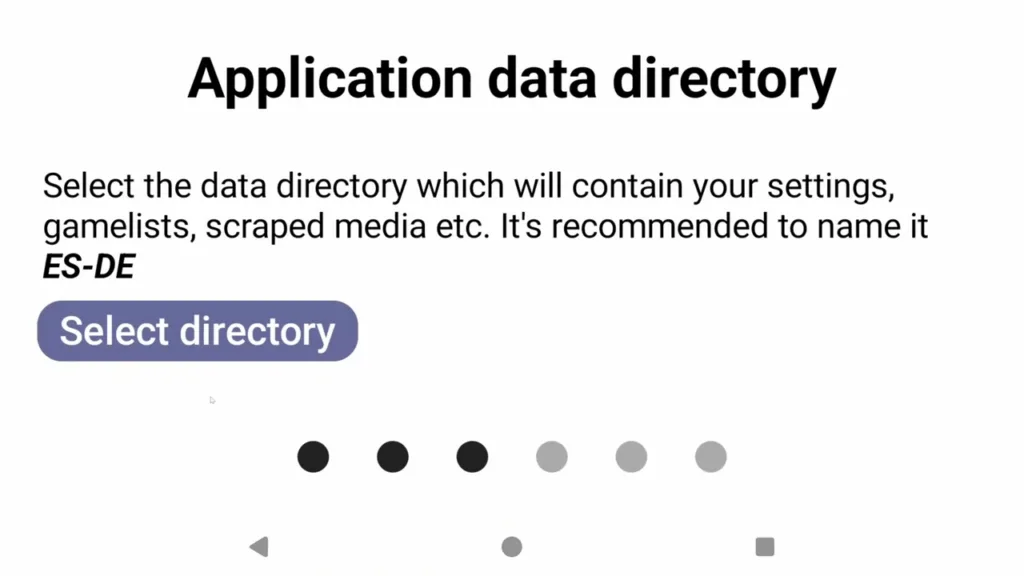
The cool part about this is if you put this data on an SD card for example, when you move that SD card to a new device after upgrading your old device after a week, all your boxart and scraping will come with you.
It also tells us to name the folder as ES-DE so this is important, you want to copy exactly what I’m going to do.
Click Select directory and then, it’s your choice, you can put this on the internal storage or, if you have one, I’d suggest your SD card.
Check to see if ES-DE created the folder already, sometimes it does, if so just select it. If not, click create folder top right usually, and name it exactly ES-DE, then choose Use this folder and allow.
Next up, and this is where a lot of people make a mistake.
The way ES-DE works is it will create all the system folders for us to put our ROMs in, so here it’s saying, create a folder called ROMs like it says and then it’s going to create all the system folders inside of that ROMs folder for us.
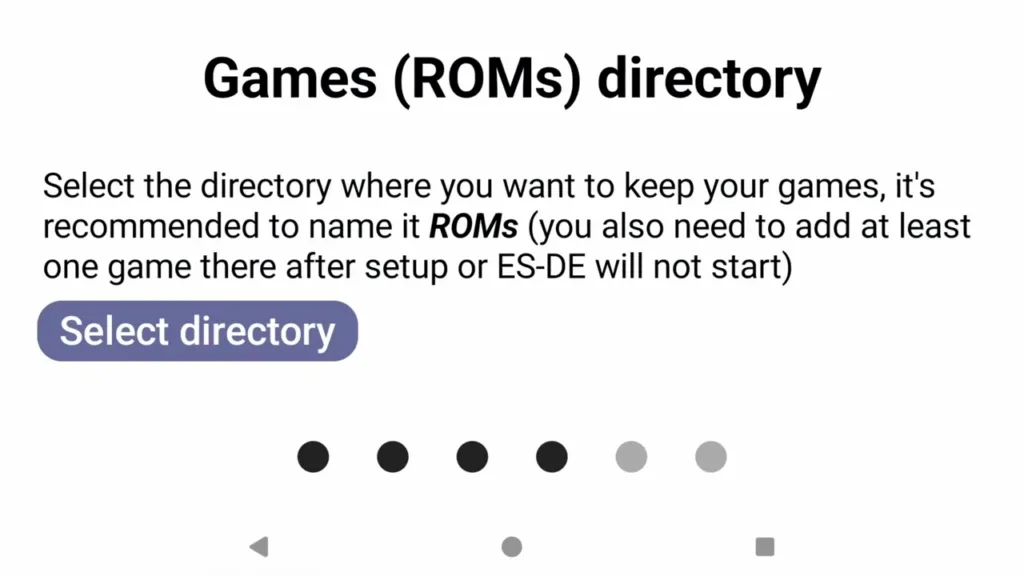
You absolutely have to use those folders or things won’t work – that means no copying over your old system folders here, no renaming the folders, none of that.
So let’s do it, click Select directory.
Once again, this is where your ROMs or games will be stored so I’d suggest your SD card if you have one, otherwise the internal storage.
Check to see if ES-DE created the folder already, sometimes it does, if so just select it. If not, create a folder called ROMs right on the root.
Click Use this folder and then allow.
And so you see here, now ES-DE wants to create the system folders for us – or you can skip this.
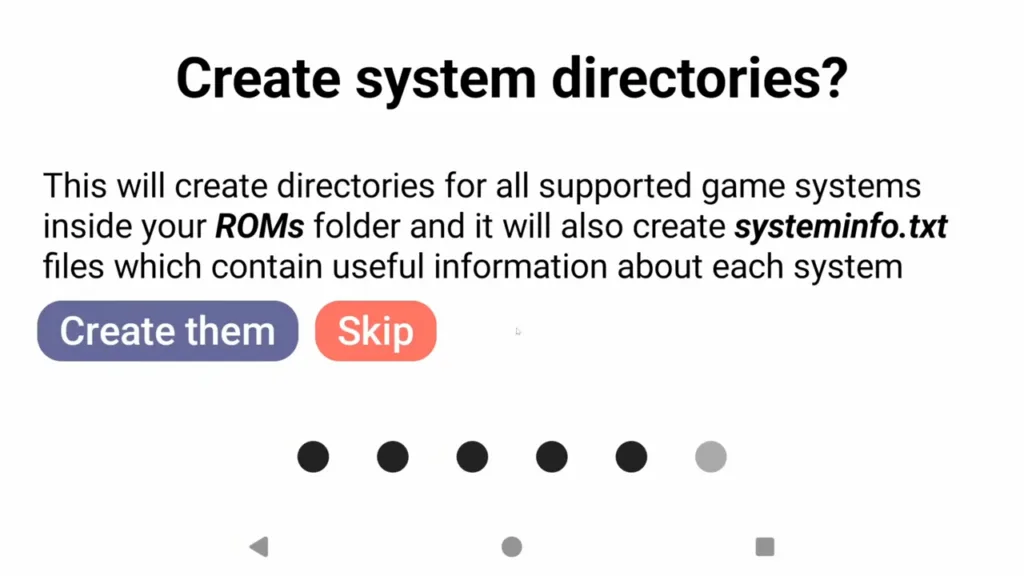
The problem with skipping this, is that ES-DE is very picky about folder names – for example, ps2 needs to be named ps2, lowercase, like that and what usually people do is just copy their own PS2 folder over, all caps and things don’t work.
Long story short, select Create them.
Now click I understand.
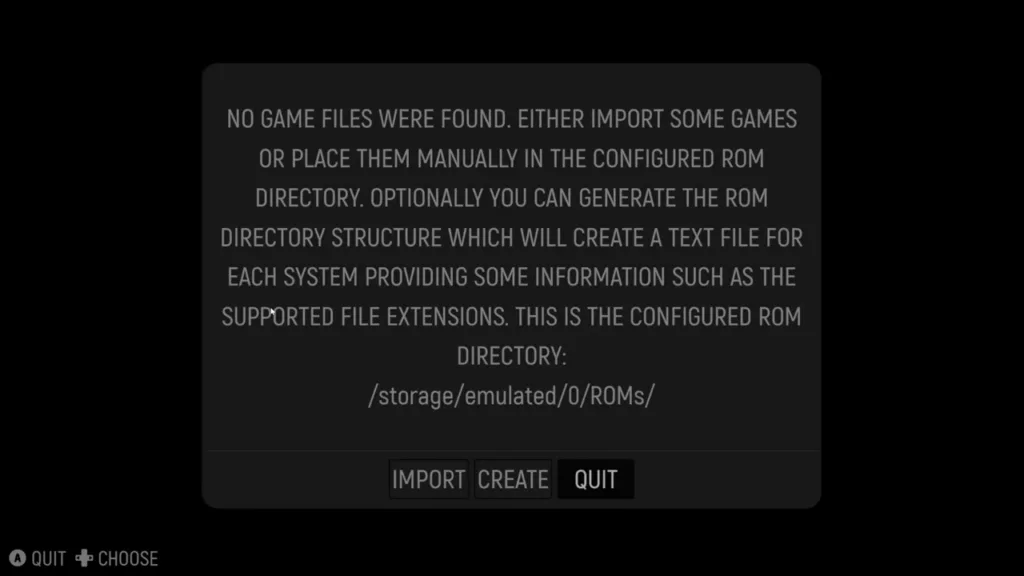
We’re going to get an error, that’s okay, we haven’t added any games yet so this is expected, click Quit.
Moving your ROMs to the ES-DE ROMs folder
Alright, now at this point, we need to add or move our ROMs to the right system folder in the ROMs folder we just created.
So if you open your file manager, and go to where you created that ROMs folder, and inside you’re going to see all the system folders that ES-DE created.
Once again, super duper important that you move your games into the right system folder here and that you don’t rename these folders or move any of your own folders in here.
So just open a system that you have games for, copy and paste them inside, and move on.
Repeat this for as many systems as you have games for.
You can do all of this on the PC if you want, and that’s easier – just connect your Android device using a USB cable, and some devices instantly ask for file transfer, others just swipe down, tap the charging notification and change to file transfer.
ES-DE Settings
Once you’re all done, head back to ES-DE and this time, you’re going to see system icons and your games are inside of them, awesome.
But let’s change some settings.
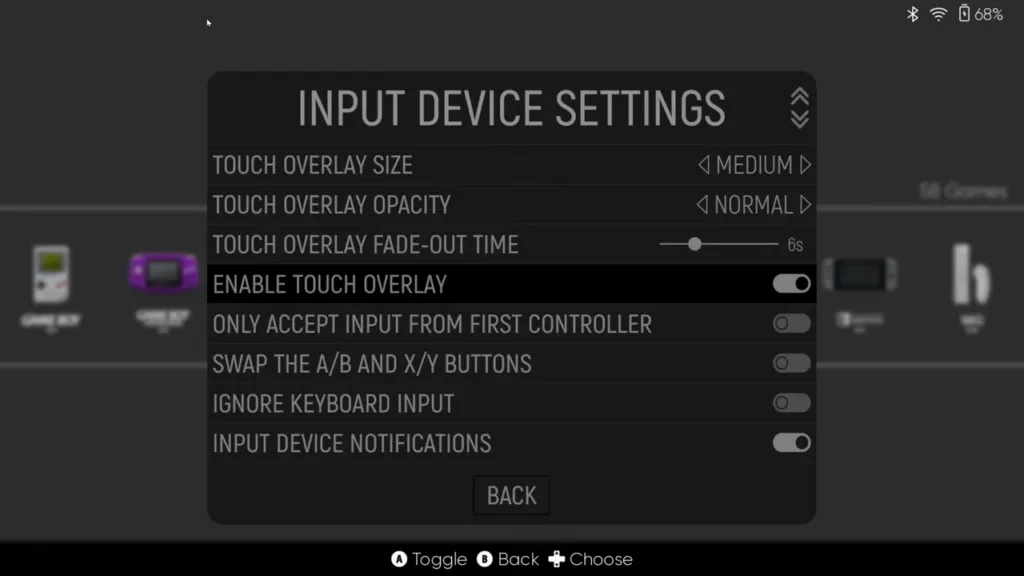
Turn off on-screen controls
Push Start on the main screen and let’s head to Input Device Settings, then turn off Enable Touch Overlay to remove the on-screen controls – if you have a controller or handheld.
Show Favorites & Last Played
Back out and into Game Collection Settings, then into Automatic Game Collections, I like to enable both Favorites and Last Played to be shown.
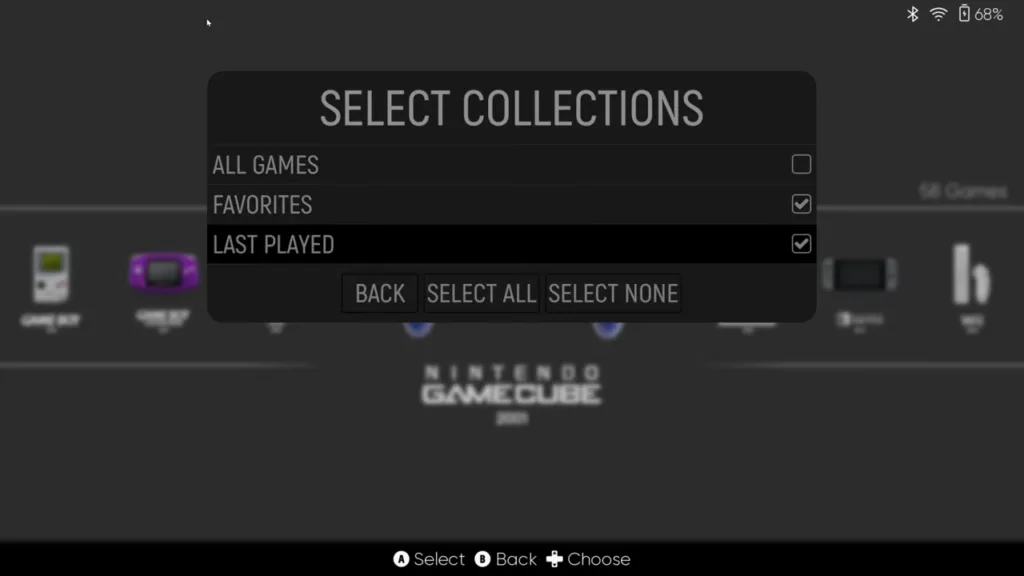
These will show up on the home screen as options to browse.
Change Theme
Back out and this time head to UI Settings and then Theme Downloader.
Click Proceed.
This part will be totally personal preference, but you can browse the available themes to find one you like.
I like Art Book Next, so I’m going to choose that to download it.
Back out when whatever you’ve chosen is done downloading and change the Theme for Linear which is default to whatever you chose.
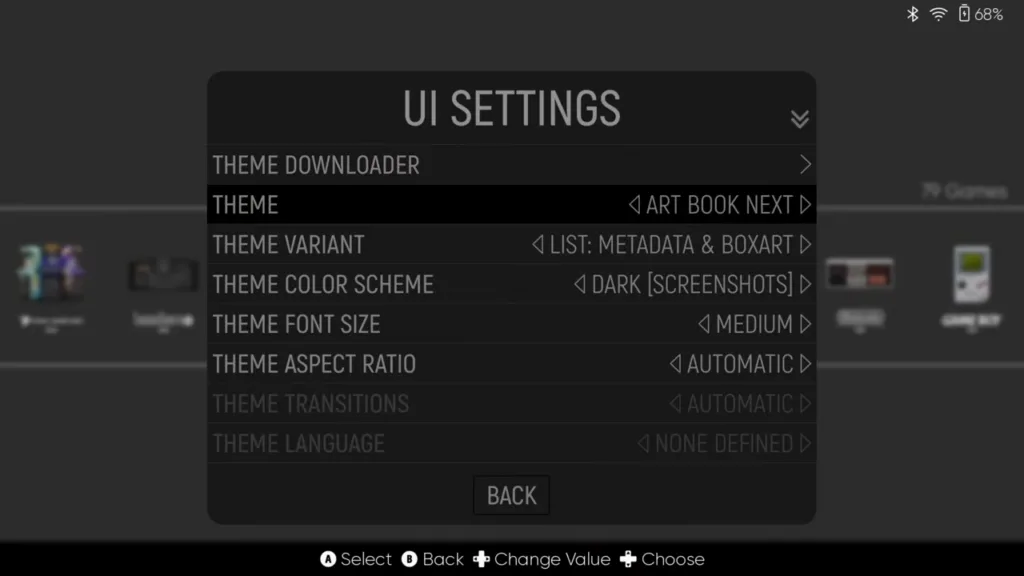
If you back out, you’ll now see it on the main screen, awesome.
Scraping Boxart
Push Start to get back into the menu and head to Scraper.

So obviously you’re going to want to get box art and videos and so on, and you can do that here.
Scraper uses Screenscraper, which is actually a website that you’ll want to go register on to get a free account – it allows more scraping before you hit the limit.
Then head to Account Settings and input that username and password here then click Back.

Now this is important – scraping takes a very long time, you’ll probably want to do maybe one system a day or something.
So under Scrape these Systems, you can choose which system to start with.
Under Content Settings, you can choose what to scrape and what not to.
Your choice.
I personally don’t touch the settings under Miximage or Other, but it’s up to you.
Just click Start when ready and it’ll just start scraping.
If you ever are like, oh no I want to go do literally anything else but spend my time scraping and so you stop it – just choose No Metadata under Scrape these Games next time you do this same system to avoid redoing all the games you already did.
Fixing Boxart not found
Now, you’ll likely run into some games that couldn’t find artwork so just find the game in the list and push Select then Edit This Game’s Metadata.
Scroll down to Scrape and it’s going to try and find options to present to you.
If none of them work, click Cancel and try renaming the game name to something else to get a closer match and click Scrape again.
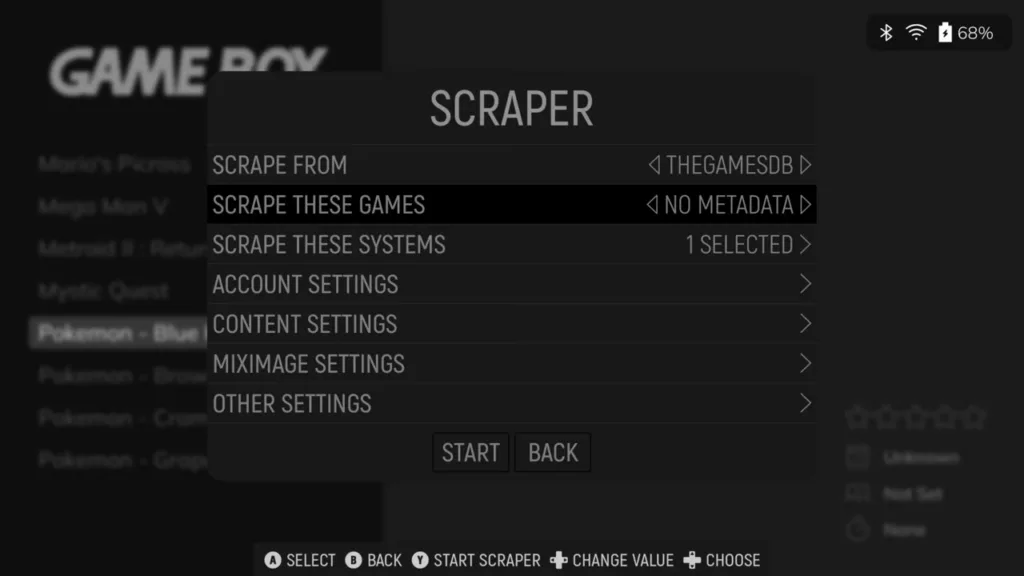
If still nothing shows, you can try heading back to Scraper, and changing Scrape From to THEGAMESDB instead and change Scrape These Games to No Metadata and choose your system and see if it’ll find it from that source instead.
Importing Android apps
Next up, let’s get our Android apps imported because ES-DE does this a bit more weirdly than other launchers on Android – you need to import your Android apps.
So, push Start, head to Utilities and then Game Importer.
The first option is what you want to import, and we want Android Apps.
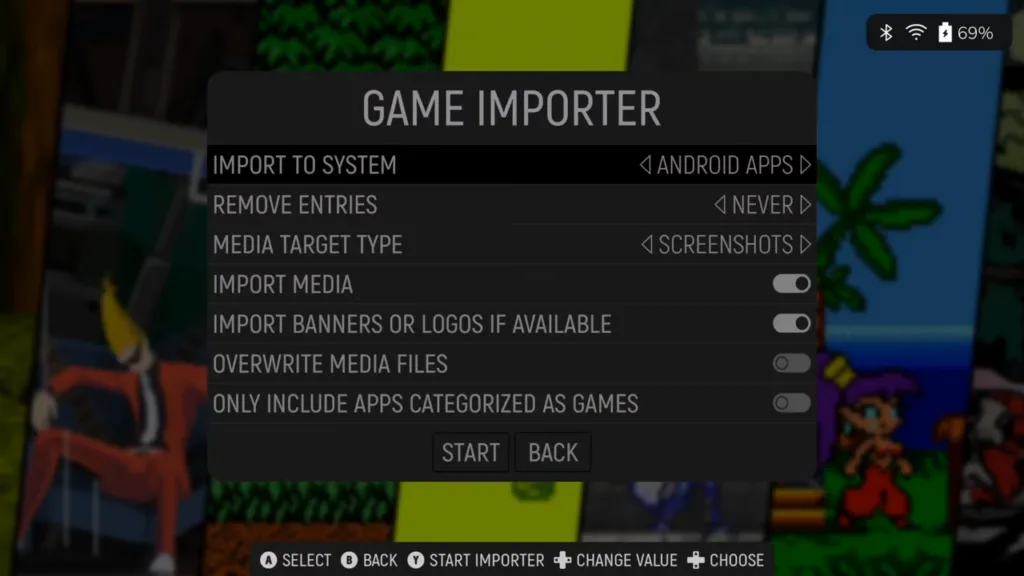
Just click Start.
You should now see all of your apps, so scroll down and click Select All and then Import.
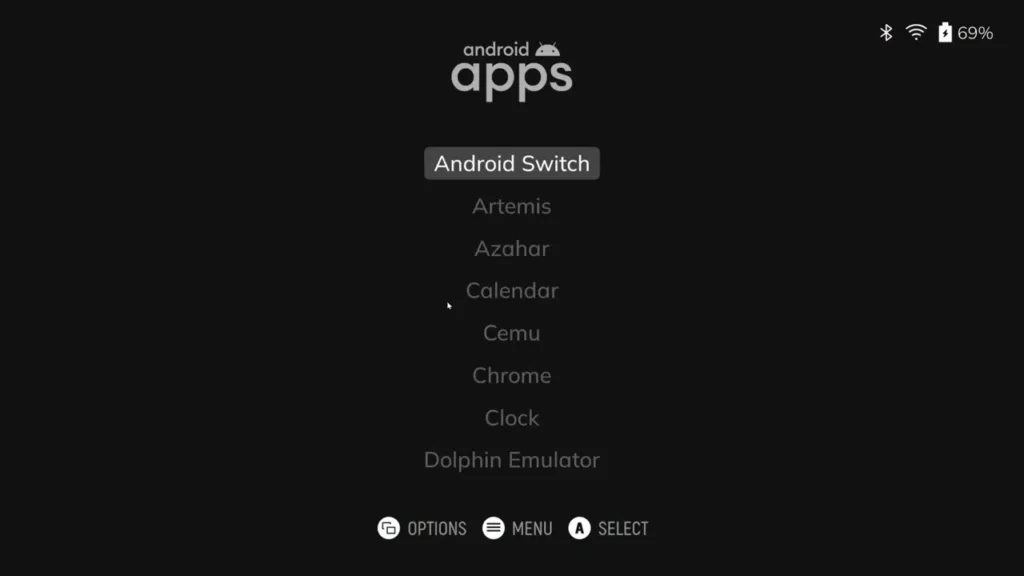
Back out and you should now see your Android apps as an icon and you can launch them now from emulation station – basically a necessity to use this as a home launcher.
You may be wondering, what if you download a new app or remove one, does this list update? The answer is no.
You have to go back to Game Importer, and change Remove Entries to All Unselected.
You’ll get a warning, click Yes.
Now just select all again, and Import.
This will remove any deleted apps and only keep what you added.
Alternatively, keep Remove Entries to Never and click Start and you can manually choose whatever new app to add to the list.
Setting ES-DE as your home app
At this point it’s now safe to set this app as the home app to start when you start the device, so head to your Android Settings > Apps > Default apps > Home app and choose ES-DE.

Setting emulators & cores in ES-DE
Now we come to the fun part, the absolute most important part of today’s guide and that’s telling ES-DE what emulators and cores we use, and also, setting those up properly.
First, ES-DE is actually missing a ton of emulators by default, so we need to add those in.
Head to this Github and you want to download the es_find_rules.xml and es_systems.xml files from whatever the latest release is.
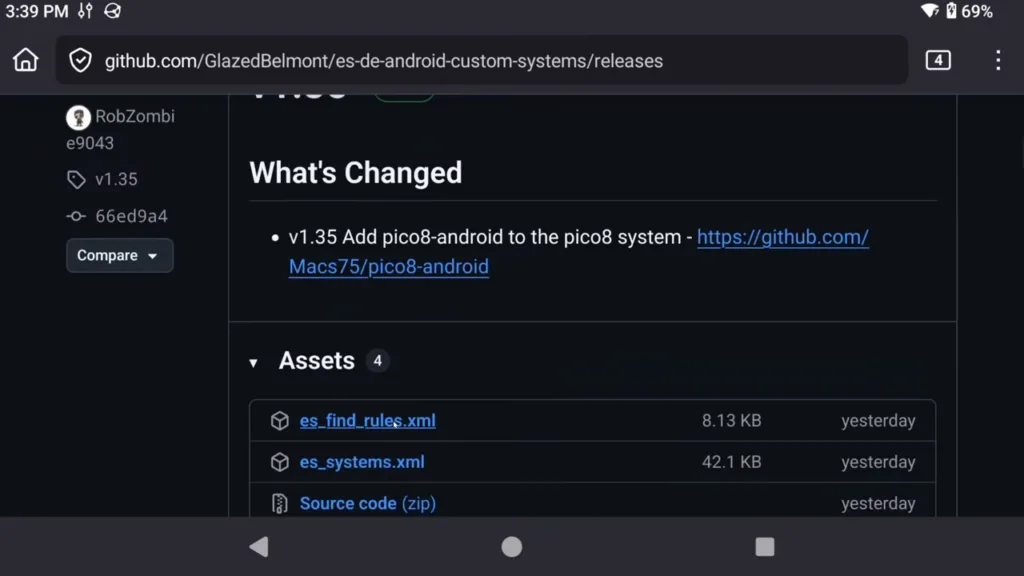
If you’re ever missing a new emulator, you’ll want to update these files in the future.
Make sure the file names end in xml, if yours downloaded as txt files, remove the txt from the filename – they have to be xml.
Once you download them, you want to move them to your ES-DE folder, wherever you created it at the start of the guide, and into the custom_systems folder.
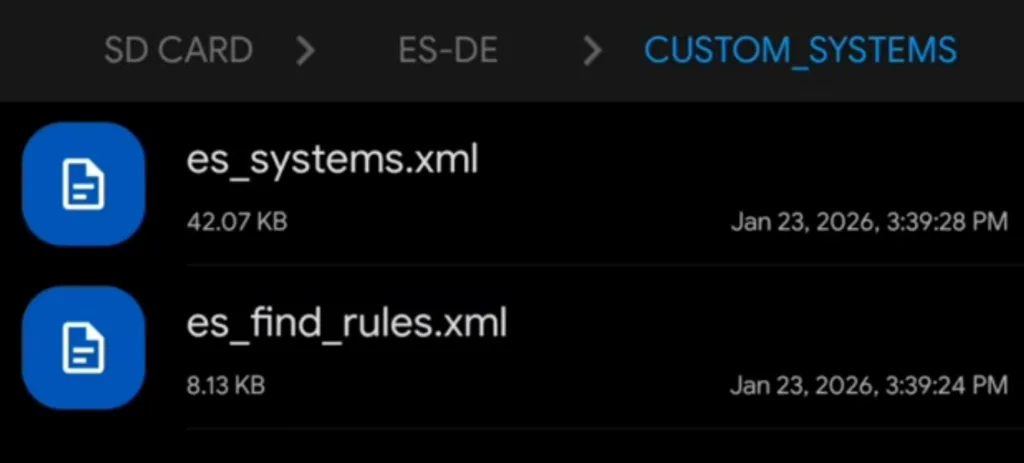
Close and reopen ES-DE.
Choosing the right emulator
Alright, push Start and head to Other Settings and then Alternative Emulators.
At this point, you should see all of the systems you have games for on the left, and on the right is what emulator or core ES-DE is going to use to launch those games.
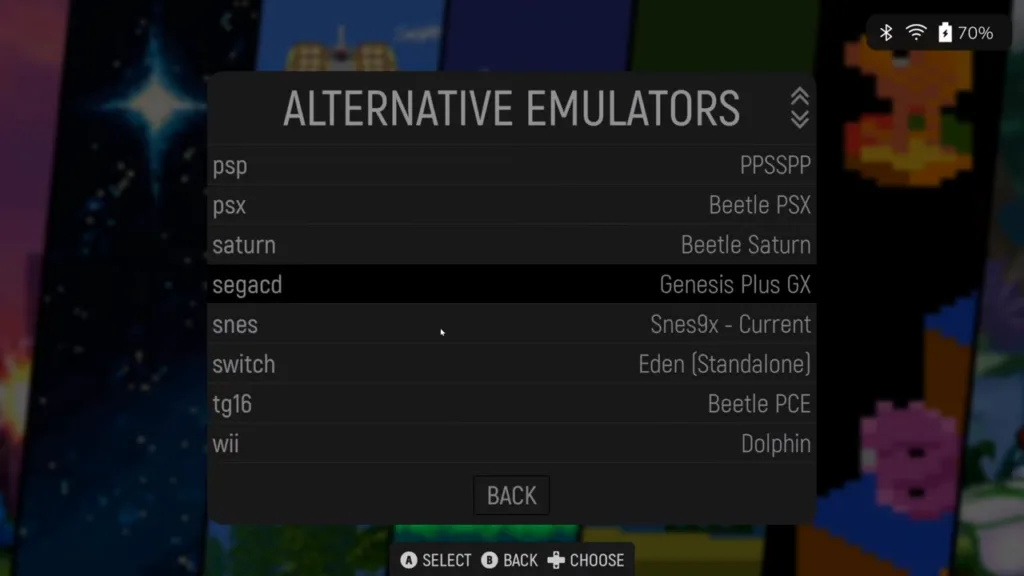
It’s super important that the emulators here match what you actually use.
It’s also important to note – if the name doesn’t have Standalone in it, that means it’s a RetroArch core.
Otherwise, any emulators with Standalone are the standalone emulators.
So you want to scroll through and make sure everything here matches the emulator or core that you use to play that system.
Let me point out the trouble spots, or at least, the obvious ones:
- gc: This should be set to Dolphin (Standalone)
- n3ds: Most people use Azahar (Standalone), if not, choose whatever emulator you use for 3DS games.
- n64: Mupen64Plus-Next by default is usually good unless you’ve been using M64Plus FZ (Standalone) for your N64 games.
- For N64 games to launch properly in RetroArch, you need to make a setting change or your controls will not work.
- Open RetroArch directly, without a game, then head to Settings > Input > Polling Behavior and change it to Early.
- Head to the Main Menu > Configuration File > Save Current Configuration.
- Close RetroArch and now N64 games will work.
- nds: MelonDS DS is fine for single screen devices, otherwise dual screen devices should choose MelonDS (Standalone).
- nes: It’s defaulting to Mesen, but if you’ve followed my guides, we use FCEUmm.
- ps2: Despite it saying AetherSX2, this works for NetherSX2.
- psp: This should be set to PPSSPP (Standalone).
- psx: It’s defaulting to Beetle PSX, but if you’ve followed my guides, we use SwanStation or Duckstation (Standalone).
- switch: Most people use Eden (Standalone), if not, choose whatever emulator you use for Switch games.
- wii: This should be set to Dolphin (Standalone).
Updating our emulator paths
You might be thinking that we’re done, but oh no, we are not.
All we did there was tell ES-DE what emulators and cores we use, and now, but now we have to fix our emulators to work with ES-DE.
It’s a give and take relationship here, both sides need to be told what to do.
This next section is updating your emulator paths to point to the new folders (so inside of the ROMs folder)
This is necessary for any of these emulators you have.
This next part assumes you put all your games in the right spot – the system folders inside the ROMs folder.
So let’s start with:
- Azahar: Open Azahar > Three dots top left > Select Applications Folder > navigate to your ROMs folder > n3ds folder and select it. Head back to the main screen of Azahar to see all your games populate – when they’re done, exit Azahar. If you try and boot a 3DS game now in ES-DE, it’ll work.
- CEMU: Open CEMU > Dots top right > Settings > General Settings > Add game path > Remove anything that’s here and then click the Plus icon > navigate to your ROMs folder > wiiu folder and select it. Head back to the main screen of CEMU to see all your games populate – when they’re done, exit CEMU. If you try and boot a Wii U game now in ES-DE, it’ll work.
- Dolphin: Open Dolphin > click Add Games at the bottom right > navigate to your ROMs folder > gc folder and select it. Then, click the Wii tab in Dolphin > navigate to your ROMs folder > wii folder and select it. Wait for your games to populate in Dolphin – when they’re done, exit Dolphin. If you try and boot a GameCube or Wii game now in ES-DE, it’ll work.
- Duckstation: Open Duckstatation > Three dots top left > App Settings > Scroll over to Game List > Remove whatever is here and then click the Plus icon > navigate to the ROMs folder > psx folder and select it. Head back to the main screen of Duckstation to see all your games populate – when they’re done, exit Duckstation. If you try and boot a Duckstation game now in ES-DE, it’ll work.
- One quick note with Duckstation – m3u files, at least how most people do them, don’t work properly with Duckstation from ES-DE. You’ll get an error that says failed to open CD image if you’re using a normal m3u. You will need to follow the steps here in Setup 3 to set them up for Duckstation to work, but it’s such a hassle and only works with Duckstation so I just don’t use a frontend for Duckstation games.
- MelonDS: Open MelonDS > Three dots top right > Settings > ROMs > Search directory > Click the existing path to remove it and then re-click Search directory > navigate to your ROMs folder > nds folder and select it. Head back to the main screen of MelonDS to see all your games populate – when they’re done, exit MelonDS. If you try and boot a MelonDS game now in ES-DE, it’ll work.
- NetherSX2: Open NetherSX2 > Three lines top left > App Settings > Scroll over to Game List > Remove whatever is here and then click the Plus icon > navigate to the ROMs folder > ps2 folder and select it. Head back to the main screen of NetherSX2 to see all your games populate – when they’re done, exit NetherSX2. If you try and boot a PS2 game now in ES-DE, it’ll work.
- PPSSPP: Open PPSSPP > Games tab > Click Browse > navigate to the ROMs folder > psp folder and select it. Head back to the main screen of PPSSPP to see all your games populate – when they’re done, exit PPSSPP. If you try and boot a PSP game now in ES-DE, it’ll work.
- Switch: Open your Switch emulator, I’m using Eden > Settings > Manage game folders > Remove anything here and then click the Plus icon > navigate to your ROMs folder > switch folder and select it. Head back to the main screen to see all your games populate – when they’re done, exit Eden. If you try and boot a Switch game now in ES-DE, it’ll work.
- RetroArch: RetroArch needs no changes minus the N64 one we talked about before however, never ever exit a RetroArch game using the home button on your device. Great way to corrupt your saves. For example, if I open an SNES game, and I’m going to push the home button on the device to get back to ES-DE then I’m going to try another game and it’s not going to load. We didn’t exit RetroArch properly. Always use the Quit hotkey to exit RetroArch back to ES-DE or any frontend, which I show how to setup in my Android setup guide.
Actually, you should never exit any emulator with the home button of your device, just make that a habit to not do.
ES-DE Dual Screen Additions (must do both)
Now for Thor users, we have something extra special and it’s the ES-DE Second Screen Companion app.
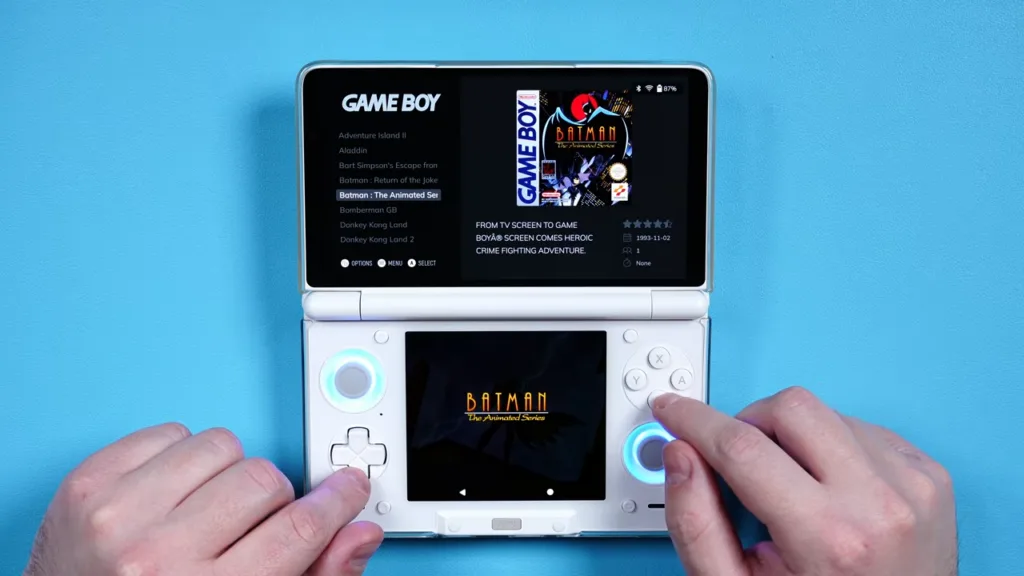
ES-DE Second Screen Companion app
Head to the Github and download whatever the latest release APK is.
The version without the h in the name.

If you’re someone who uses Obtainium, you can click Get it on Obtainium to add it to your Obtainium and get updates easily.
Open the APK to install it and then launch the app.
Click the bottom right to start.
First thing we need to do is grant permission for storage, so click Grant Permission and then allow access then head back.
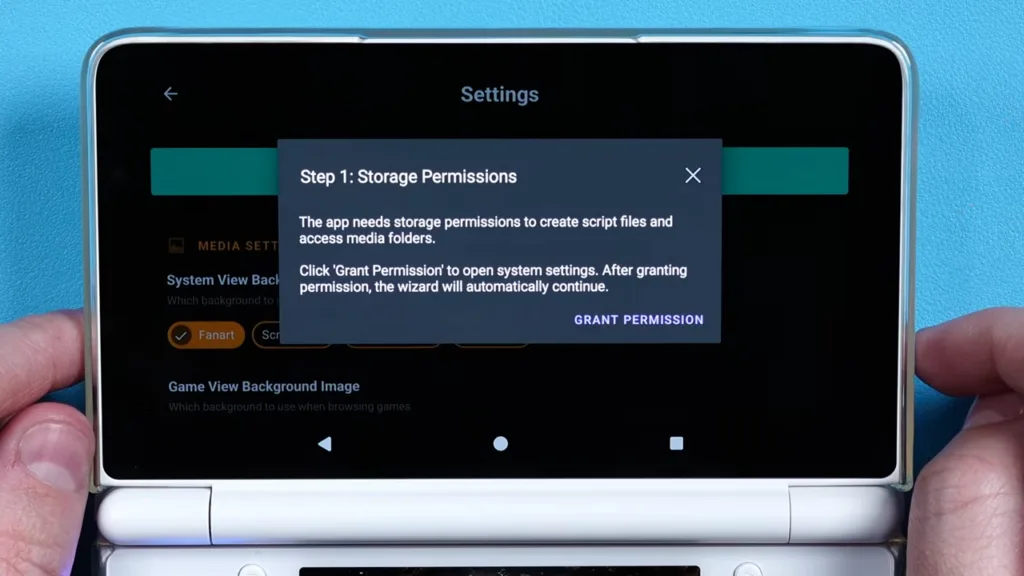
We now need to point this app to our ES-DE scripts folder.
The easiest way to do this is click Select folder, then navigate to your ES-DE folder which is either on the root of your internal storage or SD card following today’s guide, then into the scripts folder and select use this folder.
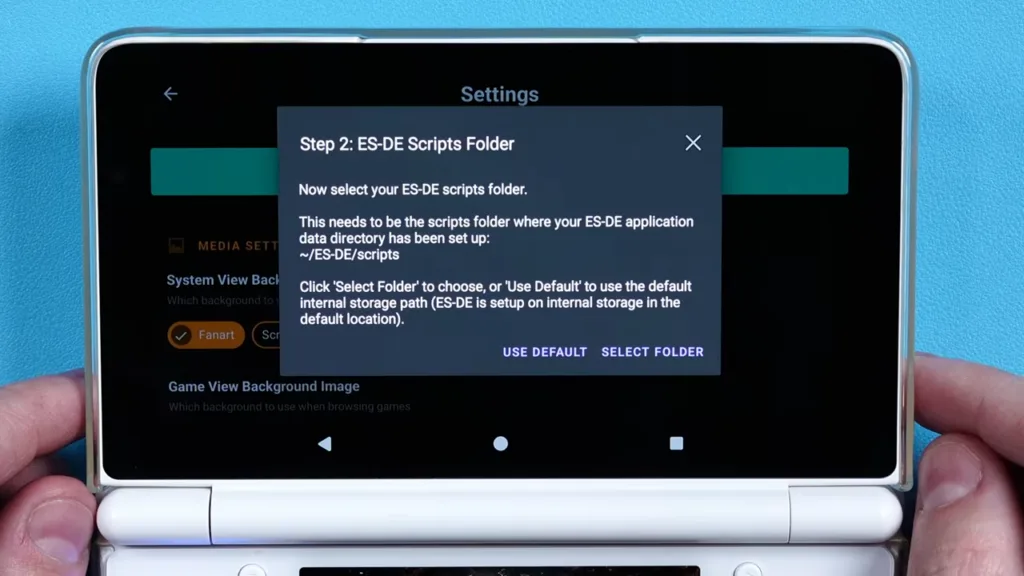
The app now needs to create some scripts to run, so click Create Scripts.

Once again, we need to point the app to where our ES DE media is, so click Select Folder, navigate to your ES-DE folder and then the downloaded_media folder and select use this folder.

Lastly, we have to enable scripts to be run in ES-DE, so go ahead and open ES-DE and push Start, then head to Other Settings and turn on Custom Event Scripts and Browsing Custom Events.
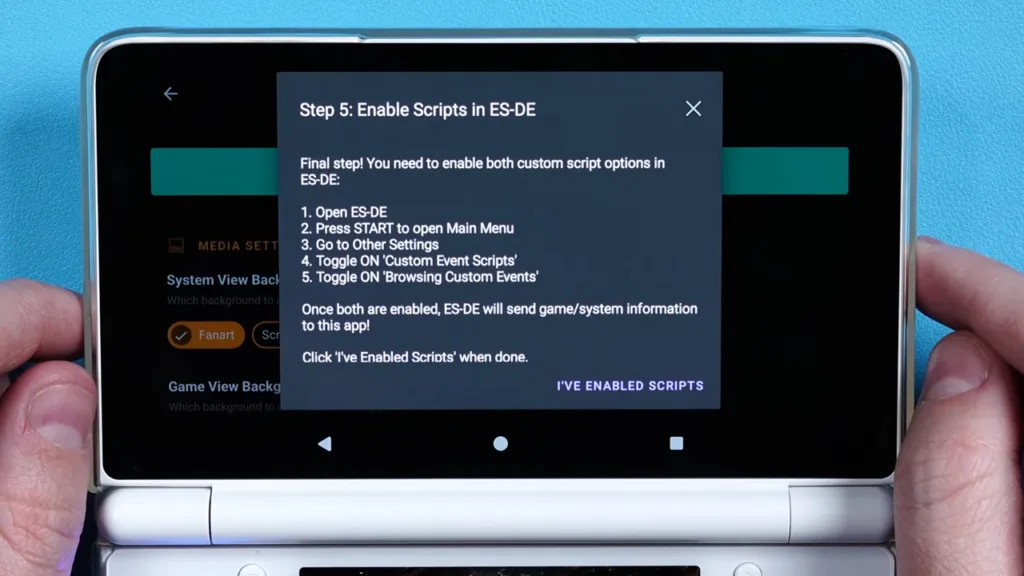
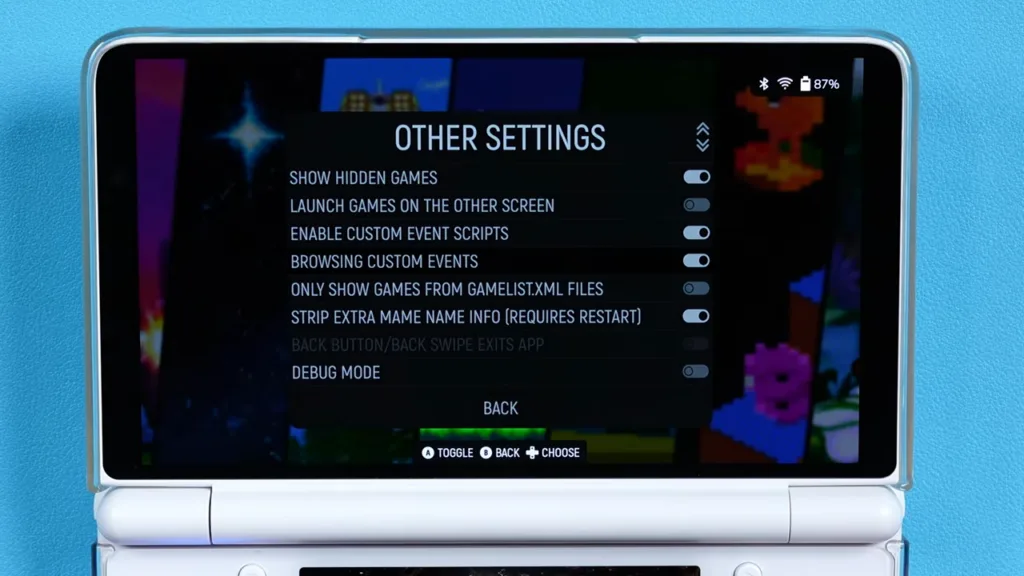
Come back to the companion app and click I’ve enabled scripts bottom right.
At this point, you can give this screen a read to understand how everything works.
Click Continue bottom right when done reading.
Go ahead and browse a game or system in ES-DE to start the connection.
If it’s easier, just open ES-DE Companion on the bottom screen, you have to search for it to find it and then it’ll pop up to move it down there, then since ES-DE is home at the top it should pop back up after pressing home.
Navigate around and the bottom screen should match up to what you’re doing!
You can also swap them around if you want, ES-DE on the bottom and companion app on the top. Just by opening ES-DE on the bottom screen.
Alright, we’re setup!
Now some cool things you can do – swipe up and you get all your apps, as an app drawer, super easy.
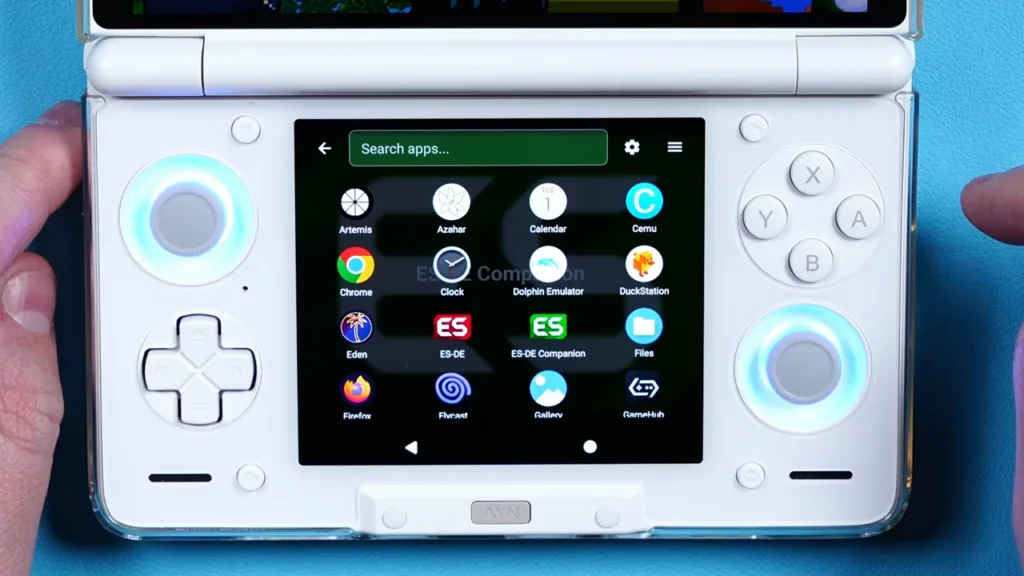
Long press any app to choose which screen it’ll launch to.
Top right three lines will get you to the settings for the companion app or the settings cog next to it for Android settings.
Let’s jump into the three lines and there’s some settings here.
They’re all self explanatory, so feel free to turn off and on whatever you want here.
Mjolnir
Alright last thing we need here, I know, it’s been a lot, but we need an app called Mjolnir to complete everything.
Head to the Mjolnir Github and download the latest releases APK.
Go ahead and open it and install it, then open the app.
Click Basic Home Setup, and now you want to set which app you want to be where – so maybe top would be ES-DE and bottom would be ES-DE Companion or vice versa.

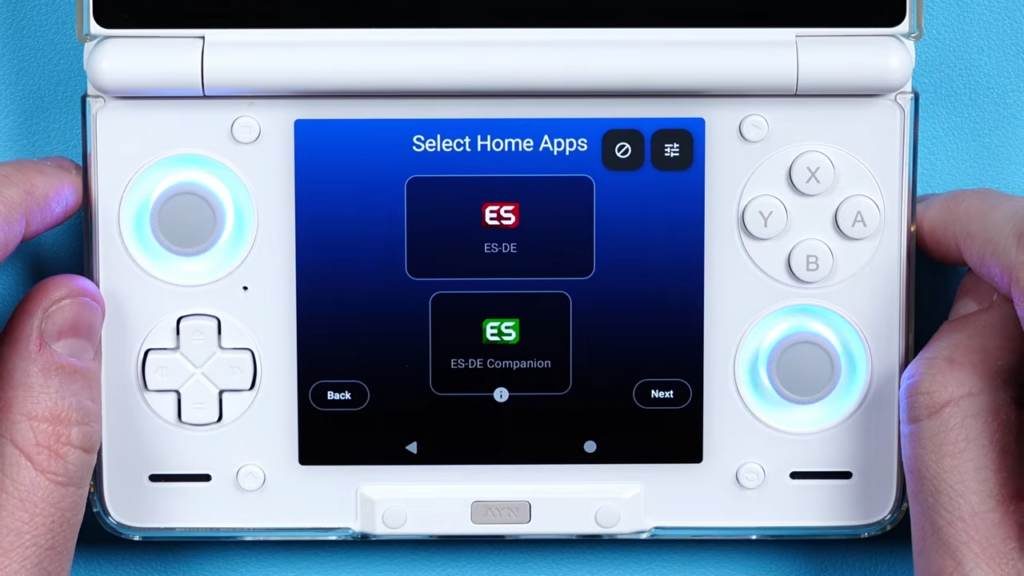
You can always just reopen Mjolnir later if you find you want to swap them around.
Click Next.
Now we just need to update our Default Home apps to this new layout so click Set Default Home and change it to Mjolnir.
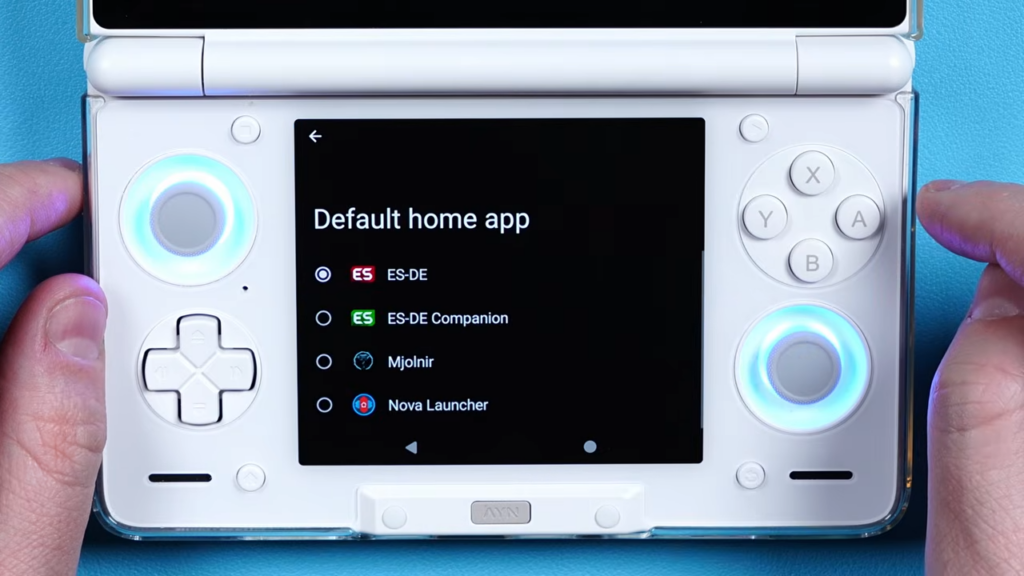
Now we have everything setup to boot to this double layout when the device starts up or you push the home button.

I found this problem. When I exit ES-DE, the selected emulators fly off and become “default” again. If the launcher works in the background, everything is ok. As soon as I exit, everything is “default” again. How can I fix this? The rest of the program settings are saved, but with emulators it is somehow not clear why this is so…
Prior to Emulation Station and the RG Cube Setup Guides, I had MAME samples working in the ROMS/MAME/Samples folder. Where do the samples go after switching to FBNeo as the MAME emulator? thanks!
I’m having an issue where my previous setup and working SD card for emulation station with my roms folder that I used on my rg556 gets detected by my RP5 except the rom folder is missing, when I pop it into Windows it’s still there. Any help here?
Thanks for the guide. Something to add maybe : “For RetroArch, there’s nothing you need to do. If you’re using a RetroArch core for a system, and you get a black screen or the game doesn’t load, that means either you don’t have that core installed or you picked the wrong core. The right core will load.” > a lack of BIOS for CD based systems causes the same issue
(with certain cores, it could also be due to un unrecognised ROM file, such as a HACK version of a game)
Thanks for the guide – very helpful! Just wondering if there is a way to re-order game systems, so if I could have all Nintendo systems showing first etc. – rather than showing each system alphabetically?
It shows that it’s creating a folder called ES-DE wherever you select.
If it’s not, create a folder and select it.
Es-de doesn’t let me choose the root of the external SD card as rom folder, I think for security reason it wants a subfolder… I don’t want to move all the folders, and I can’t symlink. Any help? Tnx