What is EmuDeck?
EmuDeck is the easiest way to setup all your emulators, with a nice frontend to launch them from.
It’s new person friendly, which is nice.
What you need
Make sure you have installed Steam ahead of time for this to work, and, I’d suggest using an SD card to store all your games on if you’re using a handheld device.
You should also probably have some ROMs and BIOS files already – ROMs are games, BIOS files are system files for emulators to work.
I have two videos below if you’re new and have no idea what either of these are – you’ll need them, so you may want to check those videos out.
Installing EmuDeck
Head over to your browser, and to the EmuDeck website, and click Download.
Choose the Windows option, and then, Download for Free.
Go ahead and find that download in File Explorer > Right click and you want to Run as Administrator.
Respond to the popups as they show up. So yes to slow DNS detected.
Then just wait a while.
I usually click no to letting the app use location.
Wait a while again.
Go ahead and choose Custom Mode, don’t worry, I’ll make it easy mode for you.
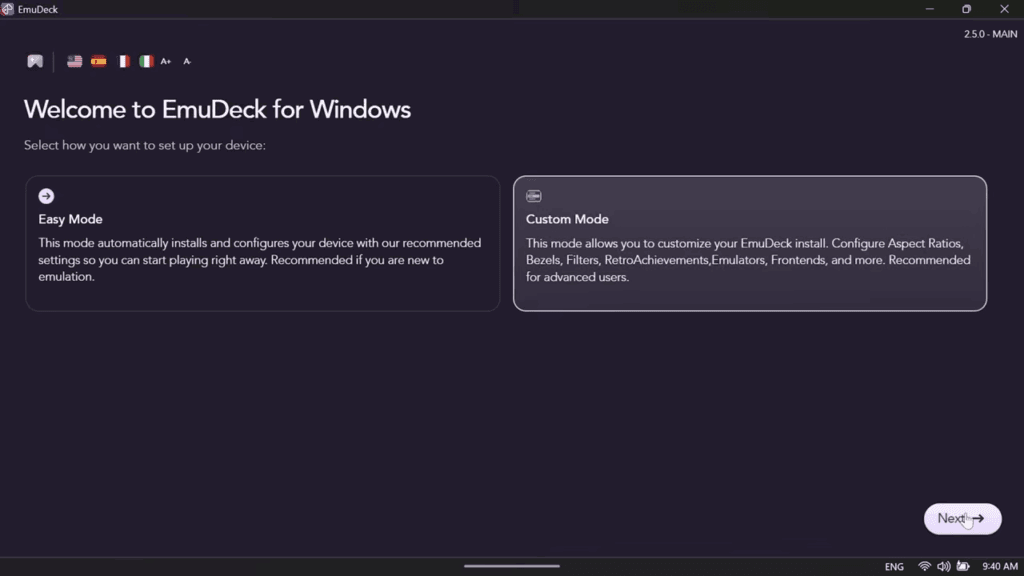
You now need to select the directory where you’ll be storing your ROMs, or games.
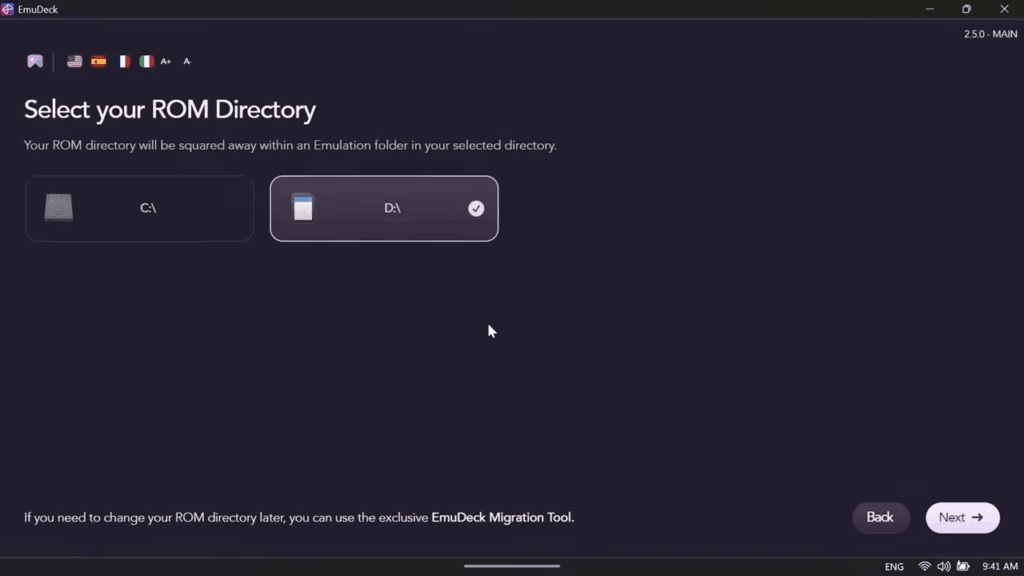
I have a microSD card connected, so I’m going to choose that which is my D drive, but this part is up to you and where you want to store things.
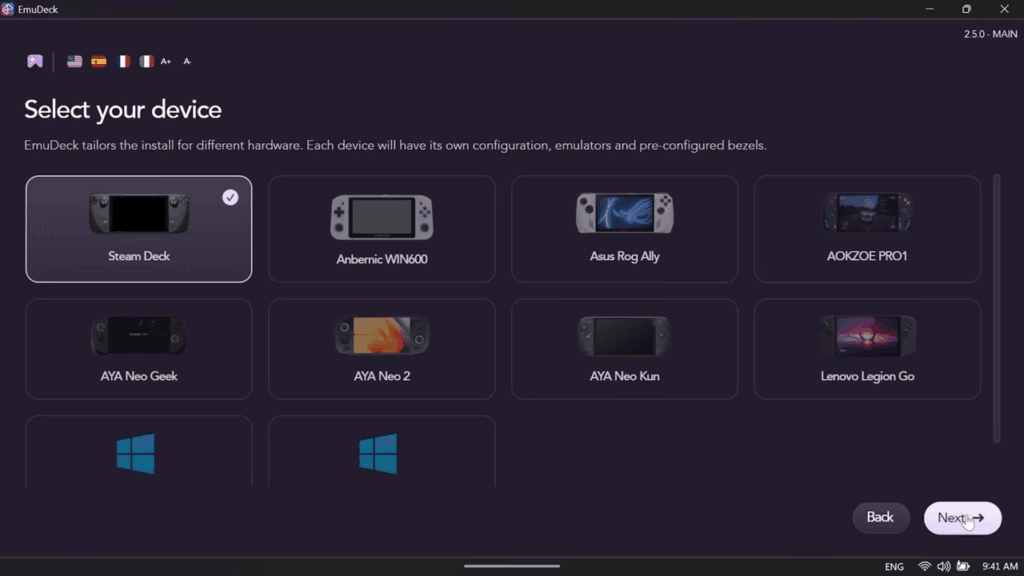
Go ahead and select your device from the list of devices.
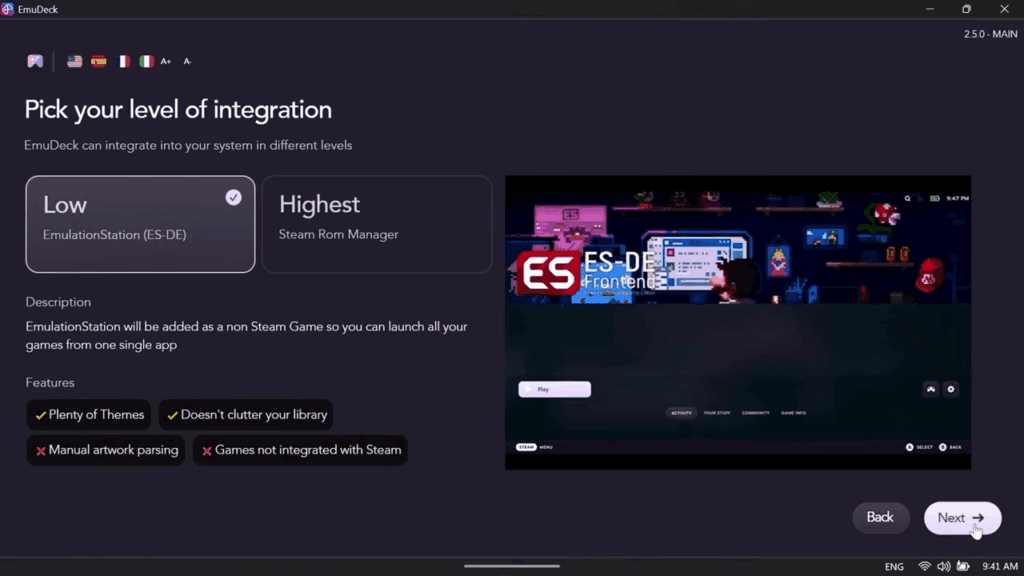
Now go ahead and keep it on low for EmulationStation and choose Next.
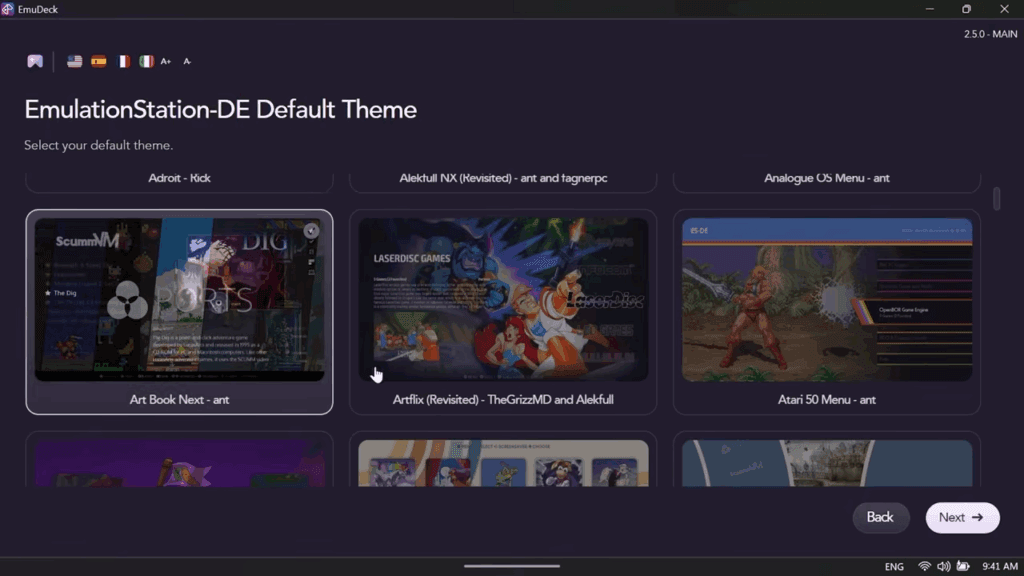
Feel free to choose a theme that you like for the frontend, I like Art Book Next personally. Click Next when you’ve chosen one.
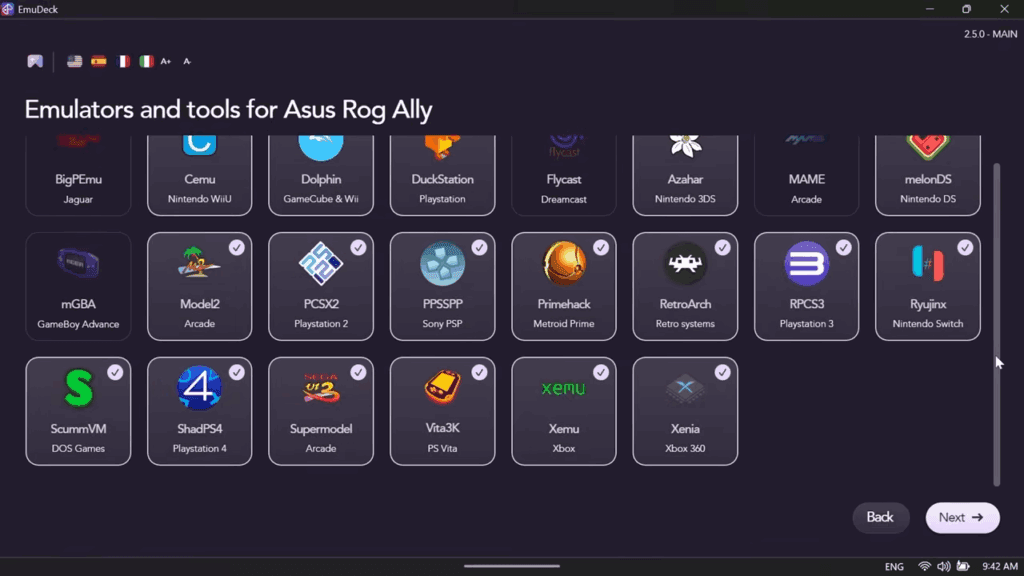
You can leave all the emulators as default here unless you know there’s something you don’t want click next.
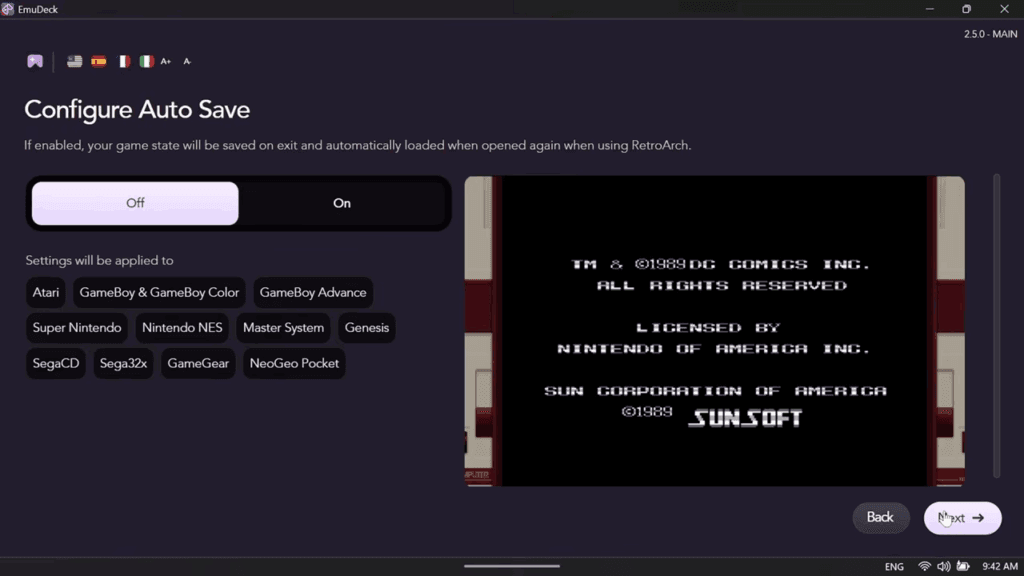
Now it’s asking if you want to Auto Save when exiting a game, I usually have this off, your call.
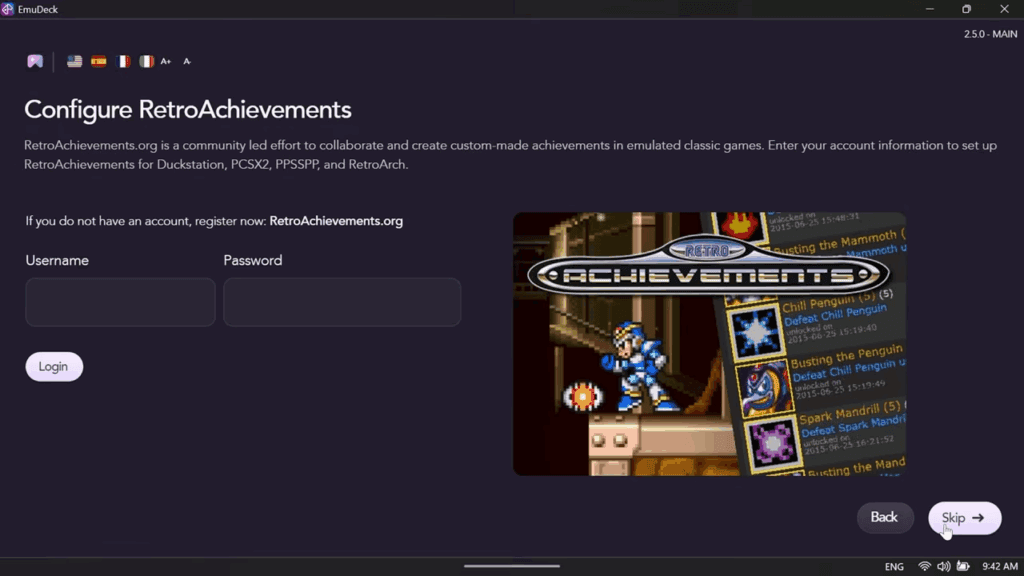
If you have a RetroAchievements login, you can login here now. If you don’t, you should look into RetroAchievements, it’s awesome.
Do you want bezels on the side of your display? Basically to hide the black bars? I keep this off personally.
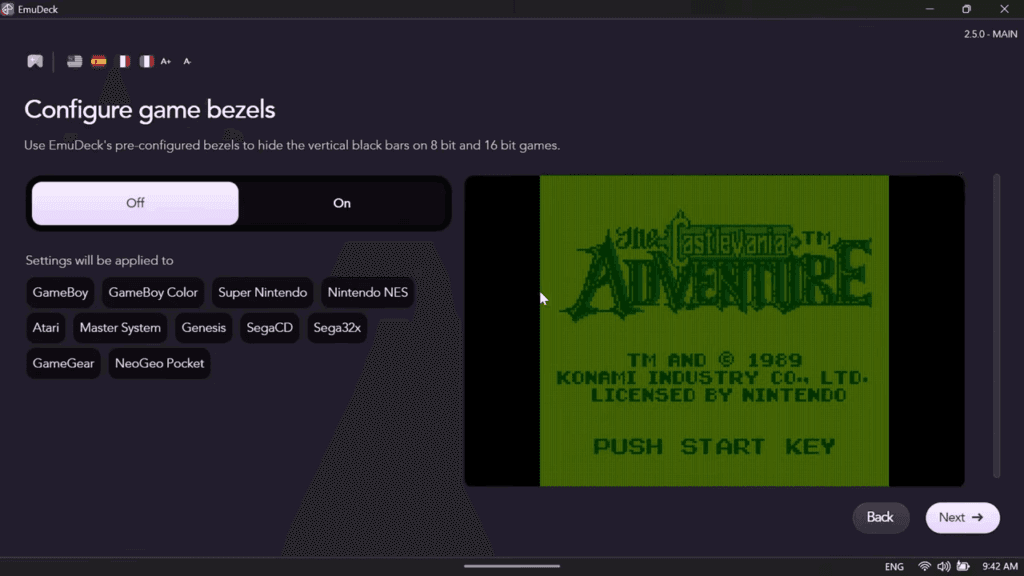
You can adjust this later on, so don’t worry you’re not locked in to any of these settings.
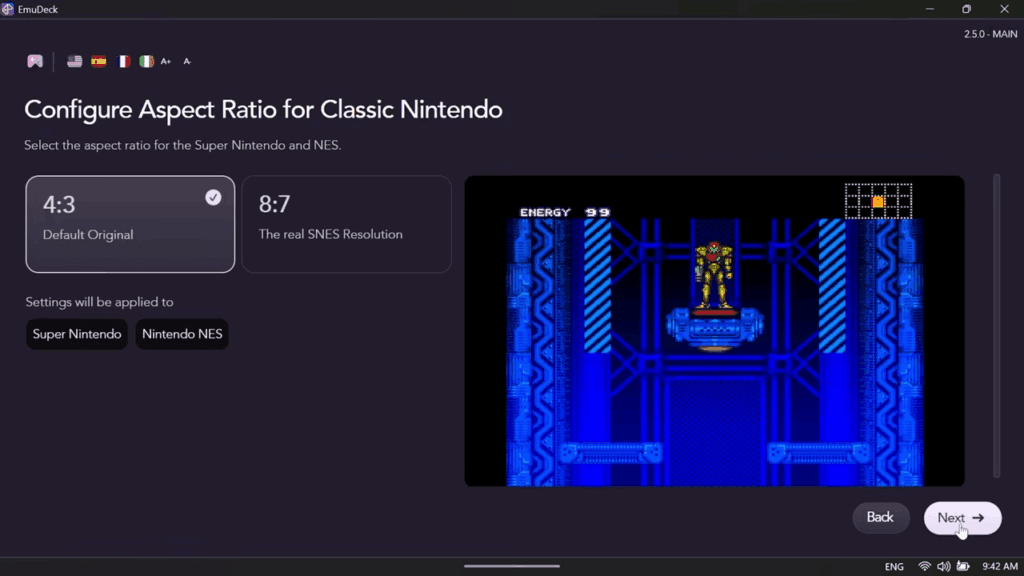
I keep the default choices for Aspect Ratios for all the games. I suggest you do the same.
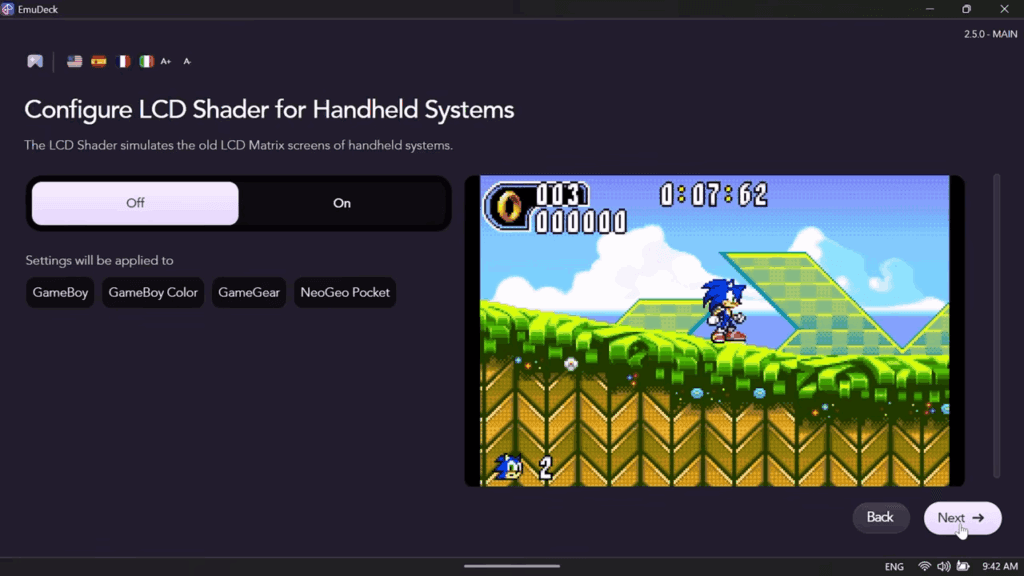
Now do you want Shaders to be applied? I don’t, but your call here.
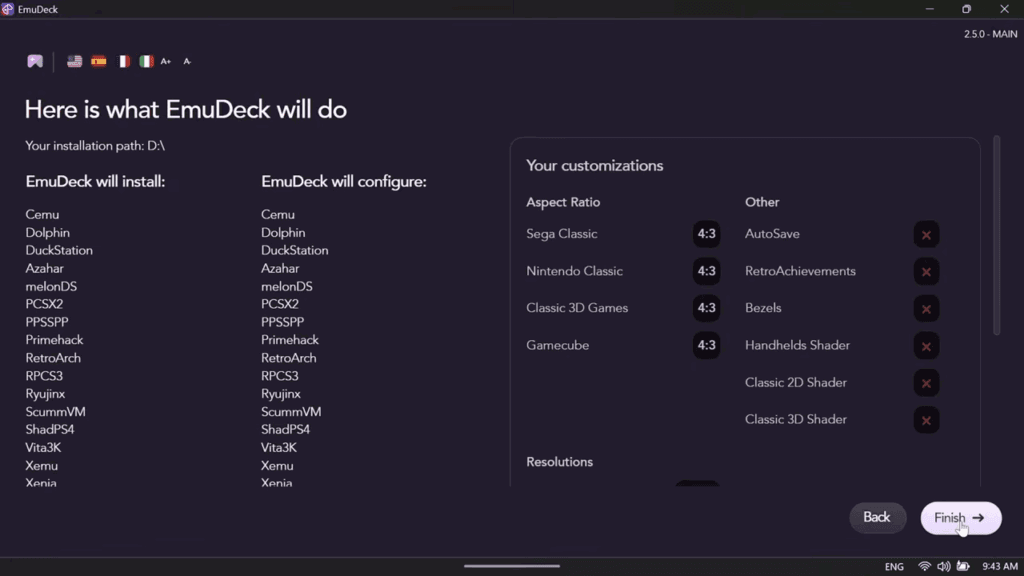
Finally we have a list of what’s being installed, just click Finish.
Time to wait a while.
Make sure to allow the popup and click yes when it shows.
Yes to the second popup too.
Click continue to this popup.
Four years later, we can finally continue. Just click next on this screen.
Adding ROMs & BIOS
Now we can finally move all our games and BIOS files over. Click Manual copy.
It’s going to tell you that you need to put your games in the ROMs folder, in the right system folder. I suggest you read this, it’s important, but I’ll show you.
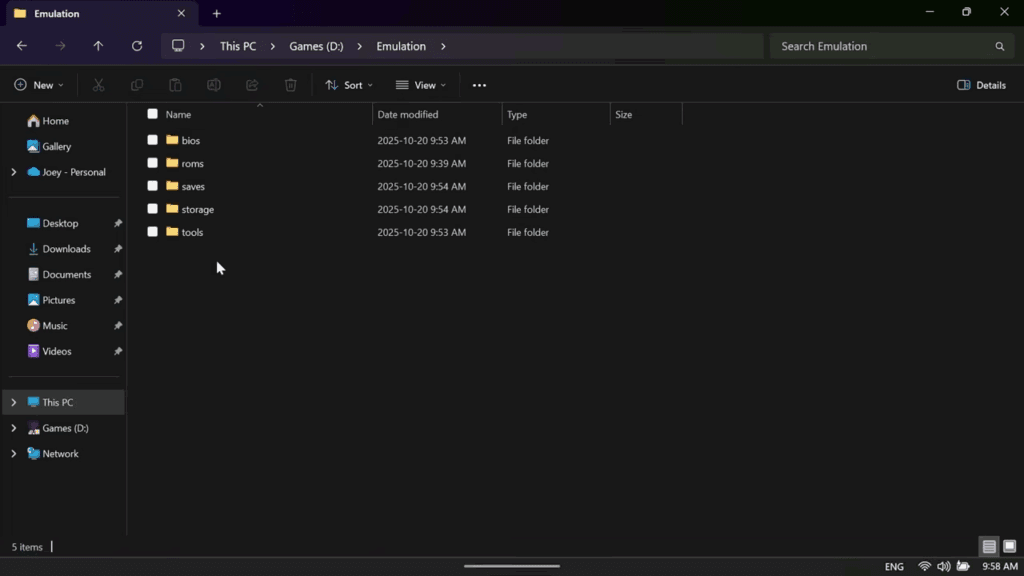
Head to the File explorer and whatever drive you installed Emudeck to and you should see an Emulation folder.
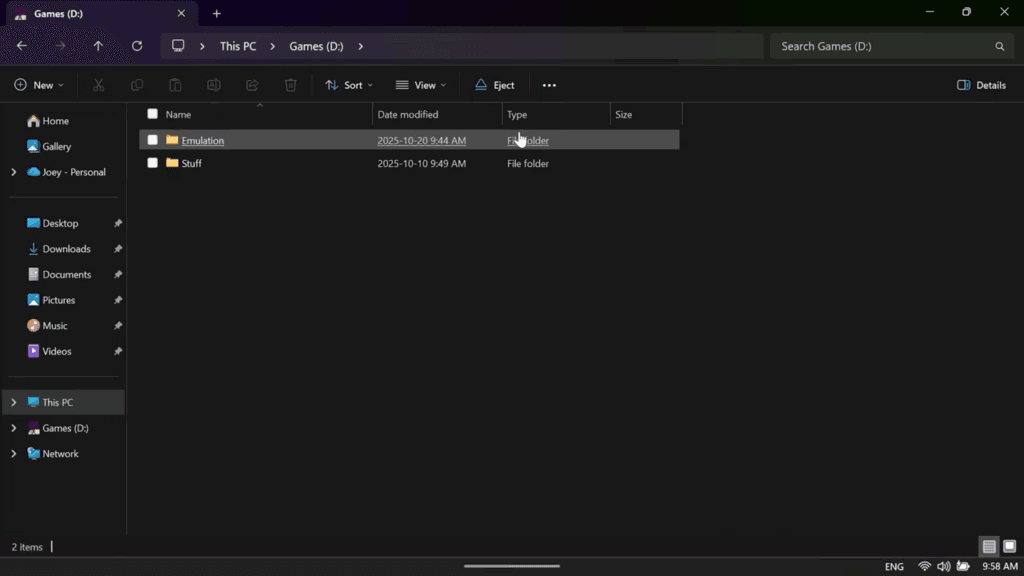
Inside of that is two folders we care about – BIOS and ROMs.
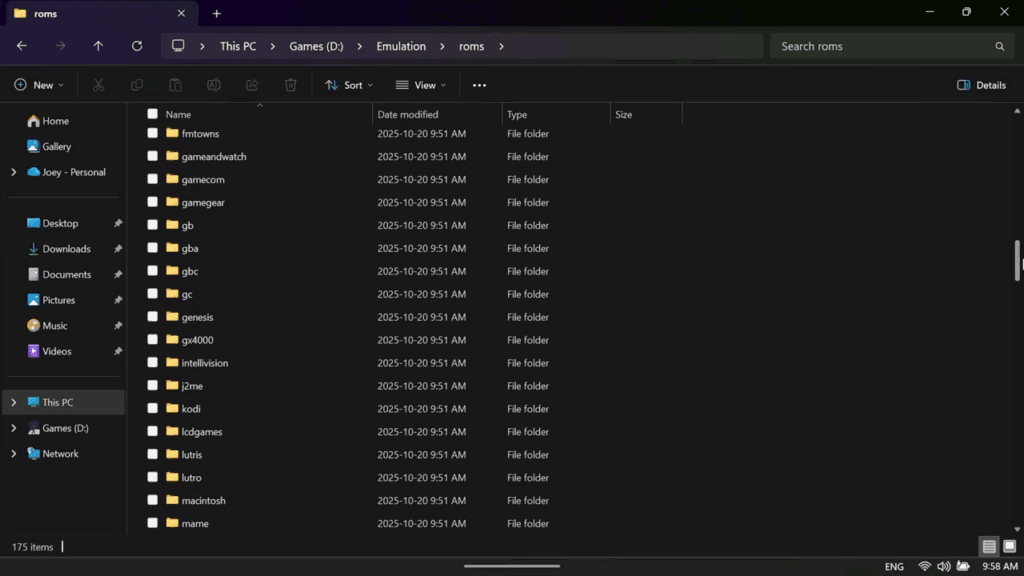
So if you head into the ROMs folder, you’ll see all the system folders, so gb for Game Boy games, gba for Game Boy Advance, and so on.
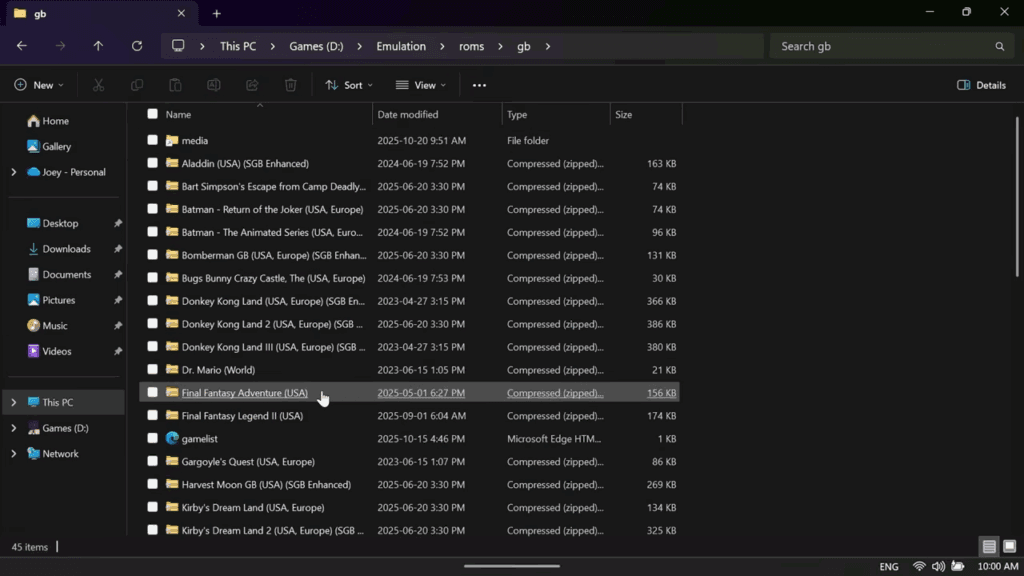
Inside of the system folder is where you’d put the corresponding games.
So at this point, you want to start putting your games in the right folders.
Here’s an example of my Game Boy folder, with all my Game Boy games inside.
Once you’ve done all of that, head into the BIOS folder.
There’s a readme here, and basically, we need to put our BIOS files in this folder – any BIOS files for RetroArch, Duckstation, PCSX2 and so on.
Reminder again of the two videos on ROMs and BIOS files if you’re confused.
So I’m just going to paste all my BIOS files into here.
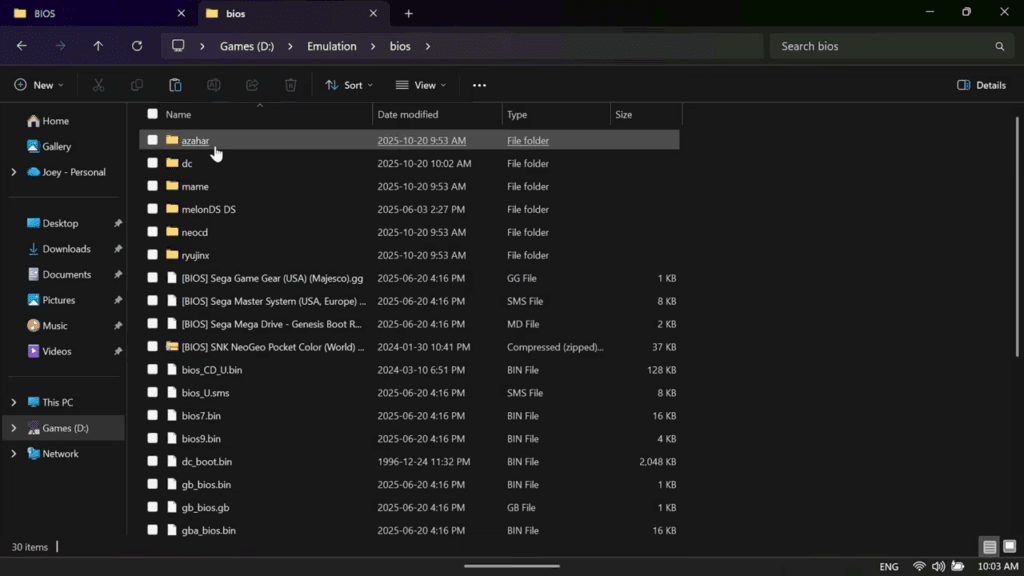
For Switch, there’s a Ryujinx folder, keys folder and you can paste your keys in here. This actually didn’t end up working for Switch, I’ll show you the fix later.
Otherwise just dump all your BIOS files into the BIOS folder, PS1, PS2, Xbox, Dreamcast, Saturn and so on.
EmuDeck Settings
When you’re done, head back to the EmuDeck tab and click Next.
Go ahead and click next here too.
Now Finish.
You should now be in EmuDeck.
If you head to Quick settings on the left, you can change any of the settings we went through during setup.
Manage emulators is where you go if there’s any updates to do for emulators.
Screen resolution is useful if you want to change the resolution of any system.
BIOS Checker
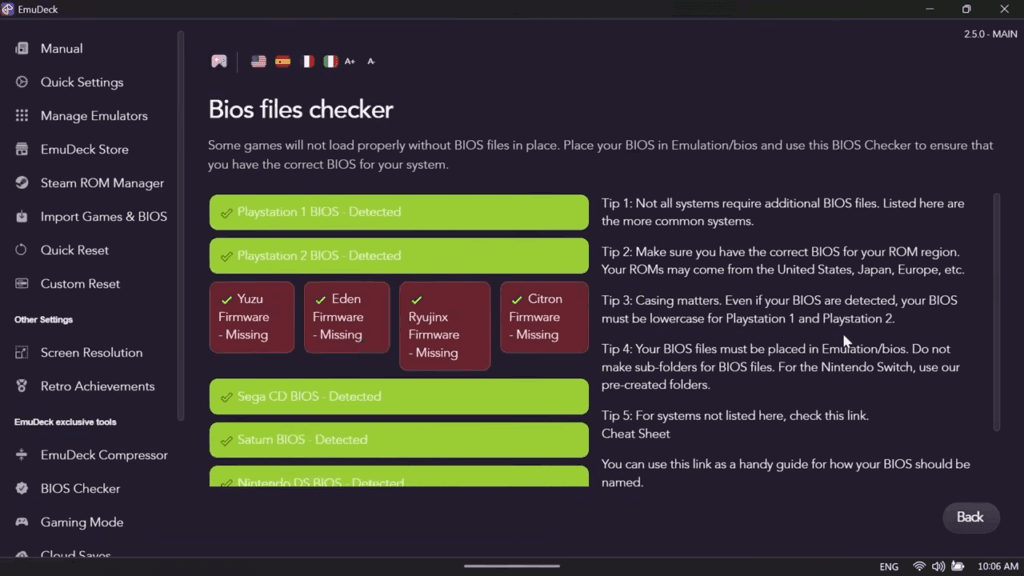
But let’s go into BIOS Checker.
This is a great way to check if you added the right BIOS files.
So for me, all is green except Switch. If yours isn’t, it means you didn’t add your BIOS files to the BIOS folder.
Fixing Switch
Let’s fix Switch.
Click the Search icon on the Windows taskbar and type in Ryujinx and open it.
You should get a popup saying keys not found, click OK.
Head to Actions > Install keys > install keys and locate your prod keys file and select it. No I cannot help you with this file.
Then back to Actions > Install firmware and install your Switch firmware. Once again, can’t help you with this.
When both are done, exit Ryujinx and check the BIOS Checker again. All green, good to go.
Configuring EmulationStation
Head to your Steam Library, then Non-Steam and open EmulationStation.
Click Quit then click Play again.
Alright we’re now in EmulationStation where we launch all our games from.
But our theme isn’t applied.
Push start, UI settings, theme and change it to the theme you chose.
Back out and you should now see it.
Scraping Artwork
If you head into any system, you’ll see your games.
But we’re missing artwork and previews.
Push Start > Scraper, and I would suggest just doing one system right now – this does take a while.
Choose a system under Scrape these systems.
There is a limit of how much you can scrape for free, so you may need a Screenscraper account to do more – this is where you’d enter your credentials.
Content settings has things you can adjust, same with miximage and other, but I leave everything as default and choose Start.
This is what it looks like when it’s done, you have boxart, ratings, preview video and everything.
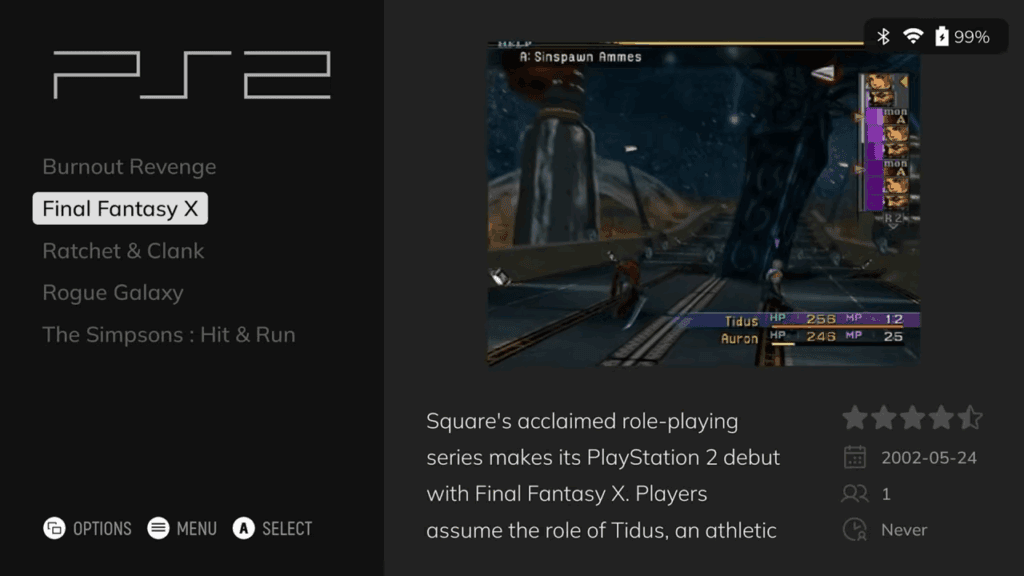
Feel free to scrape for all systems whenever you get time, it does take a while.
Fixing Switch
Last thing, press Start > Other settings > Alternative emulators, scroll down and make sure to select Ryujinx for Switch.
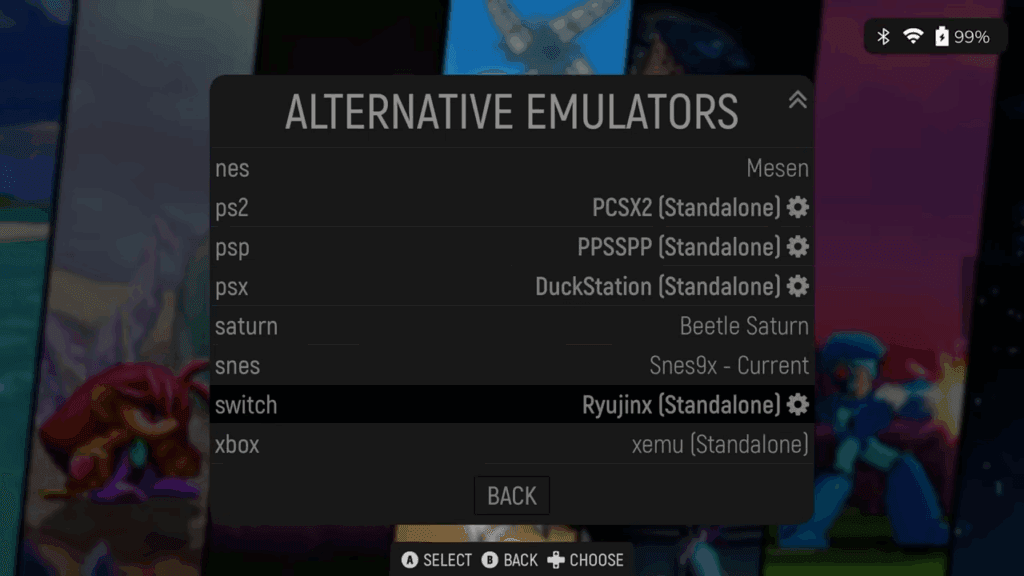
Go ahead and push Start again and Quit out.
Steam Input
Head to the Controller icon on the right, and enable Steam Input.
Now go back and we’re done! Just launch your games from EmulationStation.