Why Dolphin?
Dolphin standalone is the only option in the world to play your GameCube and Wii games via emulation.
There’s just no alternative and you don’t need an alternative, it’s awesome.
ROMs
Before we start, you’re going to need GameCube or Wii games, of course.
RVZ vs. ISO
The best format is RVZ – they’re much smaller file sizes, saving you a ton of room and no downsides.
Otherwise, ISO is fine as well if you can’t find RVZ.
ISO is also useful for patching any romhacks or mods to ROMs, if you want to do that in the future.
For storing the games, I would simply create a ROMs folder anywhere on your PC, and then a gc folder for GameCube and a wii folder for Wii games.
Installing Dolphin
Let’s go ahead and install Dolphin through their website – and then you want to download the latest release – and it depends on your operating system, I’m using Windows so the Windows x64 one.
This will download as a 7-zipped file, so I suggest you download and use 7-Zip to extract the file, as we need the contents inside.
You can then move that extracted Dolphin-x64 folder anywhere you’d like at this point, maybe you have an Emulators folder somewhere on your PC, can throw it in there.
Go ahead and open the Dolphin.exe to launch Dolphin.
Click yes or no to allow usage reporting to help the developers.
Adding Games
The first thing we need to do is tell Dolphin where our games are.
The easy way is to double click the screen, and you can navigate to your gc or wii folder and select it.
But because we have a wii folder too, let’s do this differently.
Go to Config and then Paths and now here is where we can do the same thing.
So click Add… and then navigate to your ROMs folder, and then the gc folder and select it.
Then, repeat the same steps with your wii folder.
Click close when done.
You should now see all of your games start to populate on the home screen.
If you don’t, it means something is likely wrong with your games – either didn’t download properly, or not in the right format of ISO or RVZ.
Settings
Let’s head back to Config and we’ll start with the General tab.
General – Enable Cheats
Go ahead and enable Cheats, always useful to have this.
Graphics
Now let’s head to Graphics.
A lot of this is going to be dependent on your PC, but let’s make this easy.
Leave Backend as default, you can change this to Vulkan if you want – that is usually one of the best options, but for new users – you can leave this as default.
For Adapter, make sure your graphics card is selected if you have one.
Then check Start in Fullscreen so that we don’t start games in windowed mode.
Lastly, at the bottom, check Compile Shaders Before Starting for the best experience.
Click the Enhancements tab at the top.
For Internal Resolution, this is where you can upscale games if your PC can handle it.
So if you have a 1080p display, you can set the games to 1080p and so on.
Head to the Advanced tab at the top.
Let’s go ahead and enable Load Custom Textures, in case you want to do HD texture packs later.
You should also enable Prefetch Custom Textures to make loading those textures either.
Lastly enable Graphic Mods if you plan to use those.
It’s safe to just enable these options, it doesn’t hurt.
Interface
Skip Controllers for now, we’ll be back.
On the left, head to Interface, and if you want to get rid of the annoying “are you sure you want to exit the game message” when exiting a game, uncheck Confirm on Stop.
On-Screen Display
Next, head to On-Screen Display on the left, and if you want to see framerate and so on, you can enable that here.
Controllers
Head to the Controllers tab on the left next.
GameCube Input
Let’s go ahead and setup our GameCube controller first.
You can see the Port 1 dropdown depends on the controller you have, but for today I’m going to assume you just have a handheld or third party controller like an Xbox controller, so keep it as Standard Controller then click Configure.
At the top left, you want to choose the dropdown and choose your controller from the list.
There may be multiple options, and if you have an SDL one, choose that.
If not, choose the Xinput one.
So going with the SDL option, and we now need to map the controls.
So just click the button map window to map controls.
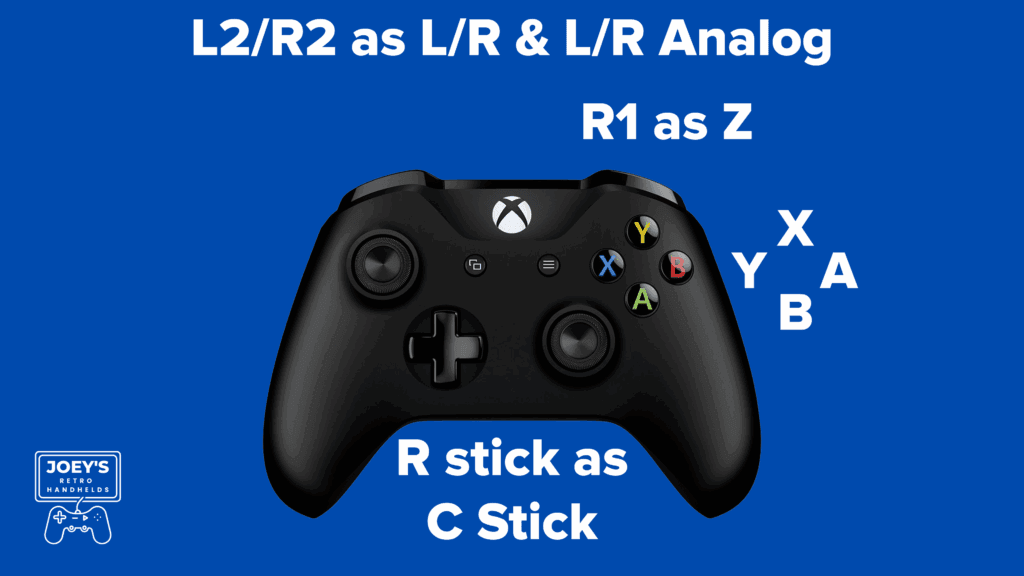
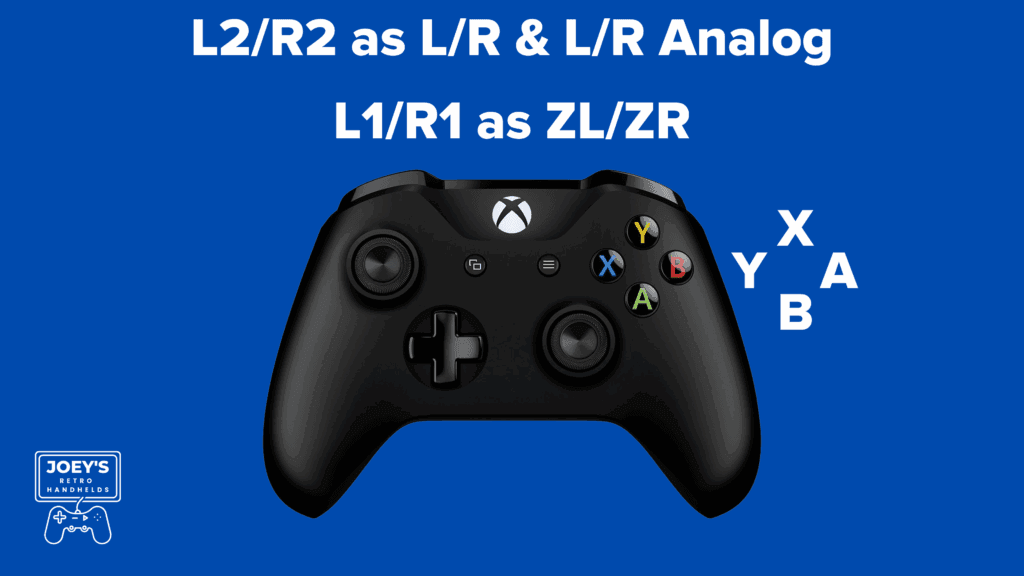
For the most part, it’s pretty easy to understand these controls, just remember to map the triggers twice so for L and R that’s going to be L2 and R2 and then L-Analog and R-Analog is L2 and R2 as well.
Scroll down for a visual reference if that helps you more.
- A – Right face button
- B – Bottom face button
- X – Top face button
- Y – Left face button
- Z – R1
- Control Stick – Left analog stick
- C Stick – Right analog stick
- L/R – L2/R2
- L-Analog/R-Analog – L2/R2
- Dpad – Dpad
If your controller supports rumble, we can set that up as well, click the box next to Motor.
Double click Motor L then Operators and choose OR and then double click Motor R.
Click Test Output to see that it works – if it doesn’t, your controller likely doesn’t support rumble.
Lastly, head to the top and write General GC in the profile and click Save.
You may be wondering why – well, if you ever want to use different controls for a game, maybe you map things different for a single game or you want to, a good example being Dance Dance Revolution Mario Mix, then you can create profiles for different scenarios and later on we can set which games to use which controller profile.
And that’s it, click Close at the bottom.
If you want to setup multiple controllers, you can just repeat those same steps for Ports 2 to 4.
It’s the same idea.
Wii Input
Next up, let’s go ahead and map Wii controls.
One again, for this guide, assuming a handheld or controller.
Go ahead and click Configure next to Wii Remote 1.
Once again, select your controller from the Device drop down top left.
Wii controls can be confusing, so here’s how we’re going to map this.
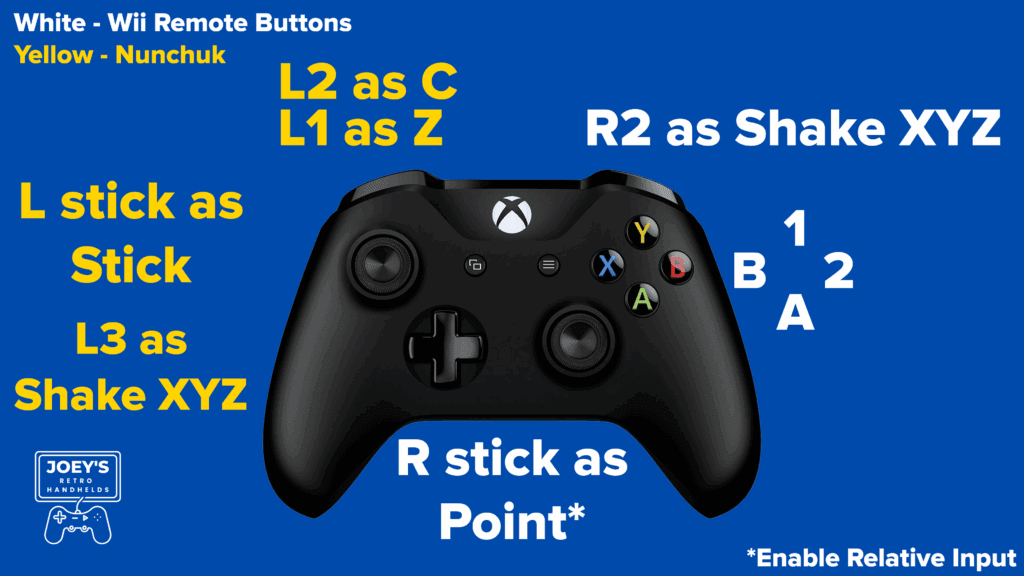
- A – Bottom face button
- B – Left face button
- 1 – Top face button
- 2 – Right face button
- Select/Start – Select/Start
- Dpad – Dpad
On the right, under Rumble, click the Motor box and do the same steps we did for GameCube.
So Motor L OR operator and then Motor R.
Click OK when done.
Now head to the Motion Simulation tab.
Now for Shake, we are going to set X Y Z as R2. R2 will be our shake button.
Point is what is going to control the point for Wii, so think the cursor in Mario Galaxy.
Use the right stick here for mapping, so up on right stick, down, left and right.
Then, make sure to check Relative Input.
Wii Input – Nunchuk Extension
Now let’s go map the Nunchuk extension first, but we will also be doing the Classic controller.
On the right, under Extension, make sure Nunchuk is selected and then click Configure Extension.
Go ahead and map your left stick to up, down, left and right.
We’re going to use L2 for C and L1 for Z on the right.
Then, click the Extension Motion Simulation tab at the top and for X, Y, Z under Shake, set it to L3.
Wii Input – Classic Extension
Go back to the General and Options tab and now let’s configure the Classic controller, so under Extension, choose Classic Controller.
Then click Configure Extension.
The Classic Controller is a lot easier to configure, so just go right through.
Scroll down for a visual reference if that helps you more.
- A – Right face button
- B – Bottom face button
- X – Top face button
- Y – Left face button
- ZL/ZR – L1/R1
- Select/Start – Select/Start
- Left stick – Left analog stick
- Right stick – Right analog stick
- L-Analog/R-Analog – L2/R2
- Dpad – Dpad
Saving Wii Profiles
Once all of that’s done, head back to General and Options and make sure the Extension is set to Nunchuck.
At the top, write General Wii and click Save to save our controller profile.
Then, check the Sideways Wii Remote box and then write General Wii Sideways and click Save.
Uncheck the Sideways Wii Remote box, and change the Extension to the Classic Controller, then write General Wii Classic and click Save.
We now have three profiles – Wii Remote with Nunchuck upright (General Wii), Wii Remote with Nunchuck sideways (General Wii Sideways) and the Classic Controller (General Wii Classic).
Select General Wii from the dropdown and click Load to keep that as our default option.
Click Close.
Hotkeys
Let’s go ahead and configure some controller Hotkeys, so from the main Dolphin home screen, under Options at the top, choose Hotkey Settings.
Once again, make sure the Device top left is your controller.
So here’s what I like to map:
- Stop or Exit (or both)*: L3+Select or L3+Start
- Open Achievements: L3+Y
- Save to Selected Slot**: L3+R1
- Load from Selected Slot**: L3+L1
*Stop will exit the game and bring you back to the Dolphin interface, Exit will exit the game and exit Dolphin too. So it usually depends, if you’re going to use a frontend, use Exit, otherwise use Stop.
**Scroll the tabs at the top to Save and Load State.
That’s generally all I usually map, but feel free to map more if you need it.
Click Close when done.
RetroAchievements
Last setting here is Achievements, so go to Tools at the top from the main Dolphin home screen, then Achievements and if you use RetroAchievements, you can login here.
Game Options
Before we boot up a game, I know I know you’re itching to do so, but right click the game to get a lot more options for it.
For example, Properties will show you some game specific information.
Open Save Folder will get you right to the saves for that game and so on.
Keep all of this in mind, we’ll be coming back.
In-Game
Let’s start with a game, go ahead and boot one up by double clicking.
And since I know you’re going to be wondering, our default control setup works awesome for Mario Galaxy.
Our right stick controls the pointer on screen, bottom face button is A or jump. L1 is crouch or ground pound, R2 is shake for spin, left face button is firing star bits and that’s it – all works great.
To exit, if you copied me, it’d be L3+Start.
Per-Game Controls
Reopen Dolphin and this time I’m going to start another Wii game, Fire Emblem Radiant Dawn.
And my controls are messed up, left dpad is down, right dpad is up and what’s going on.
Well, right now our default control scheme for Wii is General Wii and the Wii remote is using the Nunchuck attachment and it’s facing upwards, so we need to tell Fire Emblem what controller scheme we want to use.
Exit the game.
Right click on Fire Emblem Radiant Dawn and choose Properties.
Go to Game Config, and the Editor tab.
In the bottom text box, write:
[Controls]
WiimoteProfile1 = General Wii Classic
This tells Dolphin that for this game, we want to use our Classic Controller.
Close and reopen the game and now our controls work and we’re using the Classic Controller!
Obviously, all of this depends on what controller the game works with – for Wii games, some games don’t work with a Classic controller., but this game does.
Alternatively, you could also do General Wii Sideways instead, as this game supports the sideways Wii remote.
So for example, you would do:
[Controls]
WiimoteProfile1 = General Wii Sideways
Long story short, this is how you would do per-game controller profiles for Wii!
If you’re wondering about GameCube, it’s the same steps, except the code you write in is:
[Controls]
PadProfile1 = NameOfProfile
Replace NameOfProfile with whatever name you gave your GameCube controller profile.
HD Texture Packs
Next up, let’s talk all about HD Texture Packs.
You’ll want to be upscaling to 1080p or better for these to work.
You can find a whole bunch on the Dolphin emulation forums.
There’s a ton of games with HD texture packs and each thread will have different instructions.
Let’s use Paper Mario The Thousand Year Door as an example.
Go ahead and download the texture pack from the link in the first post, the one labelled DDS Resource pack.
Then you want to extract that zip.
Next up, let’s move the HD texture pack and it needs to be placed in the textures folder.
To get there, in Dolphin go to File top left, Open User Folder.
Head inside the Load folder, then Textures and this is where your HD texture packs go.
So if we go into the Paper Mario TTYD one, you’ll see a folder inside textures called G8M.
This needs to match the game, and you can check this by heading into Dolphin, finding the game, right click, Properties and checking Game ID.
It says G8M as the first three digits, so it matches.
Copy and paste that folder into the Textures folder.
Go ahead and load Paper Mario and you should see Loading ‘a number’ custom textures top left which is a good sign it worked, but also the title screen for this specific game will be the next clue it worked and of course, the textures will all be upgraded.
Widescreen, 60FPS & Cheats
Next up is Widescreen and 60FPS.
You’ll want to have made sure you enabled Cheats earlier in the guide.
Thankfully, Dolphin has all of this built-in.
So let’s check out Super Mario Sunshine, right click, Properties and head to Gecko Codes on the left.
You’ll see here we have Widescreen and 60FPS options.
Just enable either or both, and when you launch the game, it’ll say 2 cheats enabled top left and you’ll have both Widescreen and 60FPS.
Cheats
But since we’re here, let’s talk about cheats since this is all in the same area.
Select AR Codes this time on the left and you’ll see a ton of cheats you can enable.
Just enable the checkbox to enable them and off you go.
Syncthing
Dolphin can easily be sync’d across all operating systems using Syncthing.